Windows Terminal · noctis · dark · unknown
Noctis Uva for Windows Terminal
Noctis Uva for Windows Terminal: #1f1d30 background, 9.4:1 body contrast, and the full 16-color ANSI palette. Open Windows Terminal → Settings → Open JSON file. Add the exported object to the schemes array. The same palette also exports to the other supported terminals.
Preview
Palette
ANSI
Base colors
Contrast
WCAG · vs #1f1d30| Color | Hex | Ratio | Level |
|---|---|---|---|
| Foreground | #c5c2d6 | 9.45:1 | AAA |
| Cursor | #c5c2d6 | 9.45:1 | AAA |
| Selection | #504e65 | 2.05:1 | — |
| black | #302f3d | 1.25:1 | — |
| red | #e66533 | 4.91:1 | AA |
| green | #49e9a6 | 10.57:1 | AAA |
| yellow | #e4b781 | 8.92:1 | AAA |
| blue | #49ace9 | 6.55:1 | AA |
| magenta | #df769b | 5.64:1 | AA |
| cyan | #49d6e9 | 9.46:1 | AAA |
| white | #b6b3cc | 8.07:1 | AAA |
| brightBlack | #504e65 | 2.05:1 | — |
| brightRed | #e97749 | 5.64:1 | AA |
| brightGreen | #60ebb1 | 10.98:1 | AAA |
| brightYellow | #e69533 | 6.82:1 | AA |
| brightBlue | #60b6eb | 7.35:1 | AAA |
| brightMagenta | #e798b3 | 7.47:1 | AAA |
| brightCyan | #60dbeb | 10.05:1 | AAA |
| brightWhite | #c5c2d6 | 9.45:1 | AAA |
Install for Windows Terminal
Documentation- Open Windows Terminal → Settings → Open JSON file.
- Add the exported object to the schemes array.
- Set colorScheme to the scheme name in a profile.
# Windows PowerShell
Invoke-WebRequest -Uri "https://terminalthemes.iwwi.app/ports/windows-terminal/noctis-uva.json" -OutFile "$env:TEMP\noctis-uva.json"
# Add the object to the schemes array in Windows Terminal settings.Full configuration
{
  "name": "Noctis Uva",
  "background": "#1f1d30",
  "foreground": "#c5c2d6",
  "cursorColor": "#c5c2d6",
  "selectionBackground": "#504e65",
  "black": "#302f3d",
  "red": "#e66533",
  "green": "#49e9a6",
  "yellow": "#e4b781",
  "blue": "#49ace9",
  "purple": "#df769b",
  "cyan": "#49d6e9",
  "white": "#b6b3cc",
  "brightBlack": "#504e65",
  "brightRed": "#e97749",
  "brightGreen": "#60ebb1",
  "brightYellow": "#e69533",
  "brightBlue": "#60b6eb",
  "brightPurple": "#e798b3",
  "brightCyan": "#60dbeb",
  "brightWhite": "#c5c2d6"
}
Let an agent install it
Give this prompt to your coding agent. It includes the Windows Terminal install page, native file, steps, and safety constraints.
Help me install the Noctis Uva theme for Windows Terminal on this machine.

Read the install page: https://terminalthemes.iwwi.app/windows-terminal/themes/noctis/uva/
Native theme file: https://terminalthemes.iwwi.app/ports/windows-terminal/noctis-uva.json

Follow these steps:
1. Open Windows Terminal → Settings → Open JSON file.
2. Add the exported object to the schemes array.
3. Set colorScheme to the scheme name in a profile.

One-line install:
# Windows PowerShell
Invoke-WebRequest -Uri "https://terminalthemes.iwwi.app/ports/windows-terminal/noctis-uva.json" -OutFile "$env:TEMP\noctis-uva.json"
# Add the object to the schemes array in Windows Terminal settings.

Inspect and back up my existing configuration first. Change only what this theme needs; do not overwrite unrelated settings. Ask before changing my default theme. After installing, verify the file exists and tell me which files changed.FAQ
Frequently asked questions
Where does the Noctis Uva theme go in Windows Terminal?
Open Windows Terminal → Settings → Open JSON file. Add the exported object to the schemes array.
How do I install Noctis Uva in Windows Terminal?
Download the Noctis Uva JSON color scheme from this page, run the one-line install command, or place the file in the Windows Terminal location above. Set colorScheme to the scheme name in a profile.
Does Noctis Uva keep its colors in Windows Terminal?
Yes. It uses #1f1d30 for the background, #c5c2d6 for the foreground, and the full 16-color ANSI palette, with 9.4:1 body contrast. Only the Windows Terminal file format changes.
Can I use Noctis Uva in another terminal?
Yes. The same palette exports to Herdr App, Ghostty, Alacritty, Kitty, iTerm2, and Windows Terminal; only the install path and file format change.
Similar themes
Similar themes
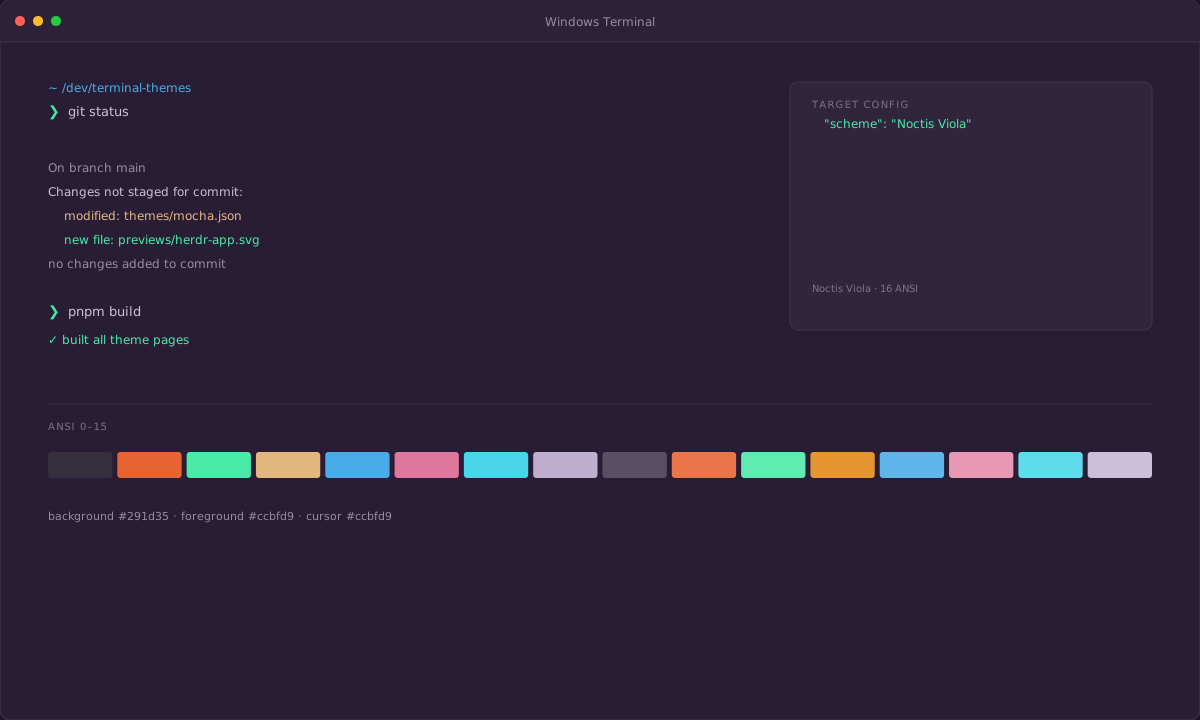
ΔE00 1.5
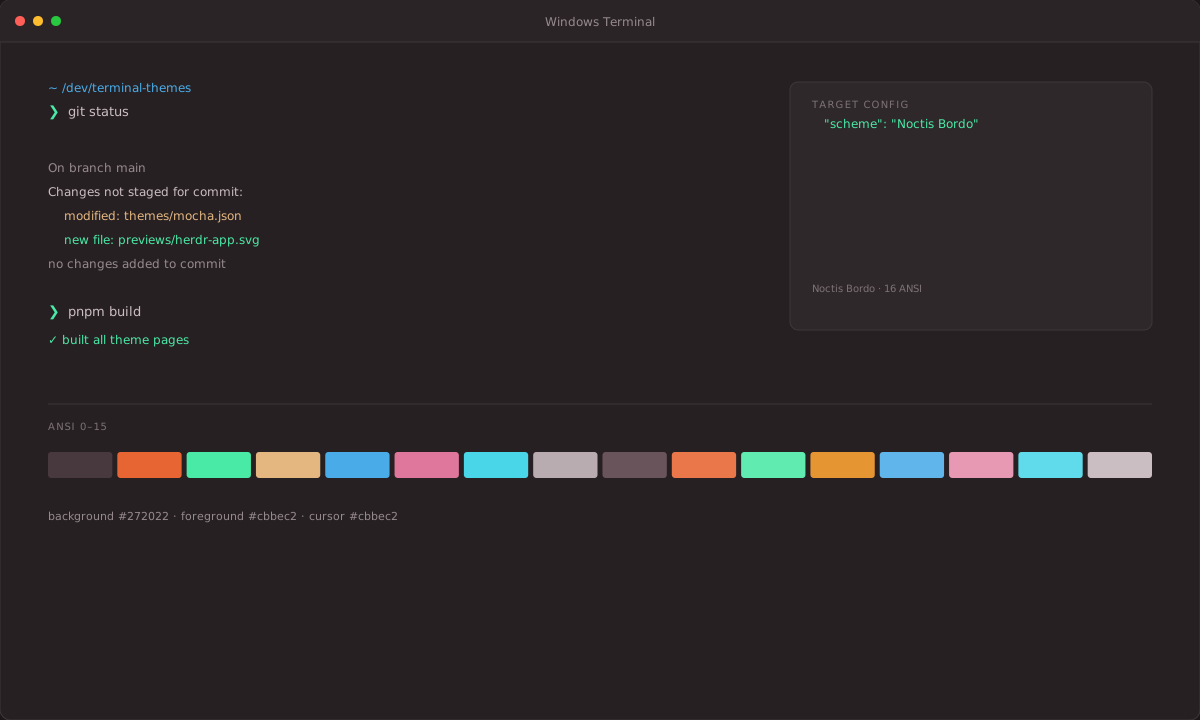
ΔE00 3.0
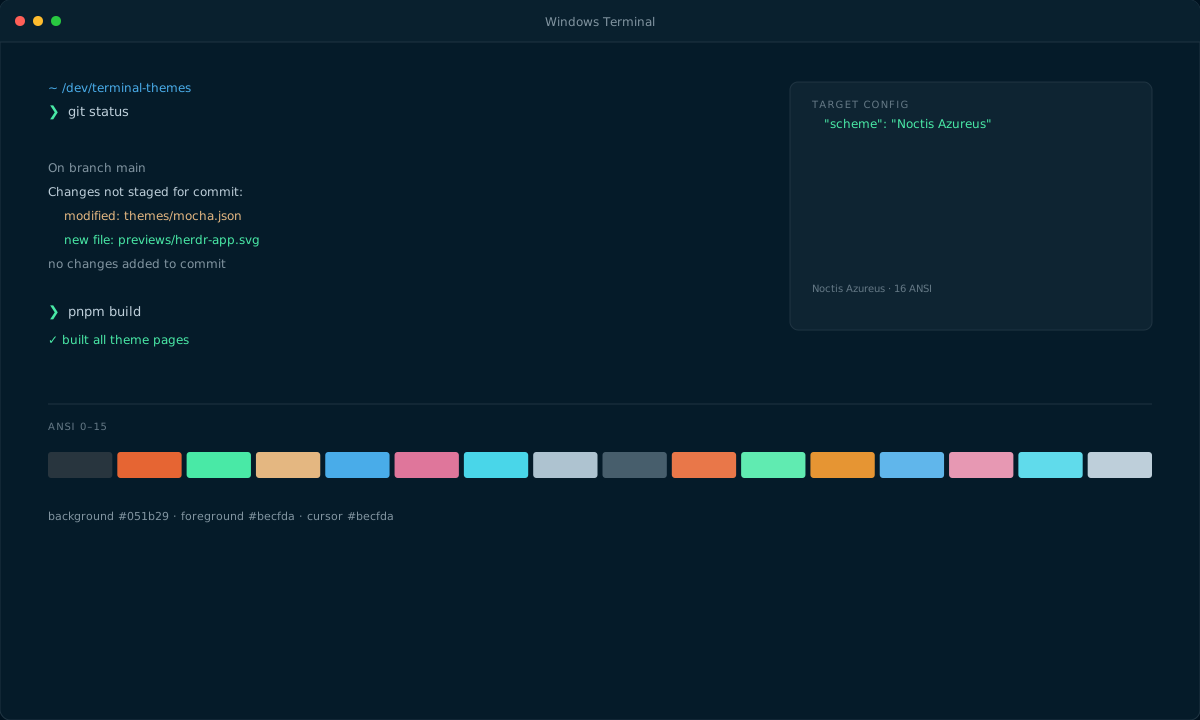
ΔE00 4.0
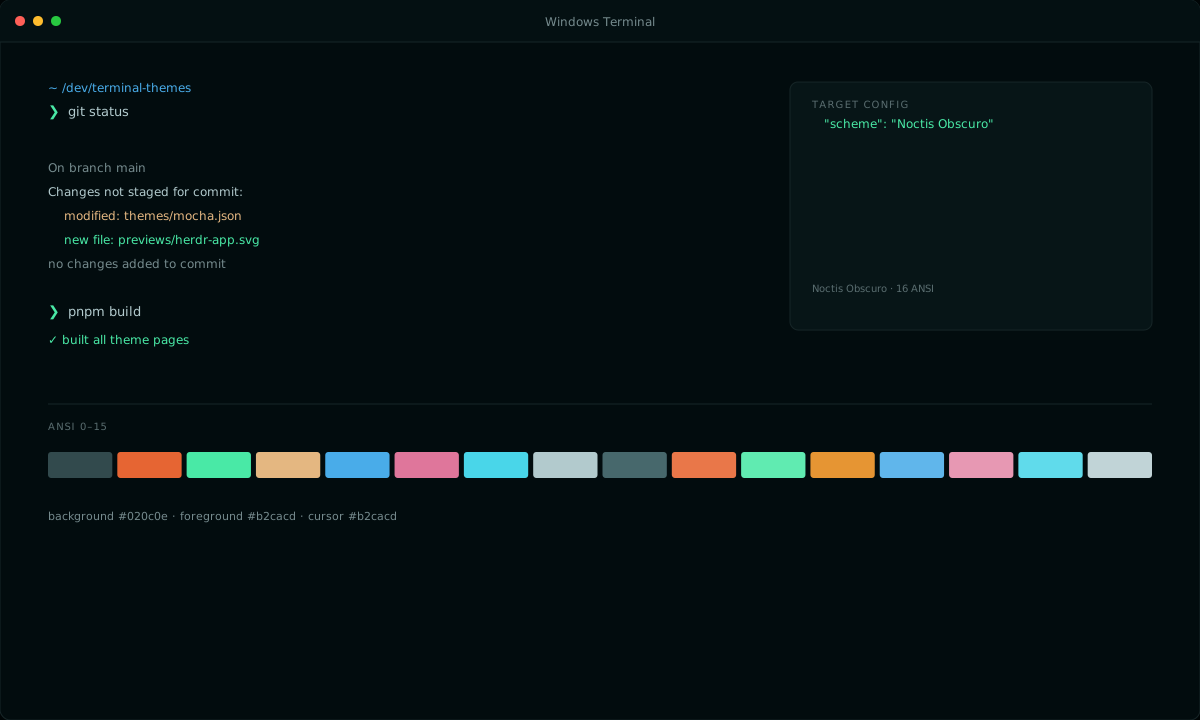
ΔE00 5.5