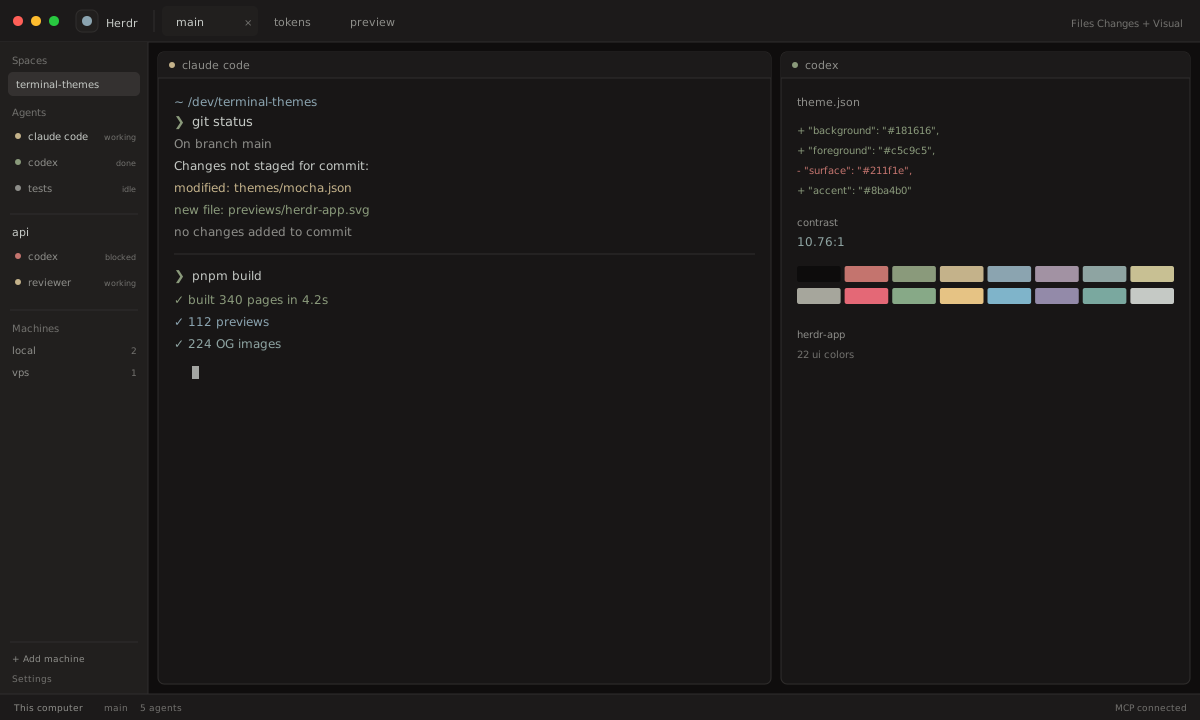
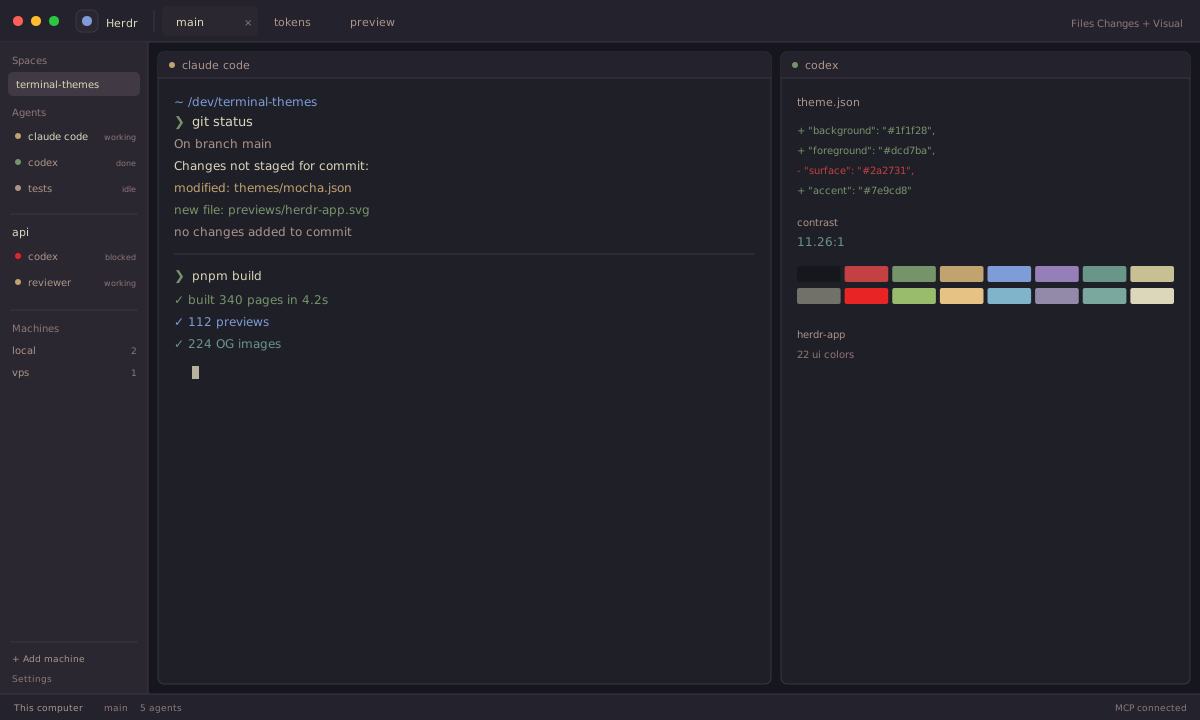
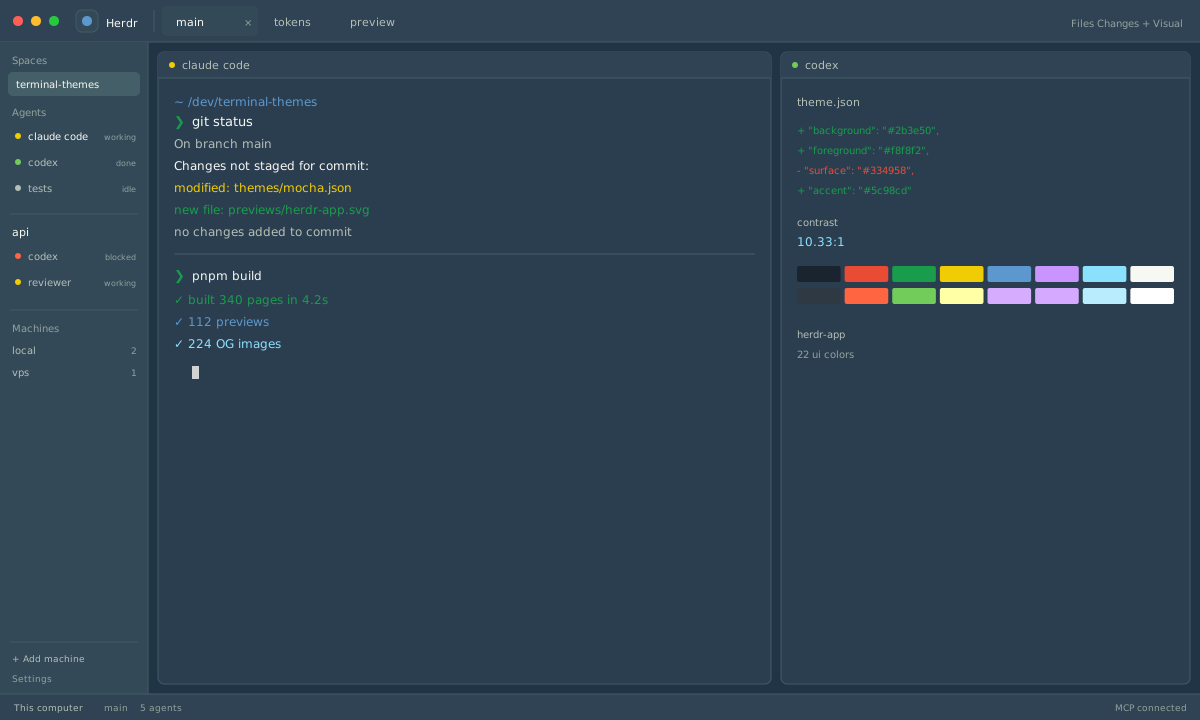
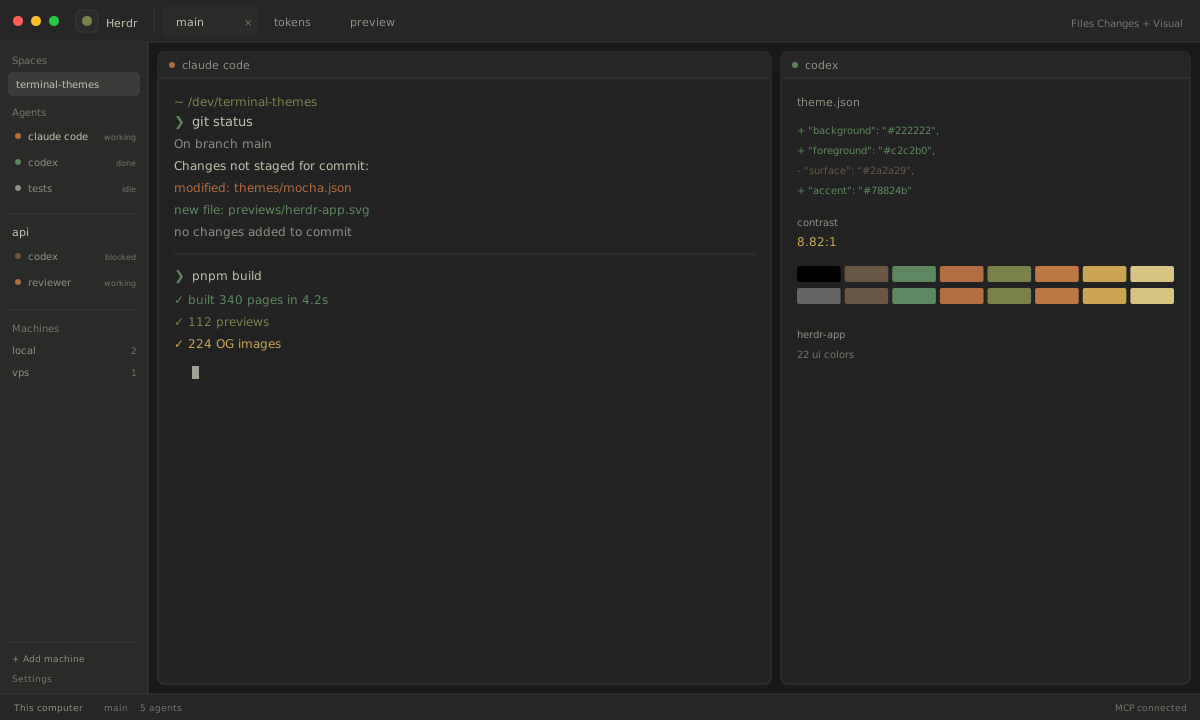
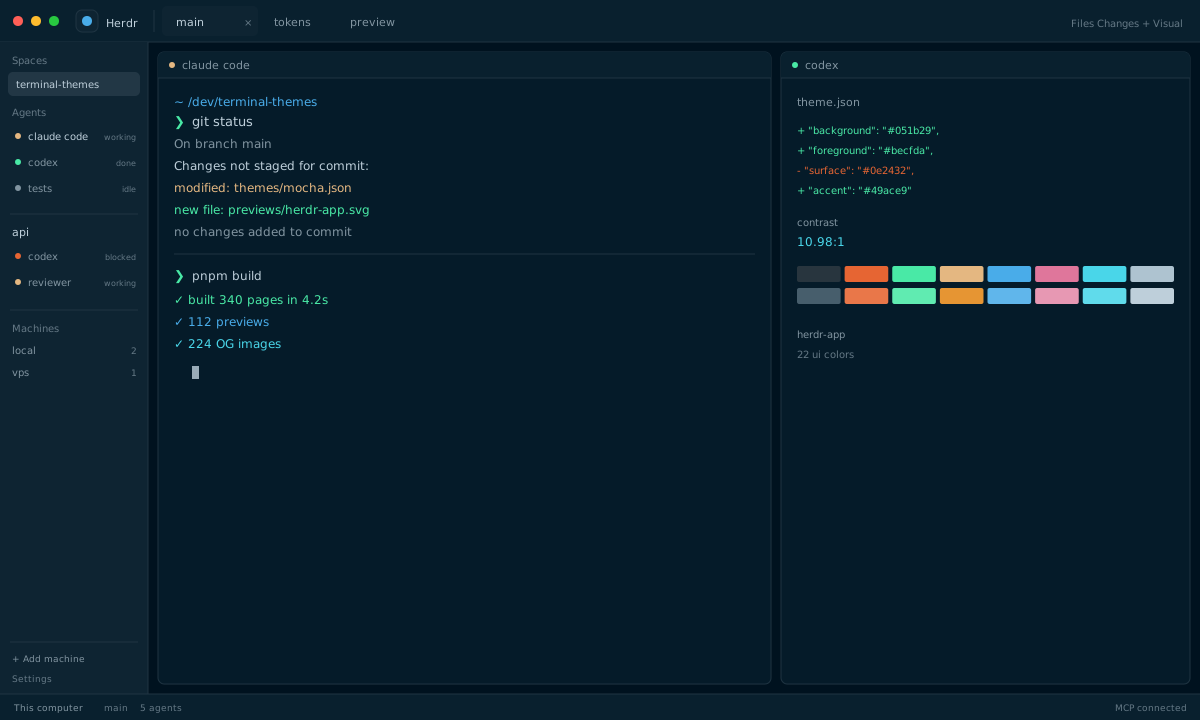
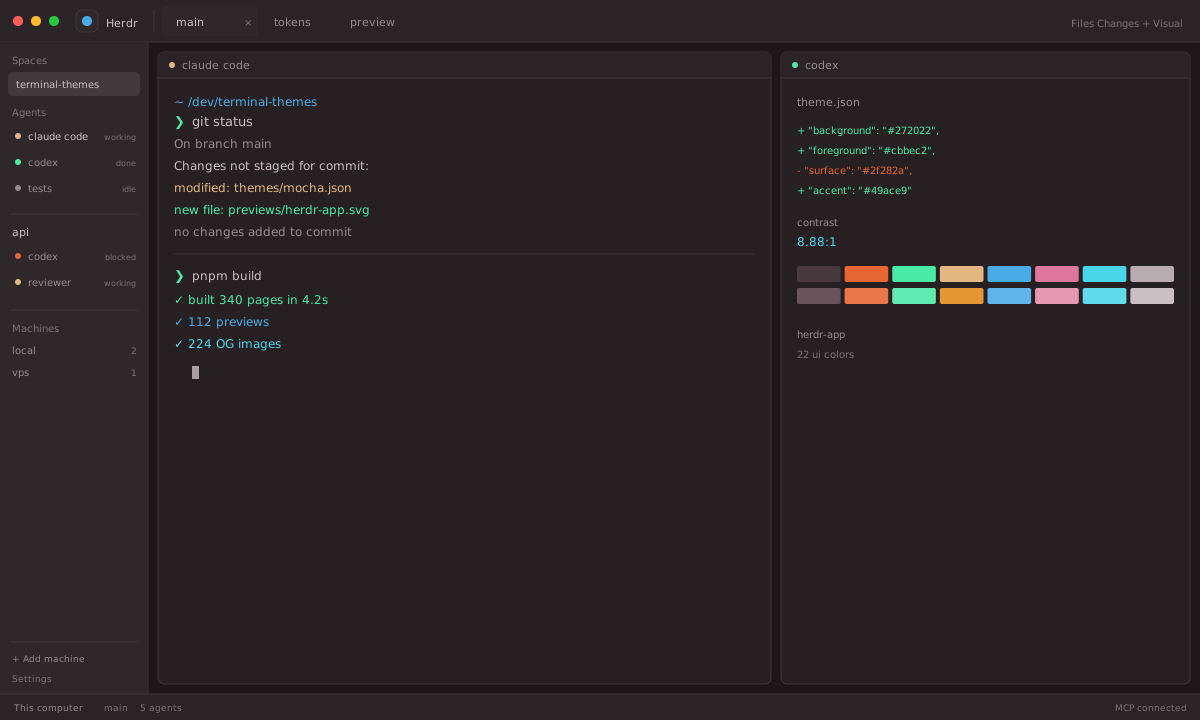
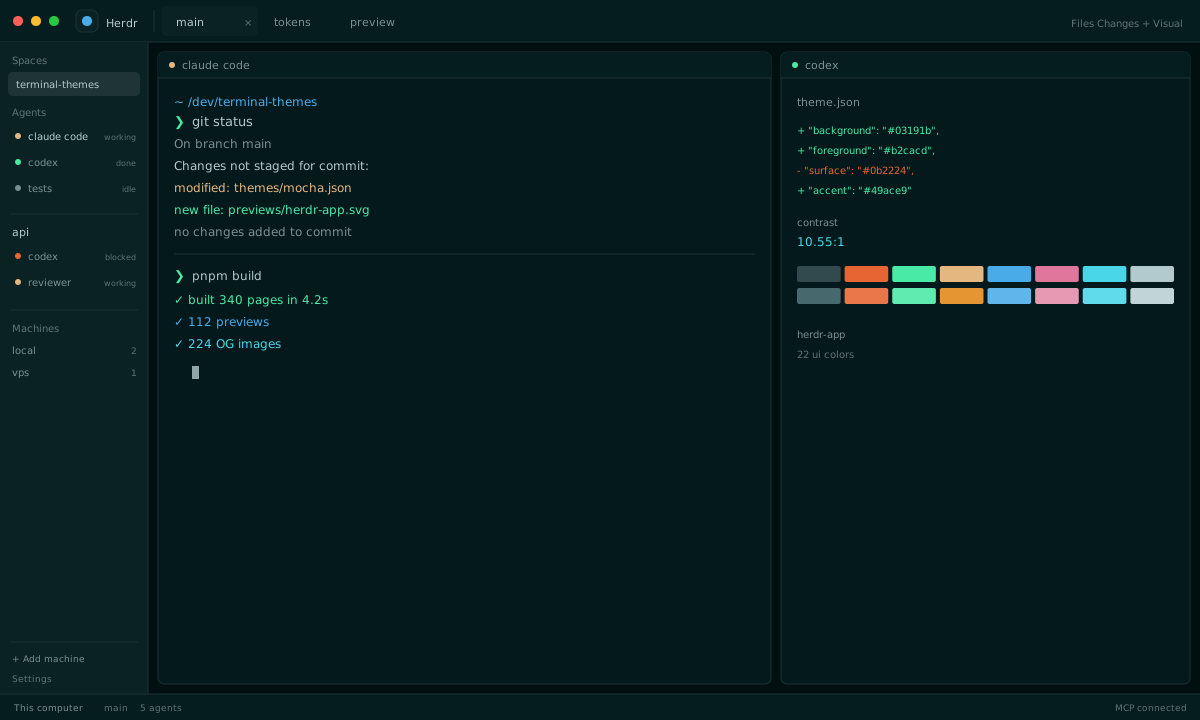
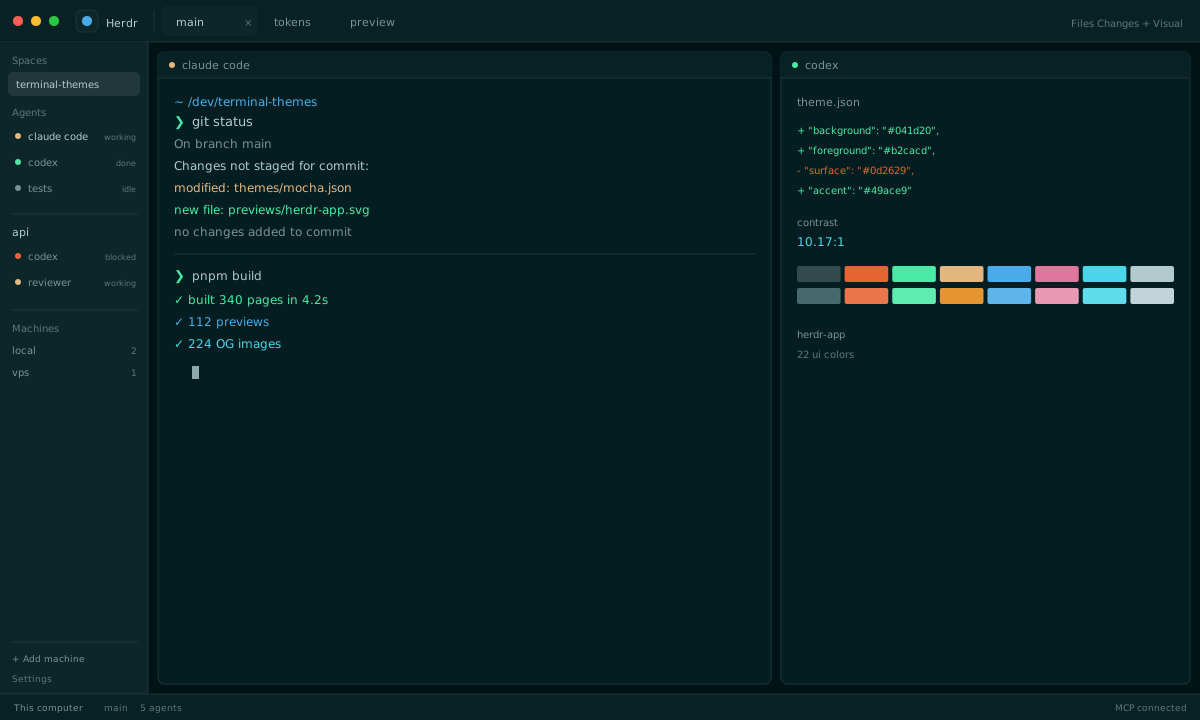
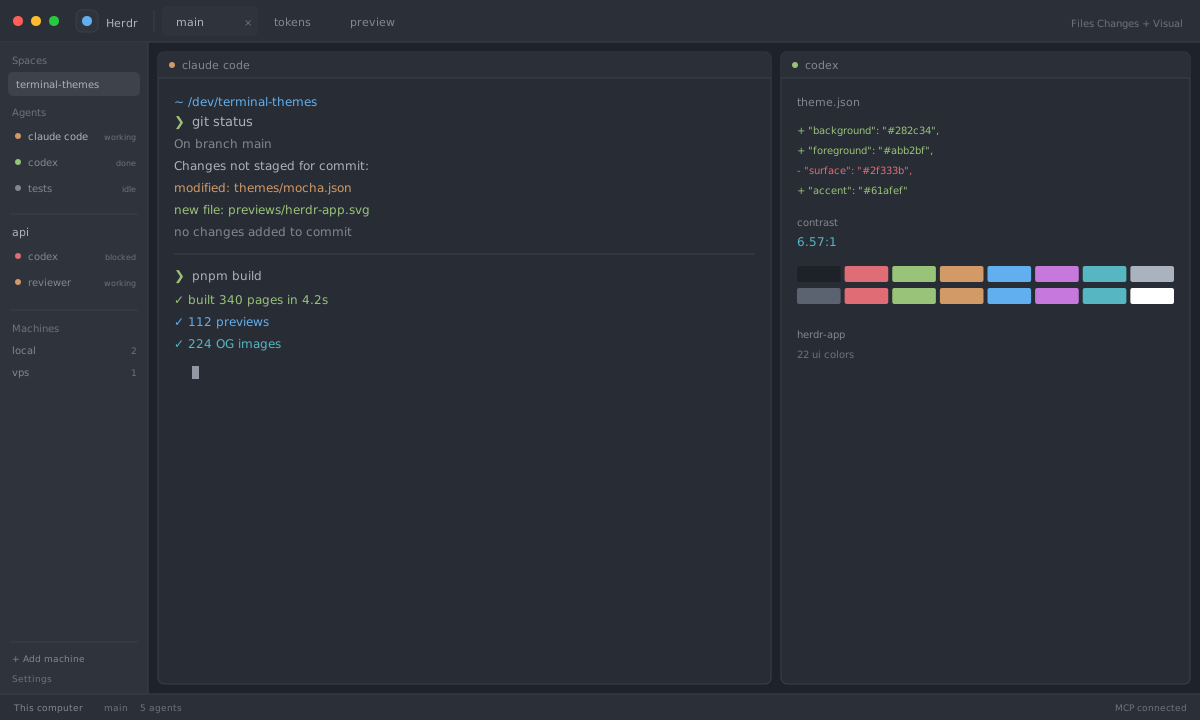
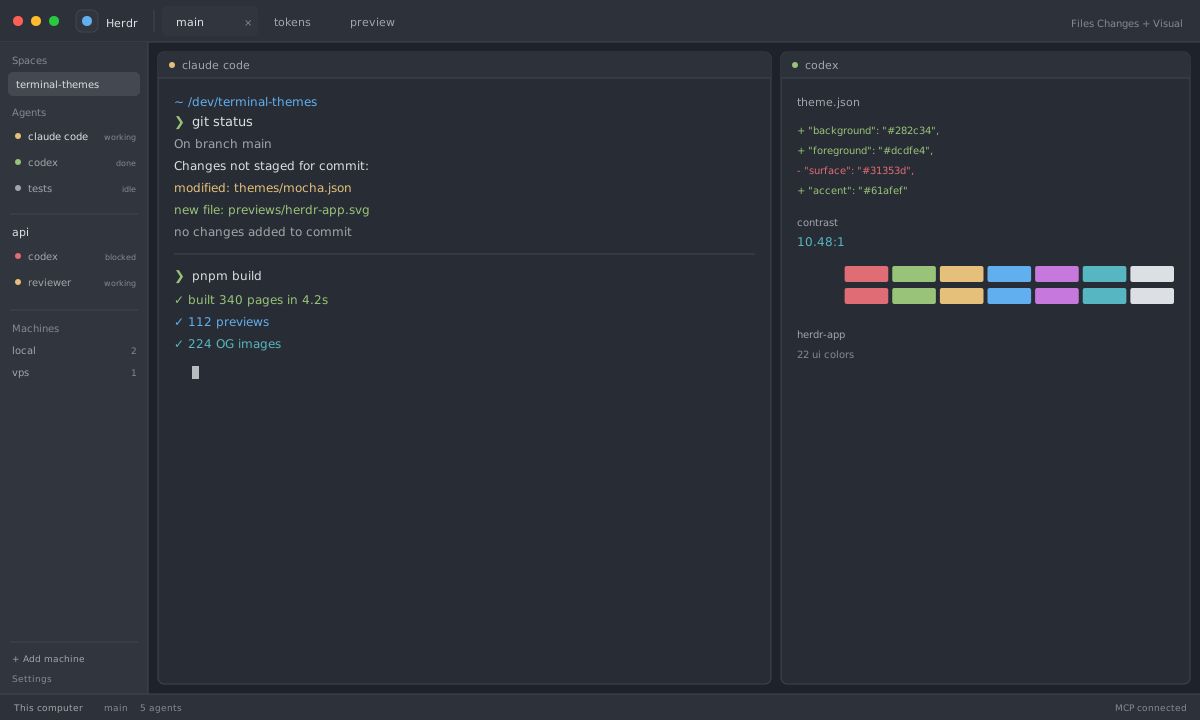
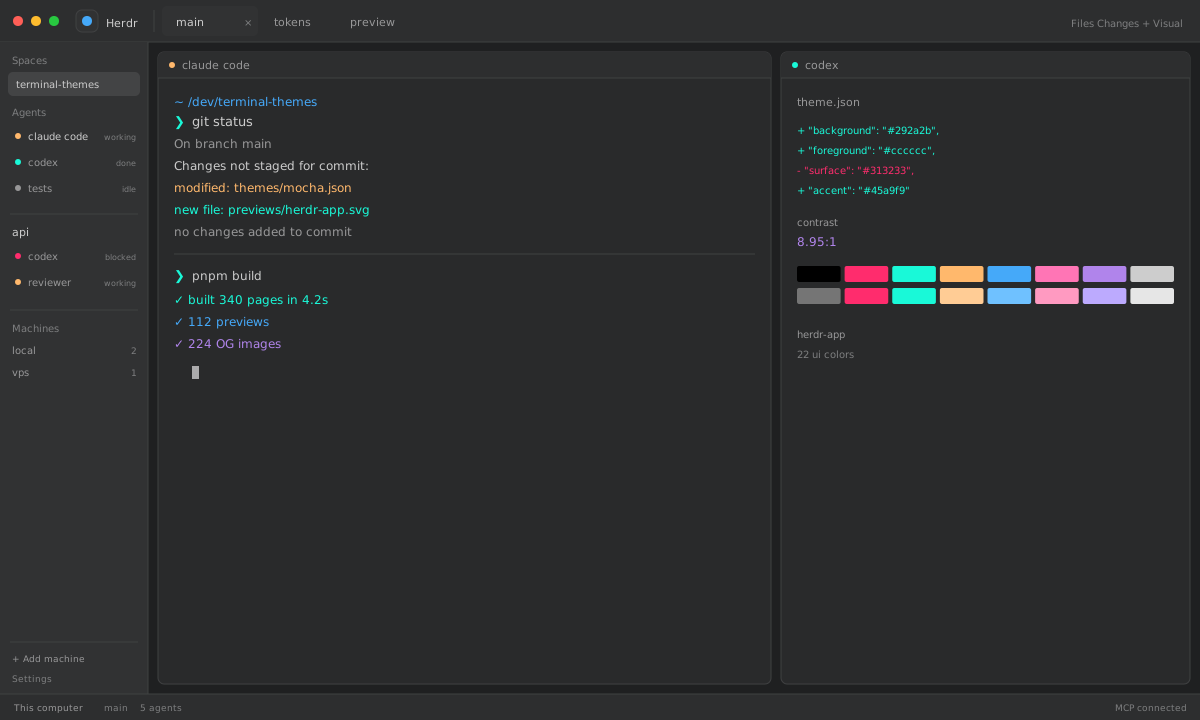
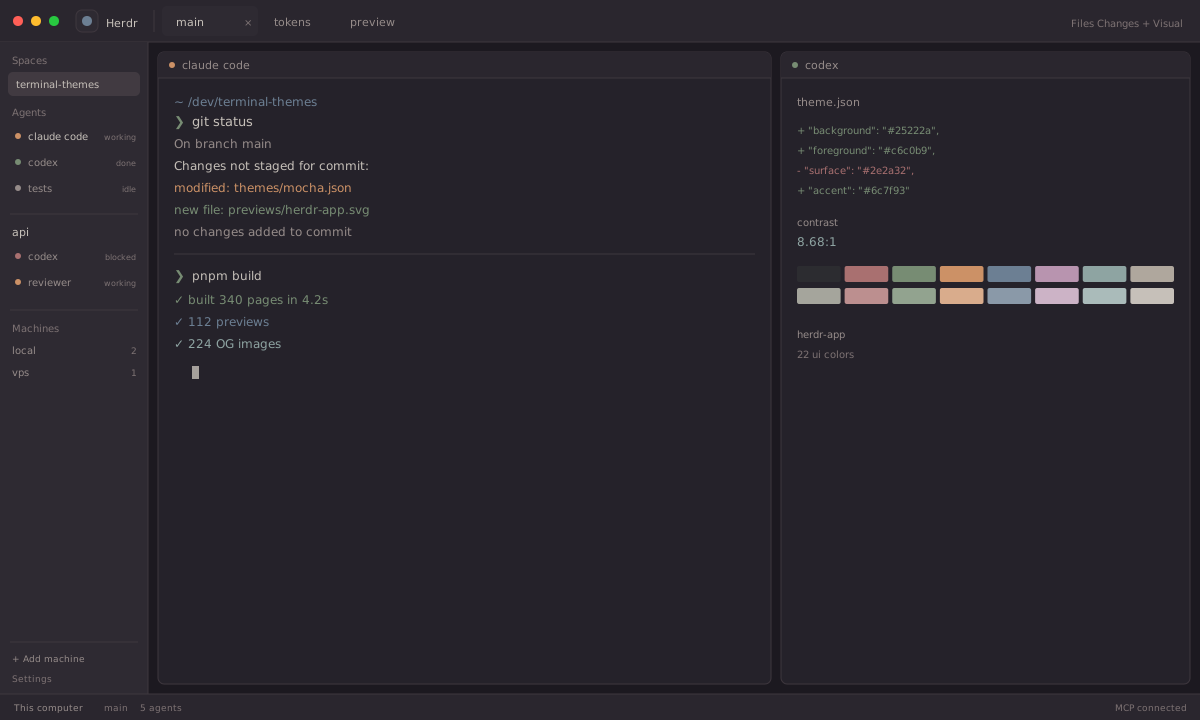
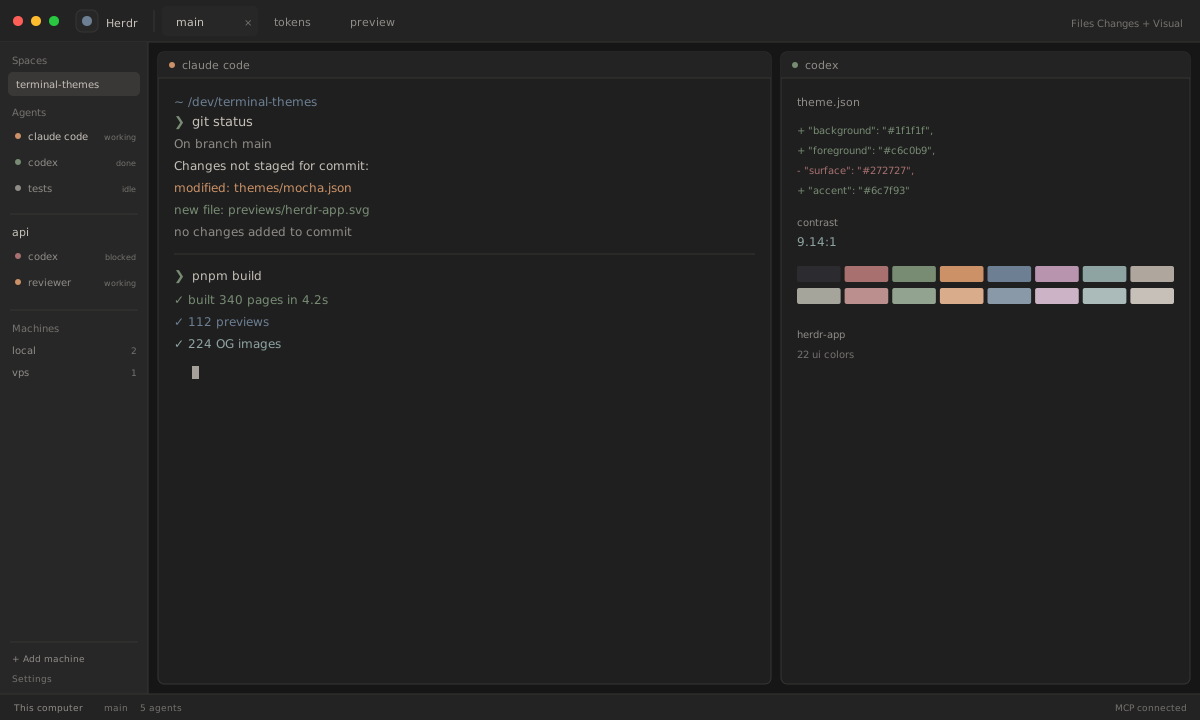
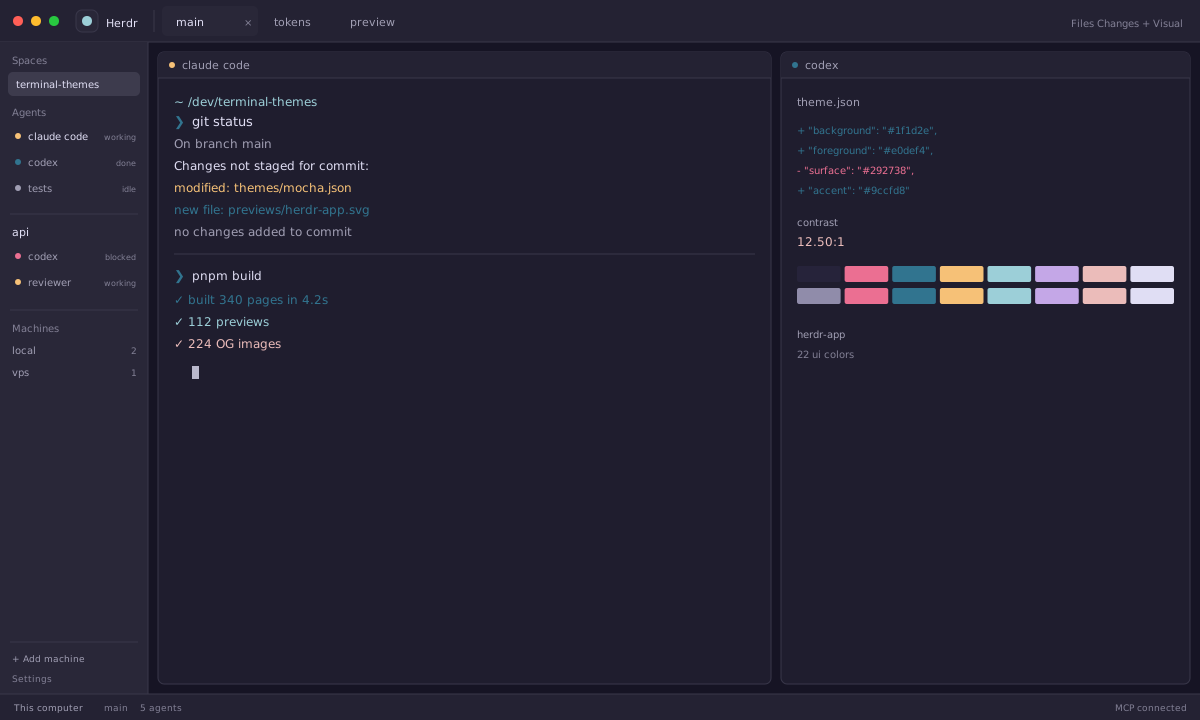
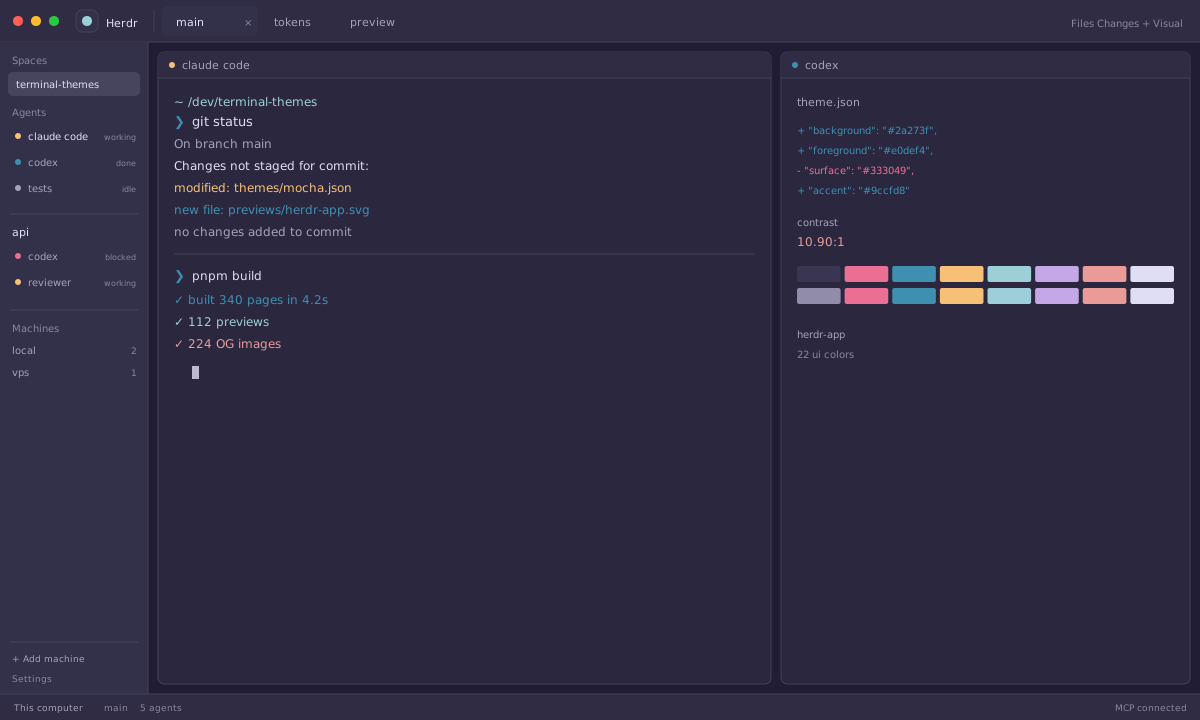
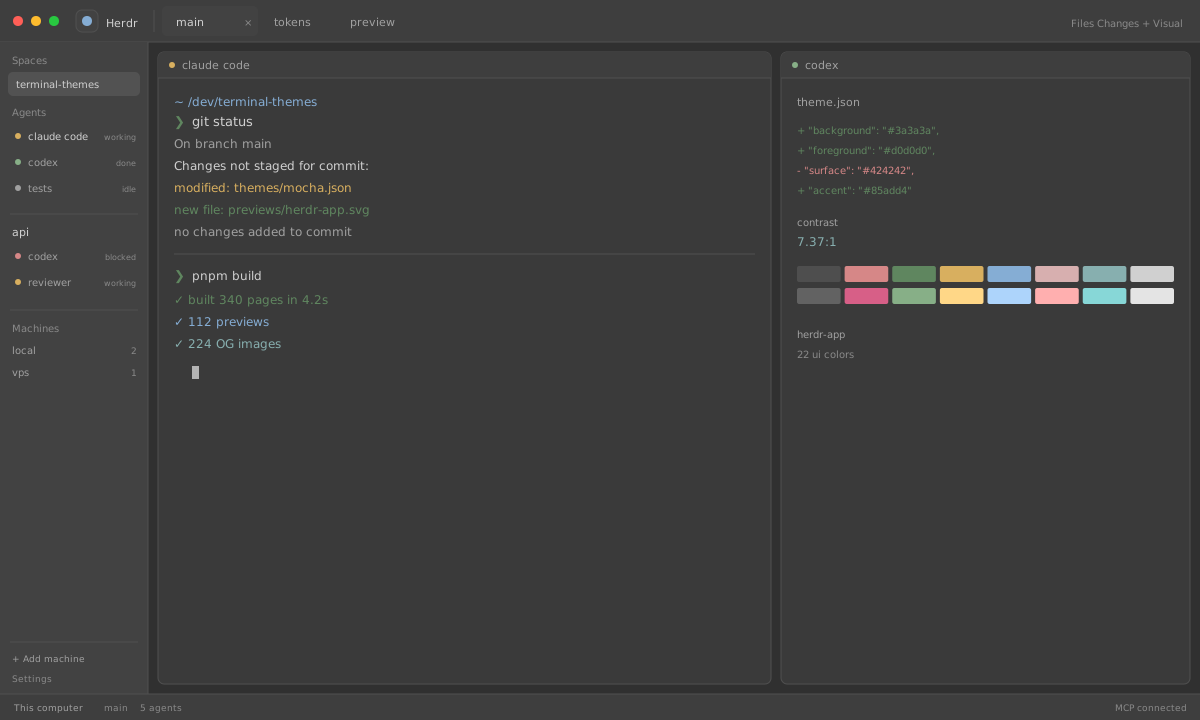
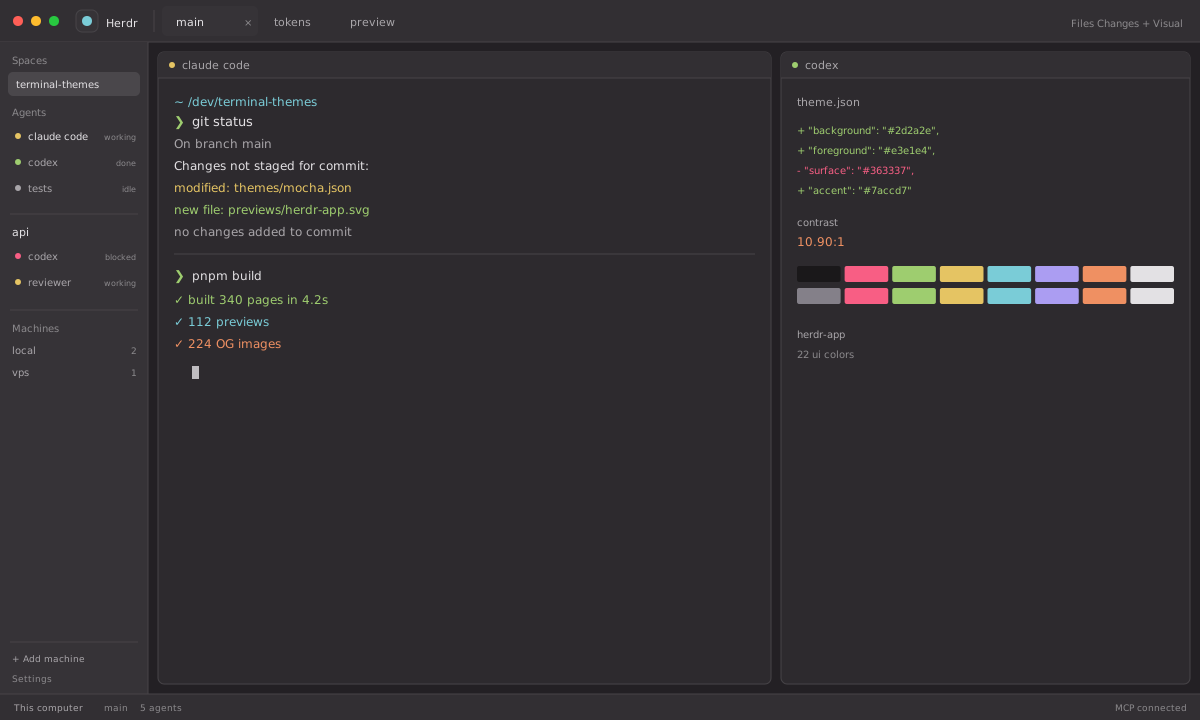
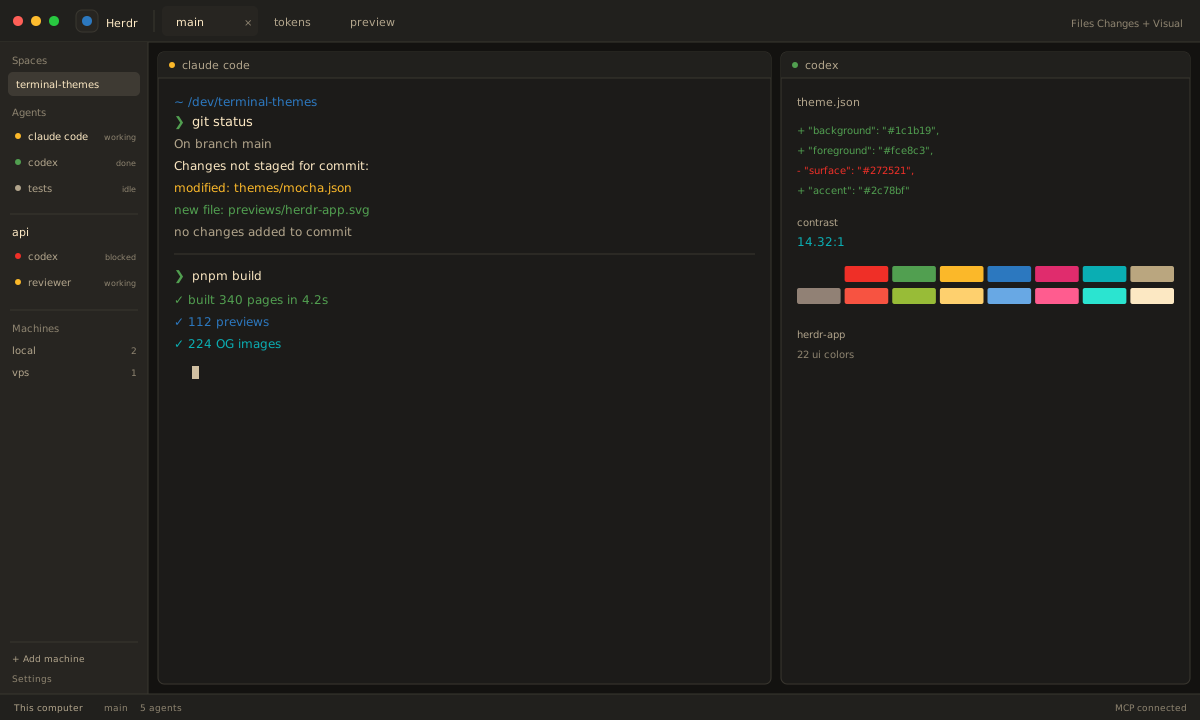
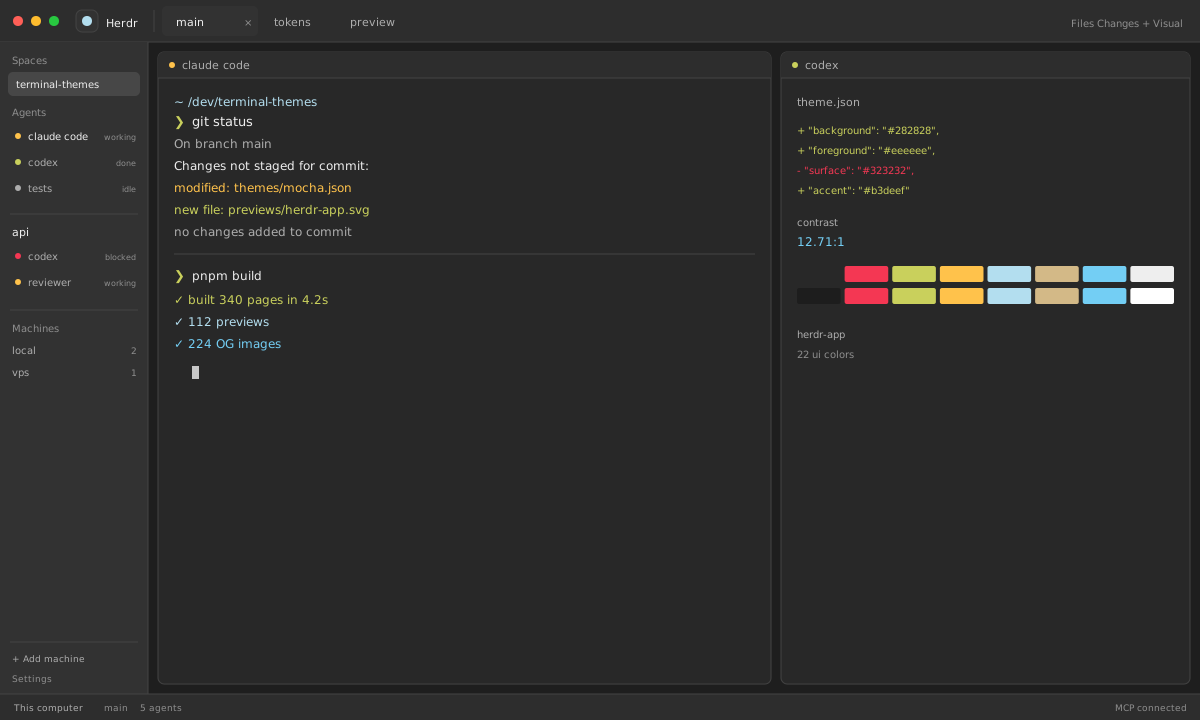
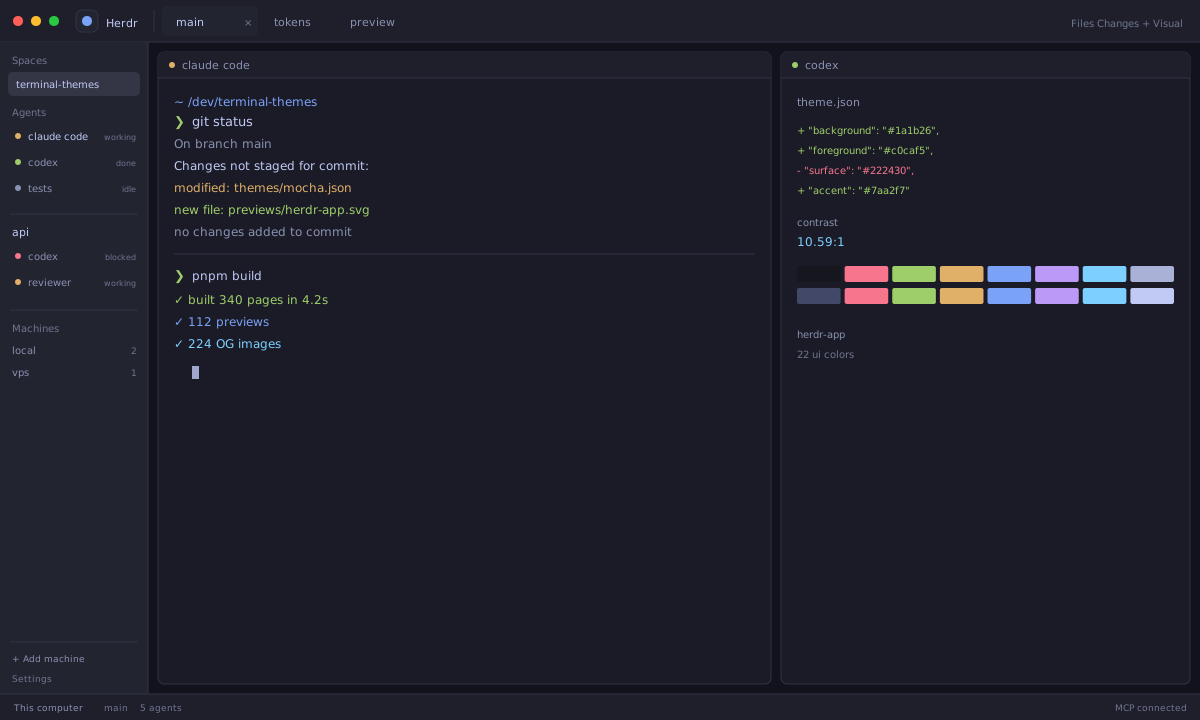
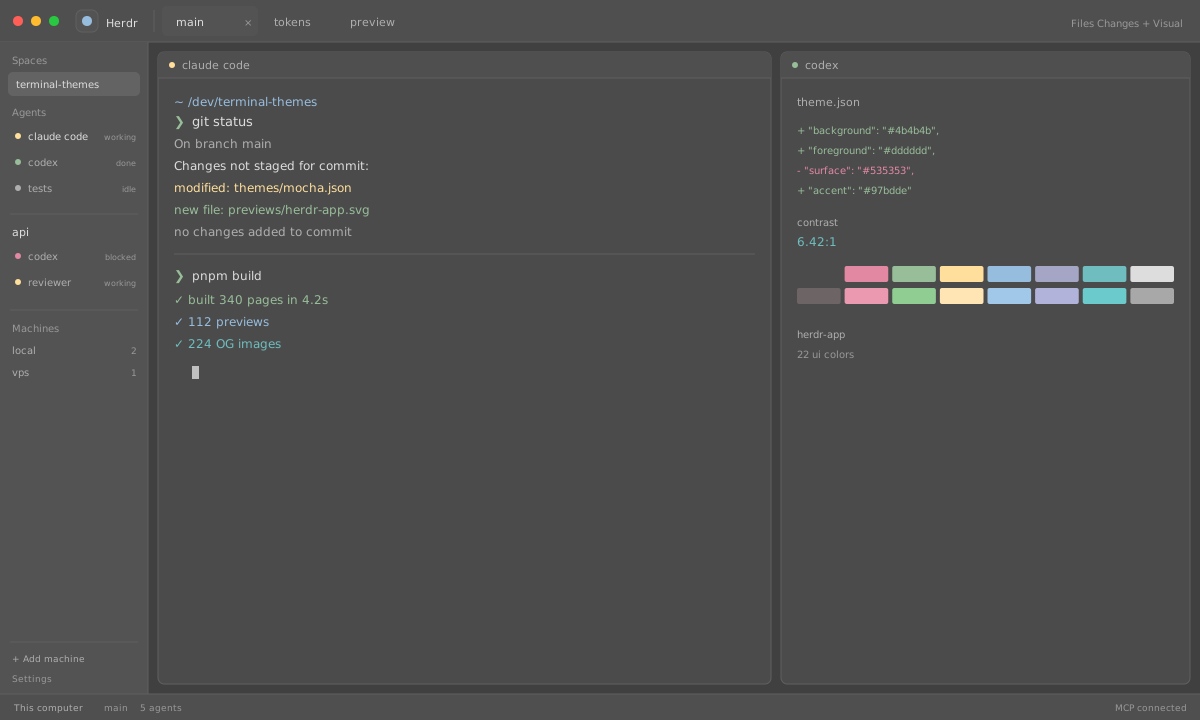
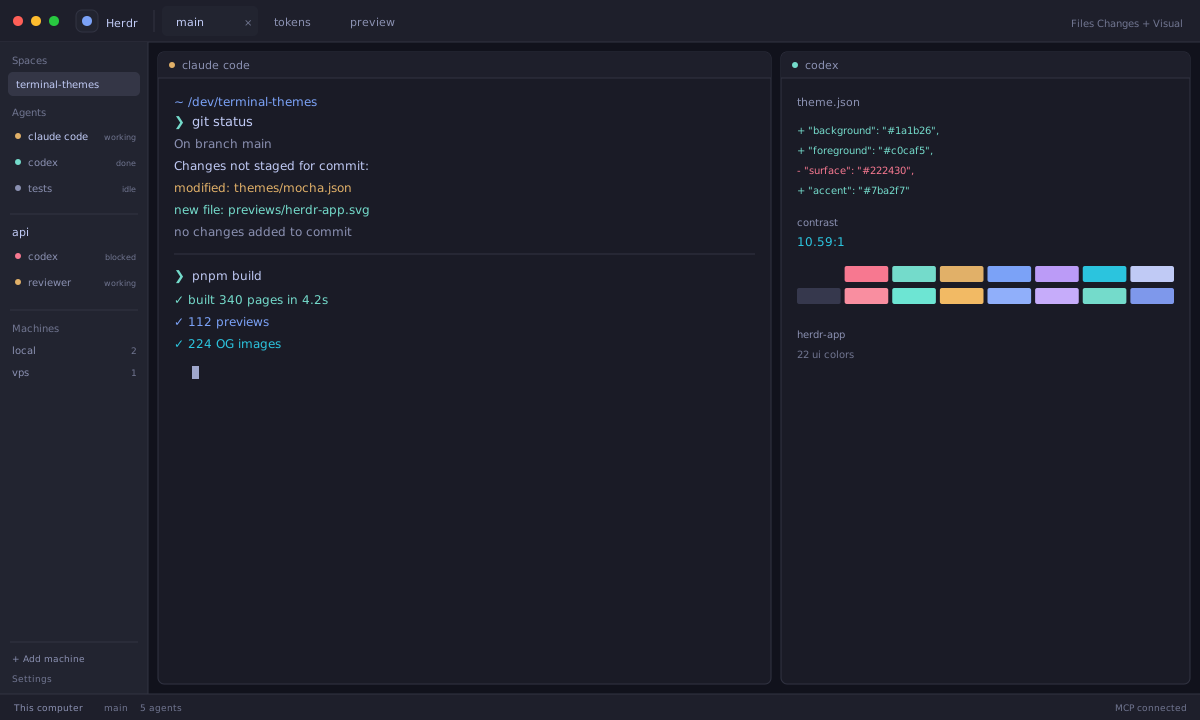
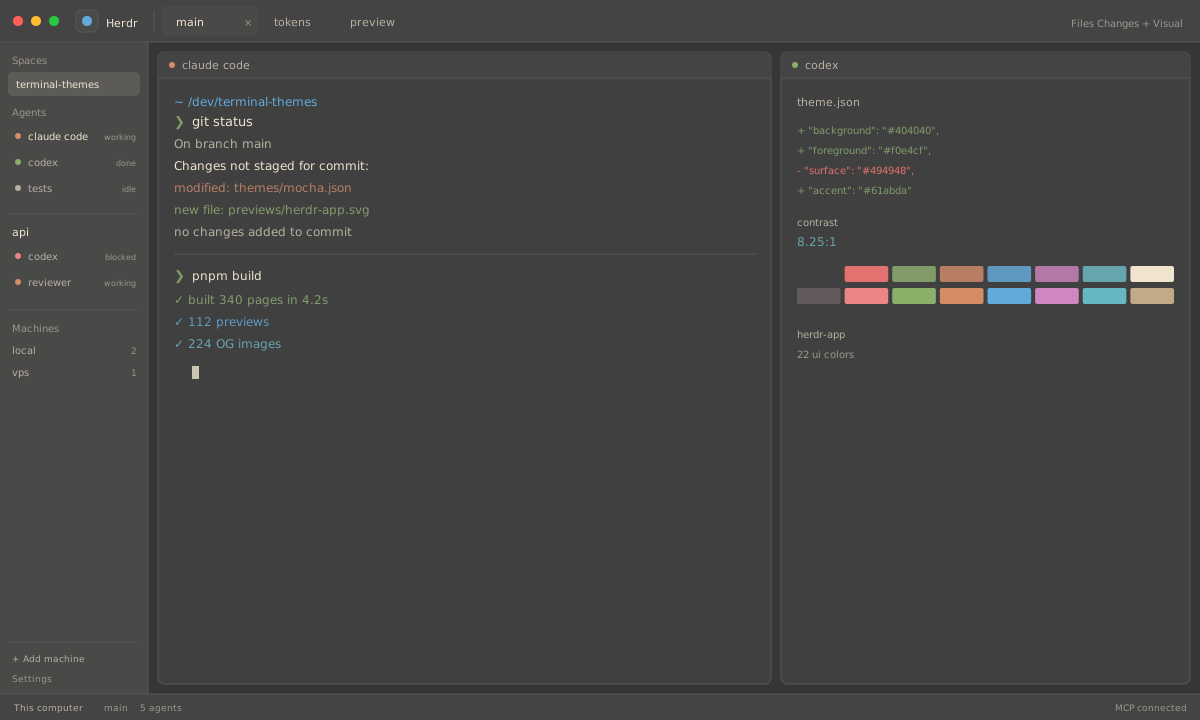
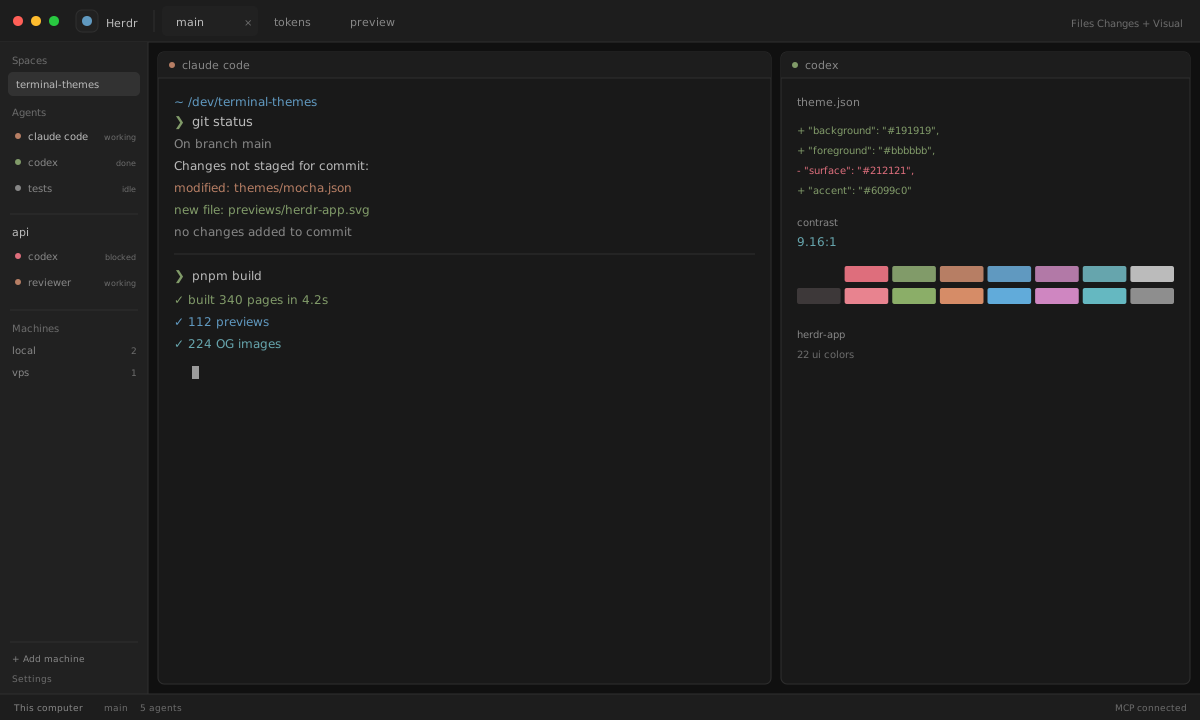
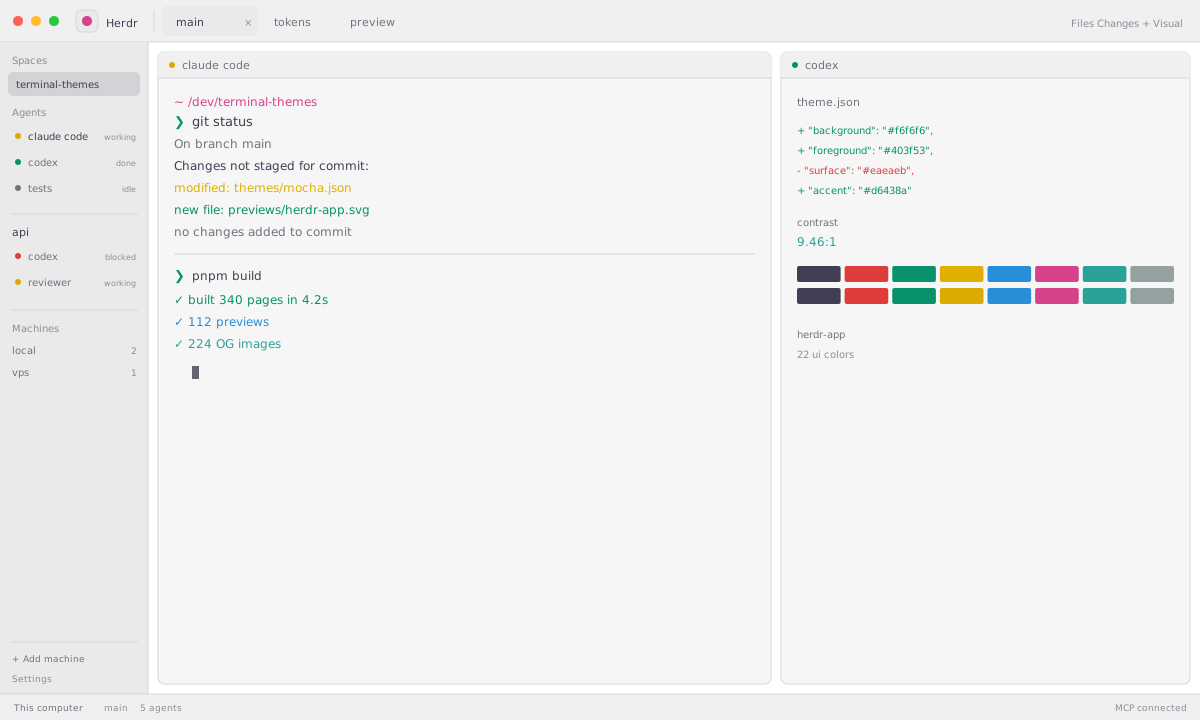
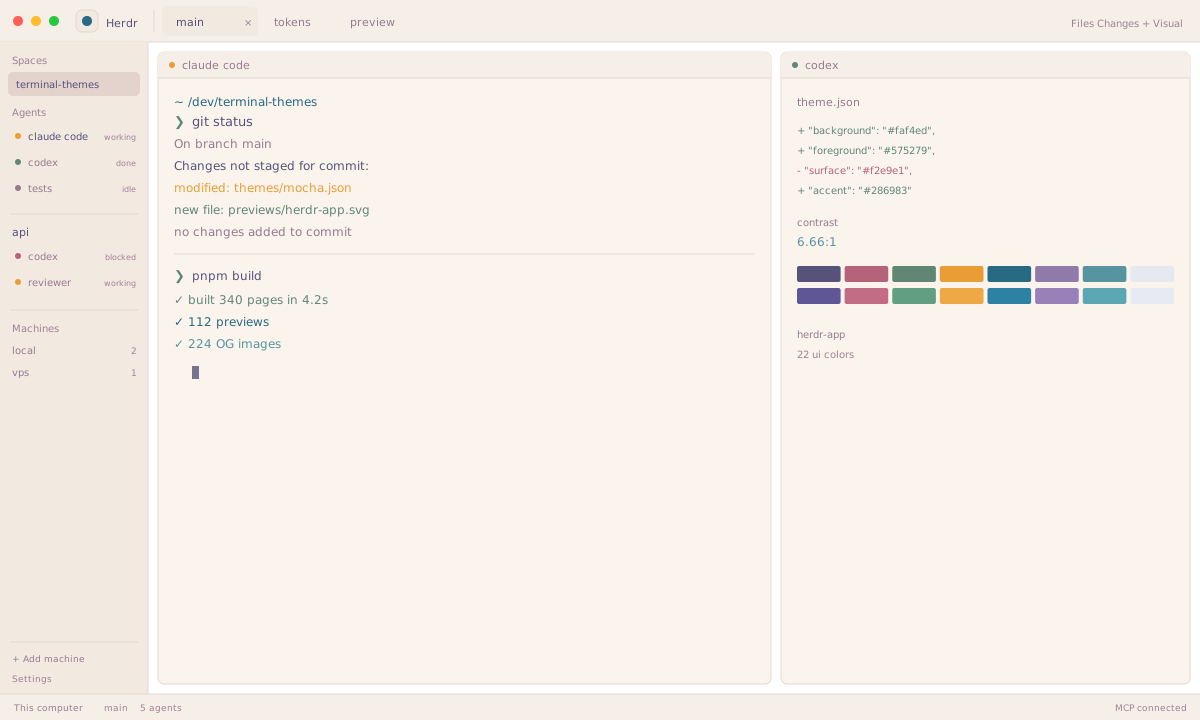
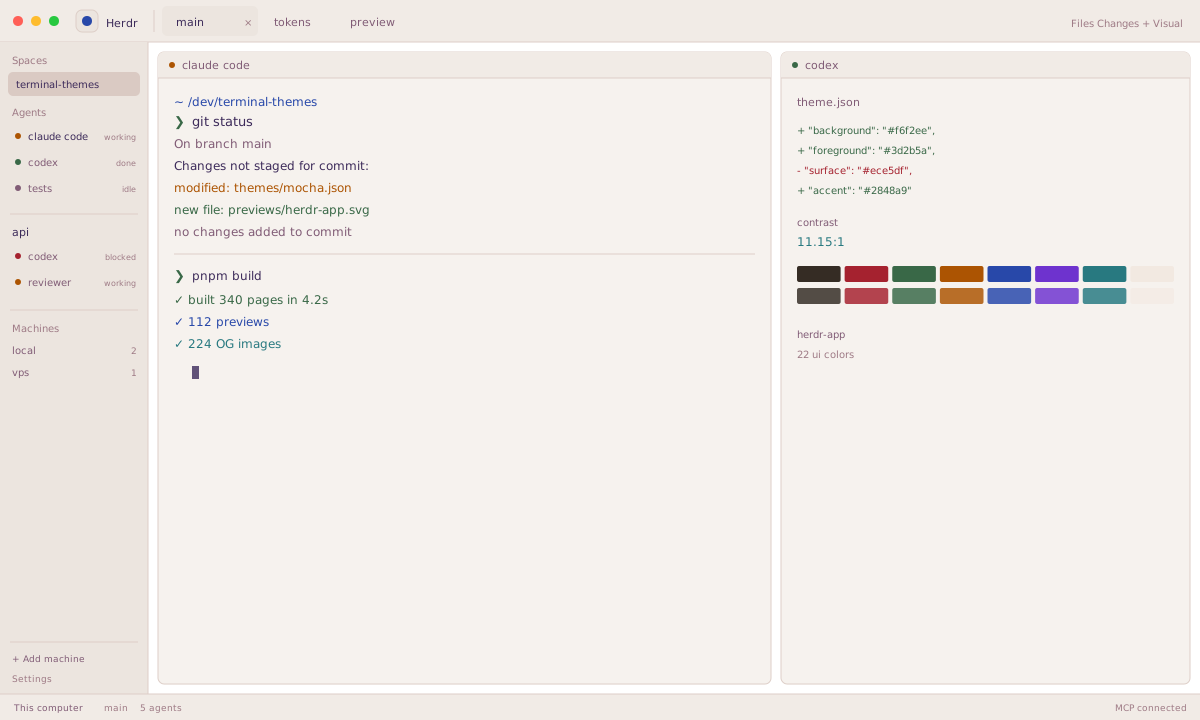
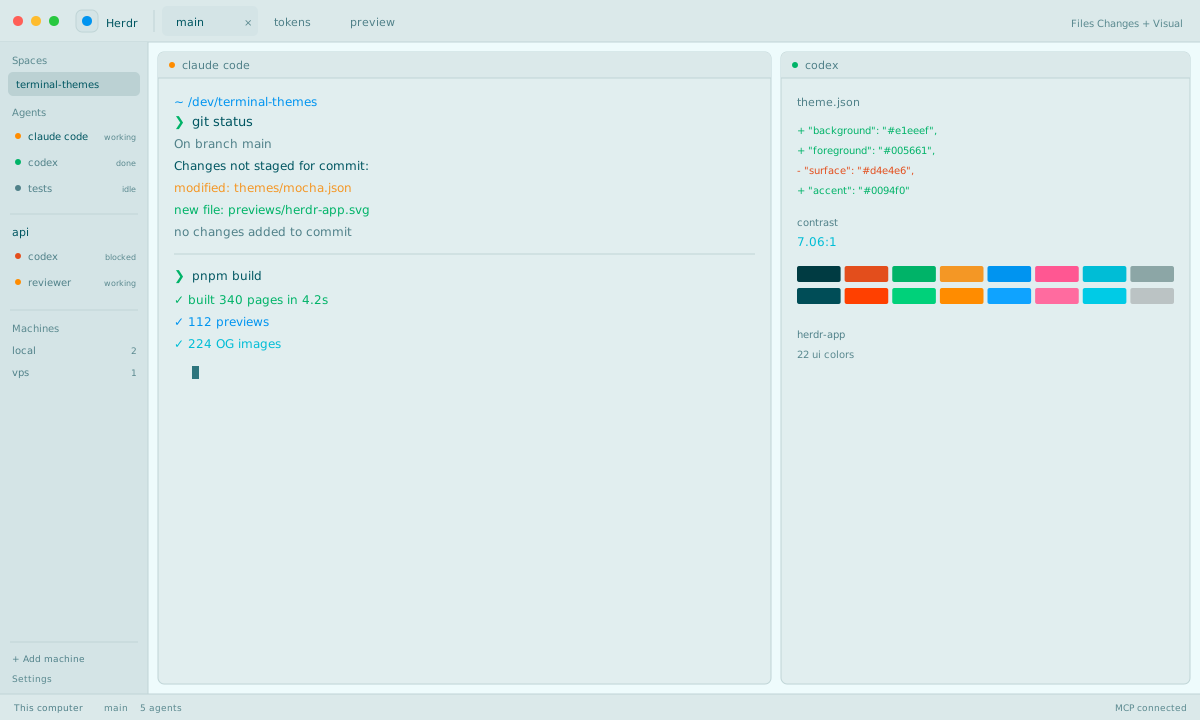
112 themes

Herdr App themes

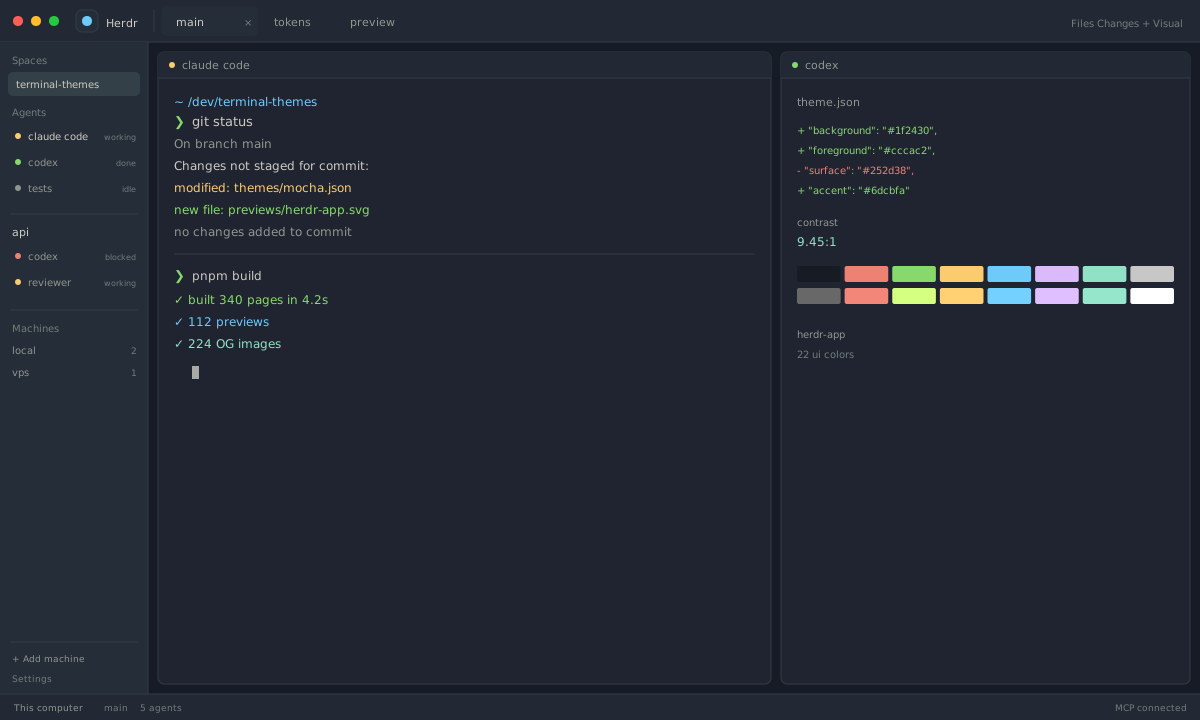
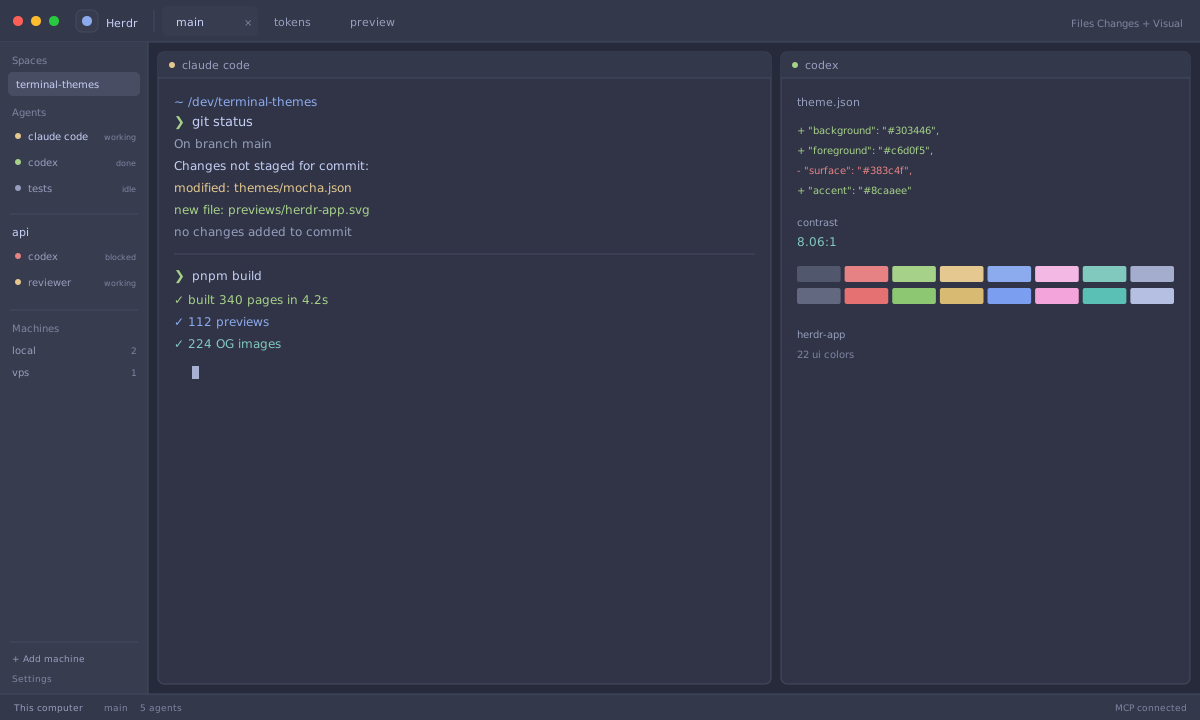
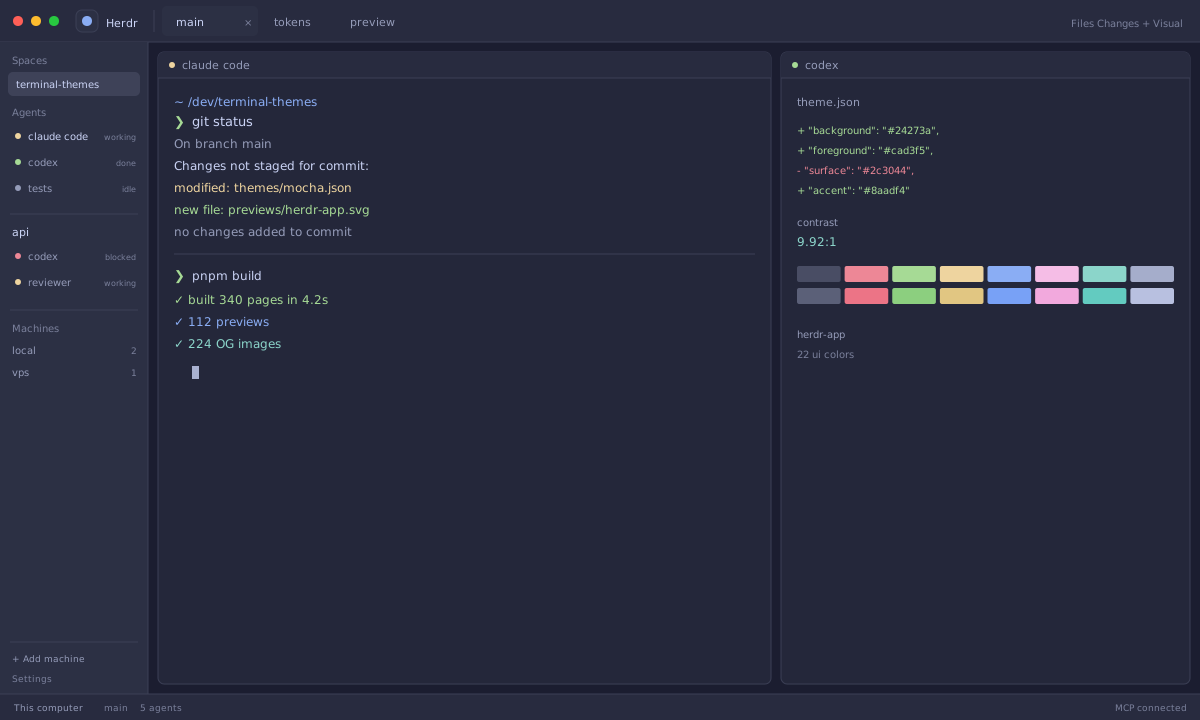
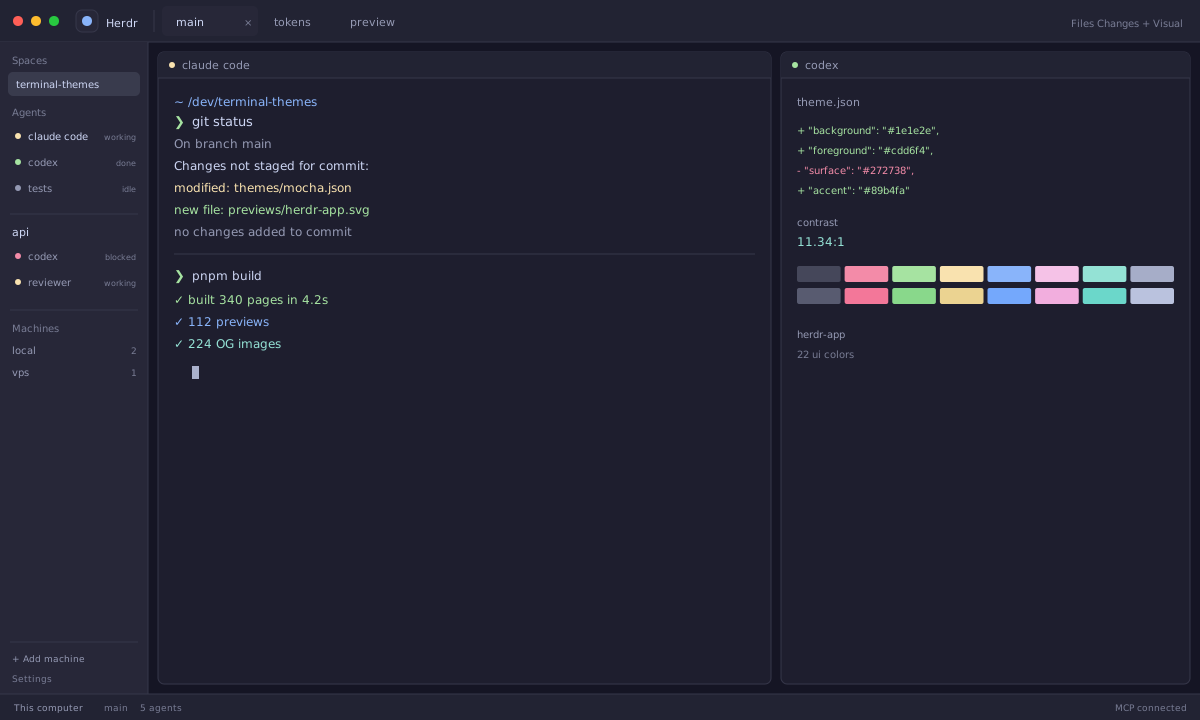
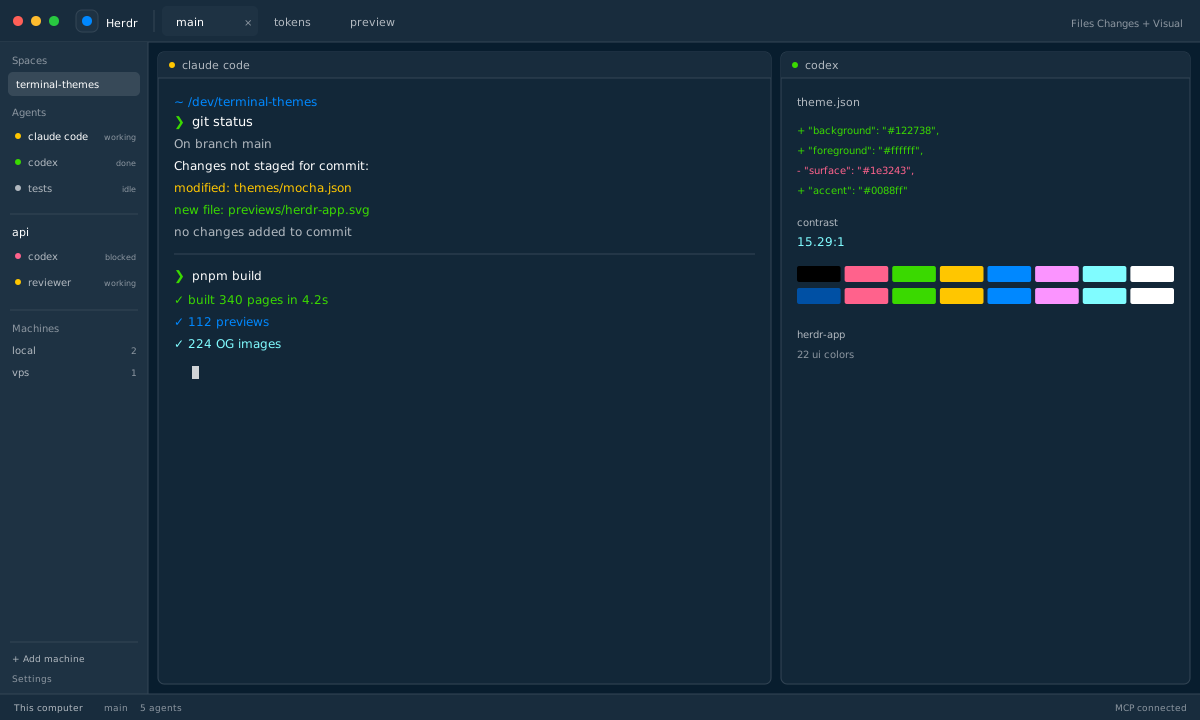
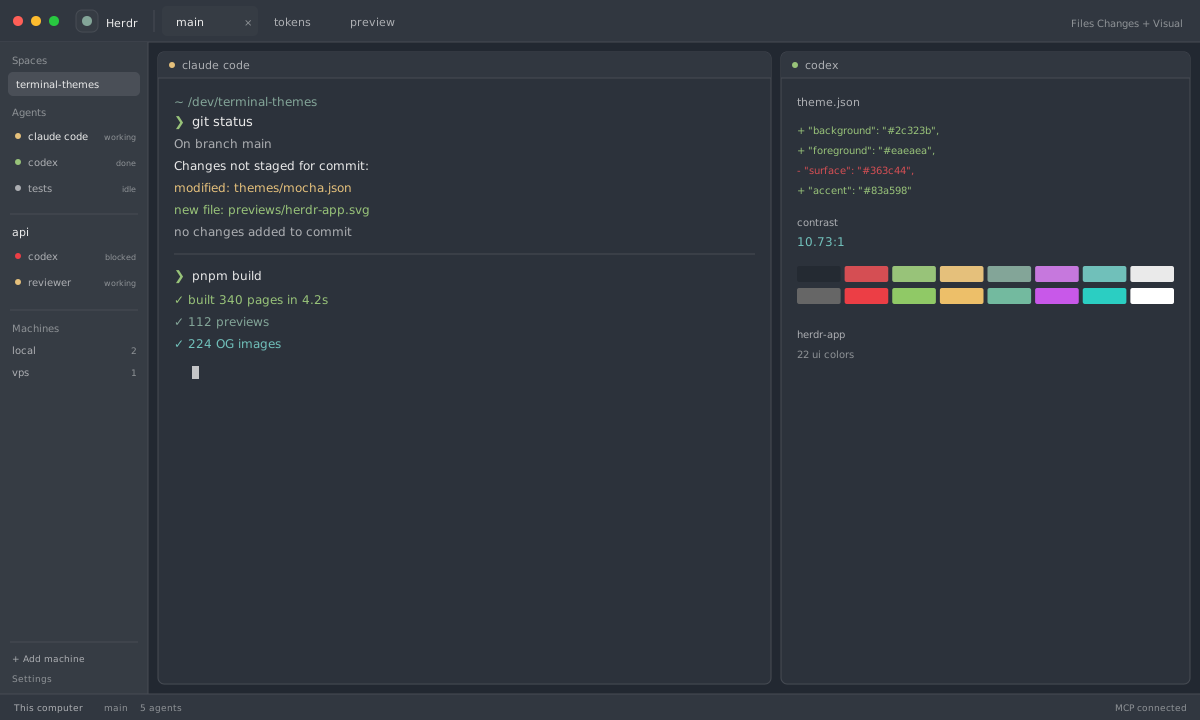
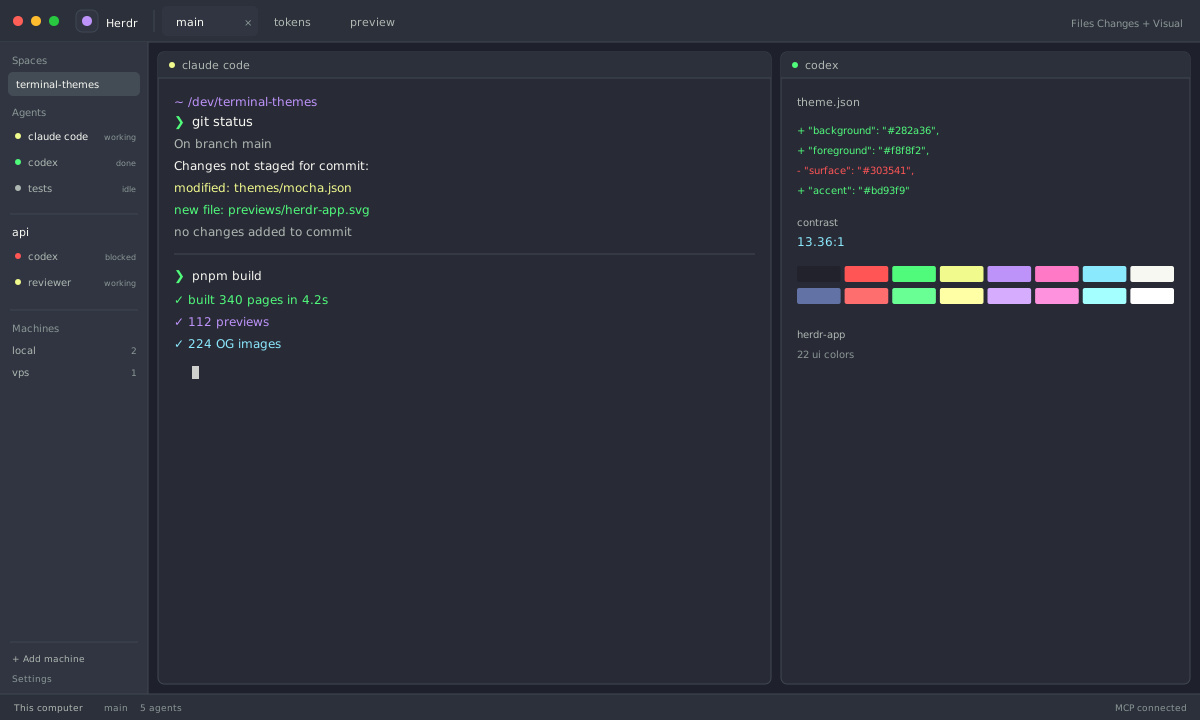
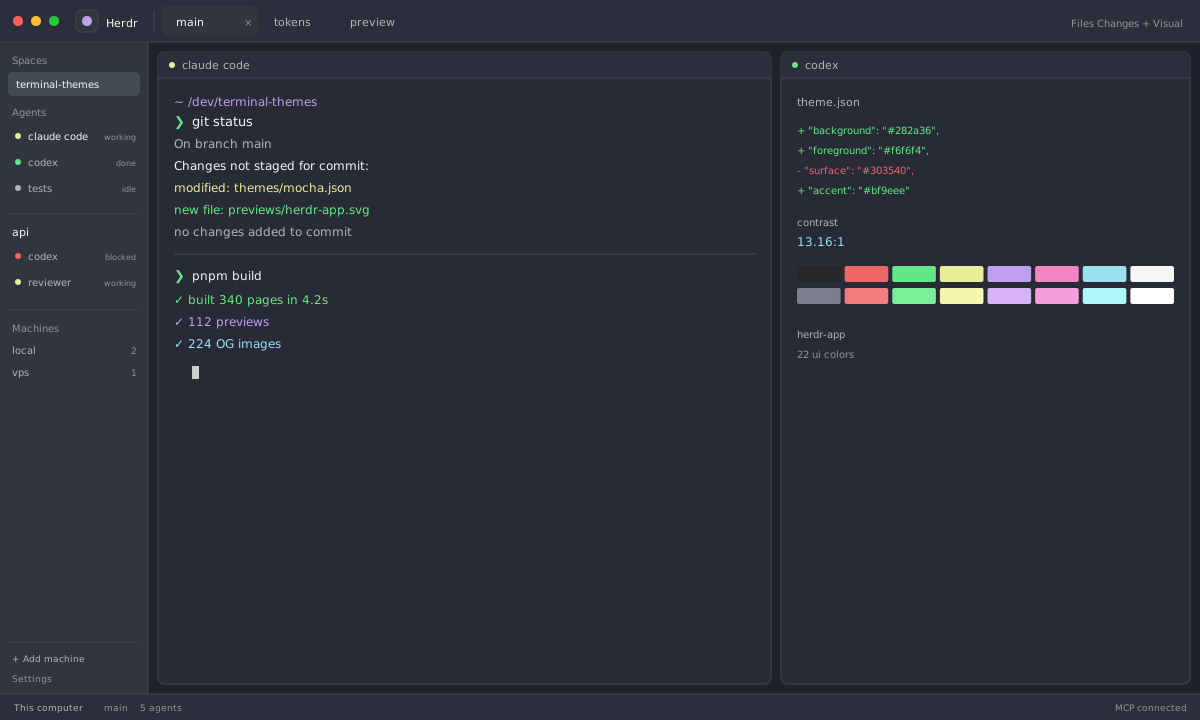
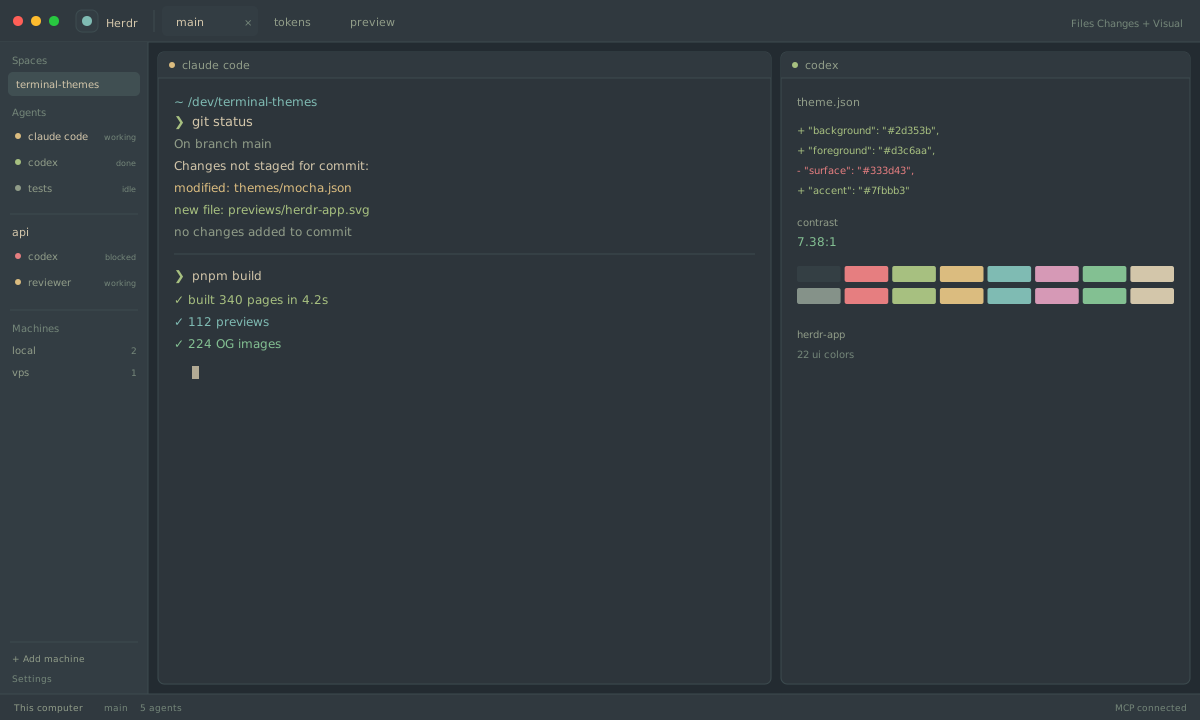
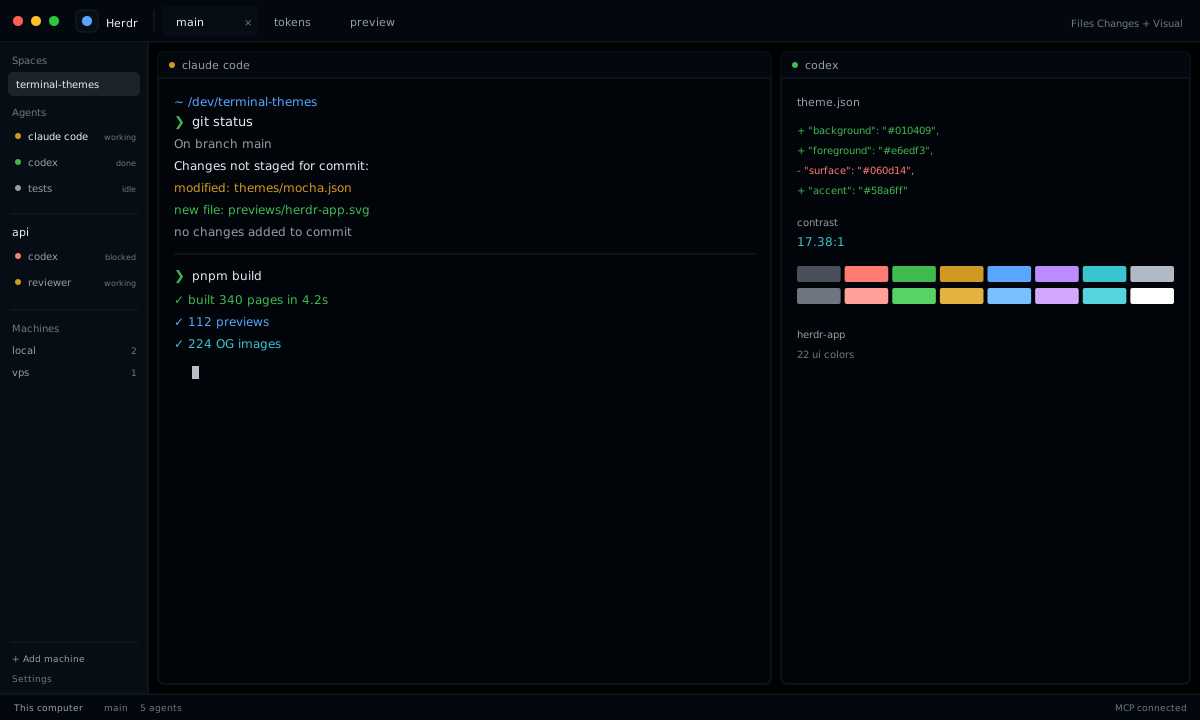
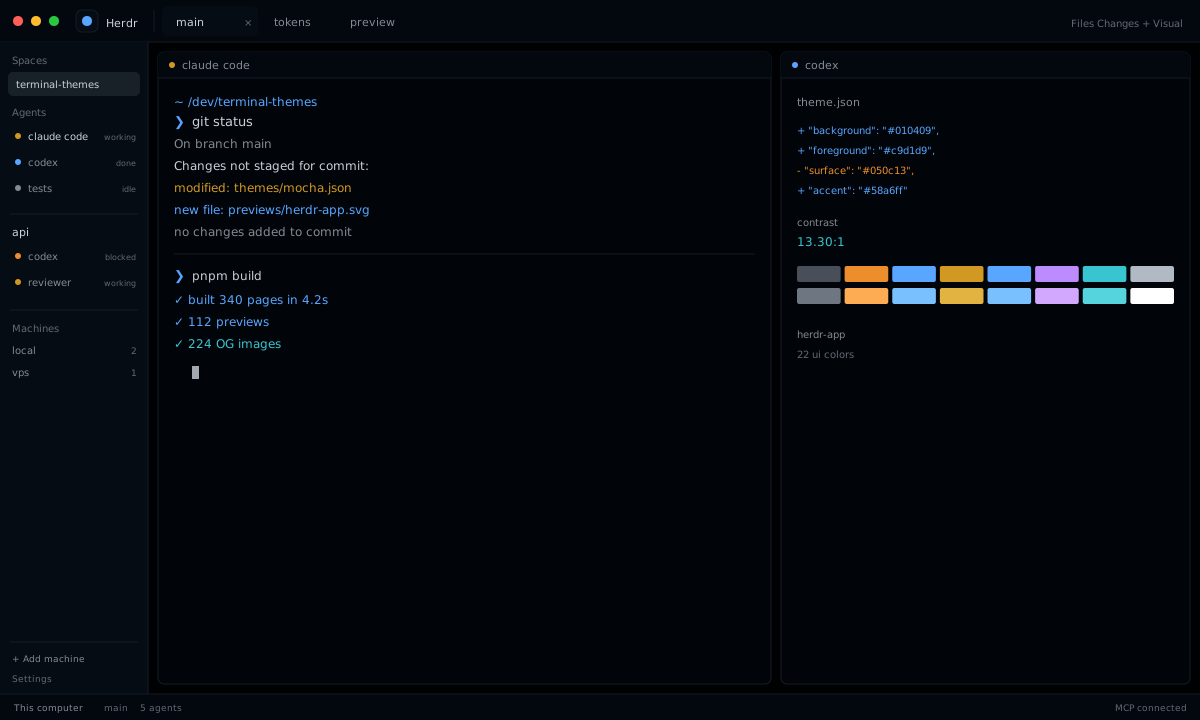
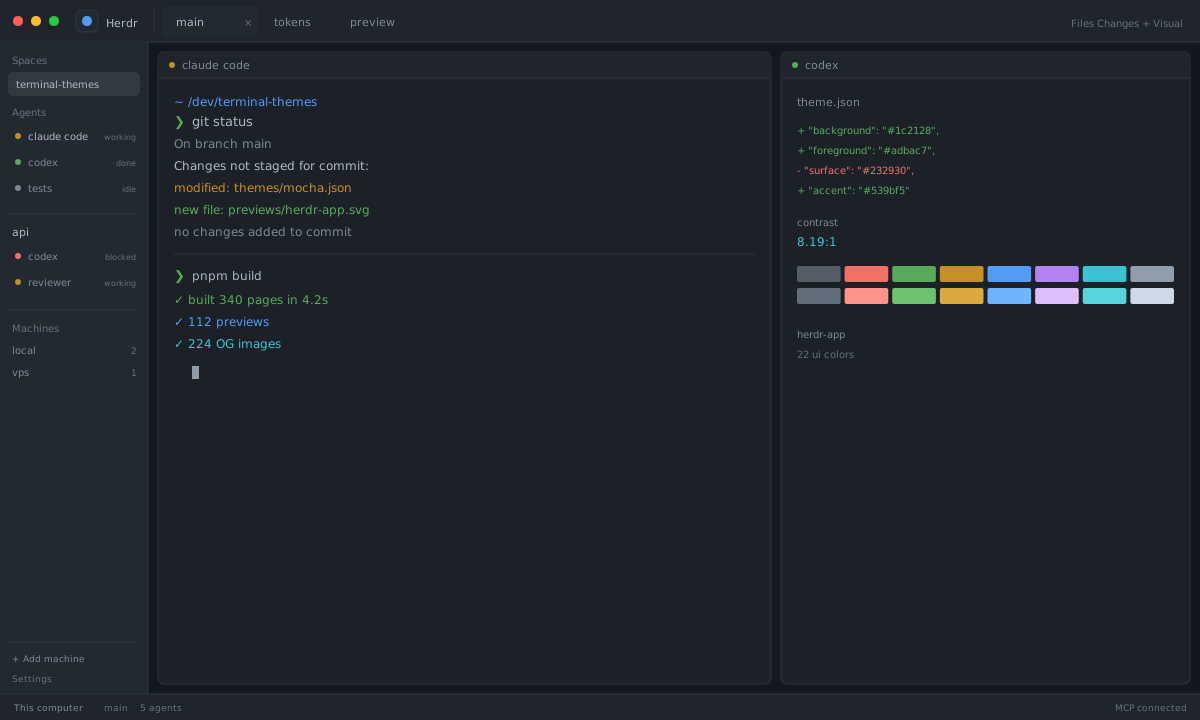
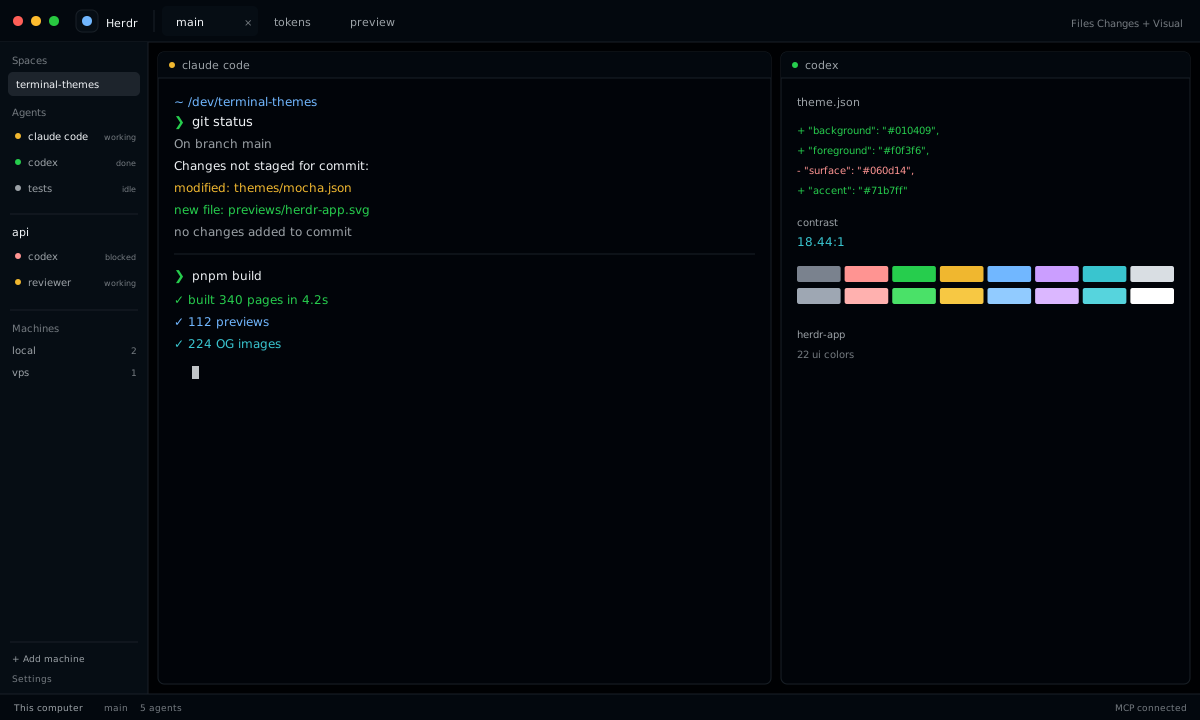
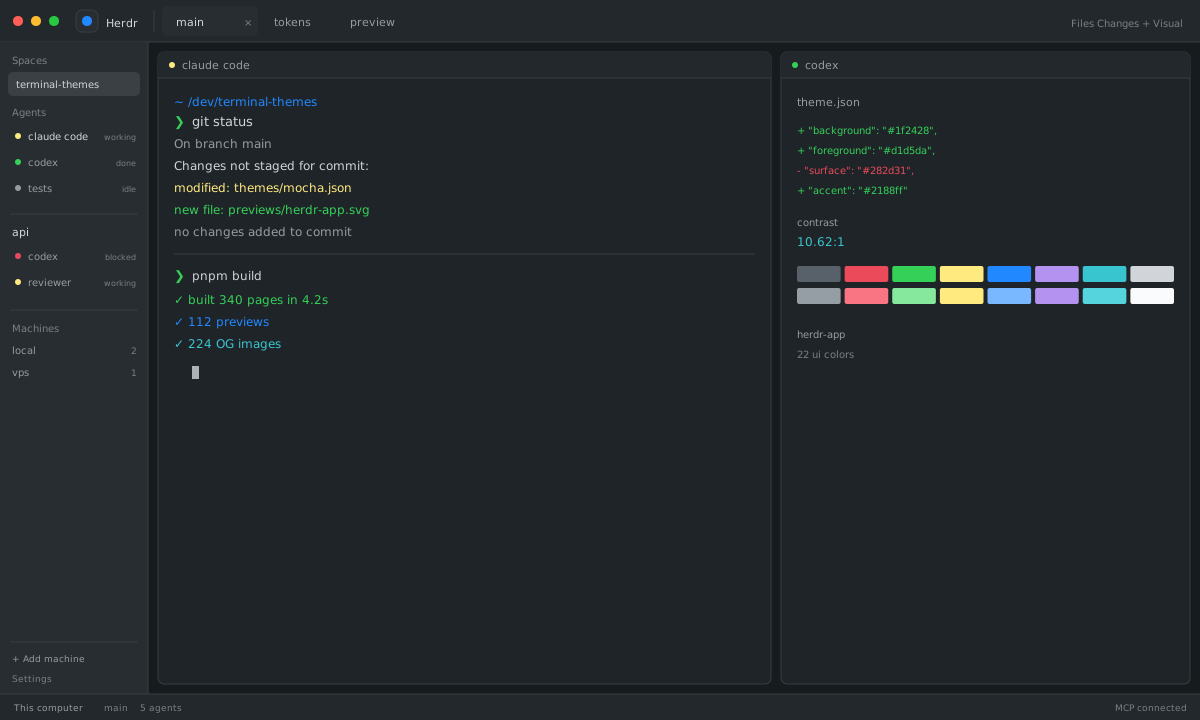
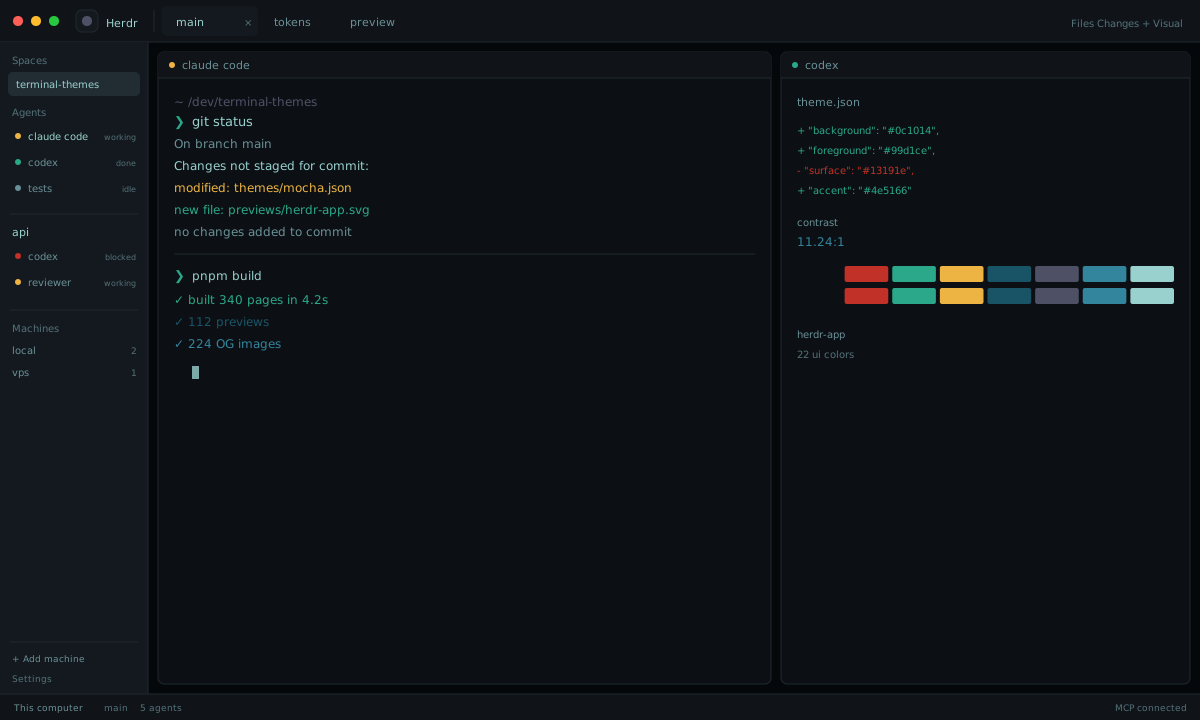
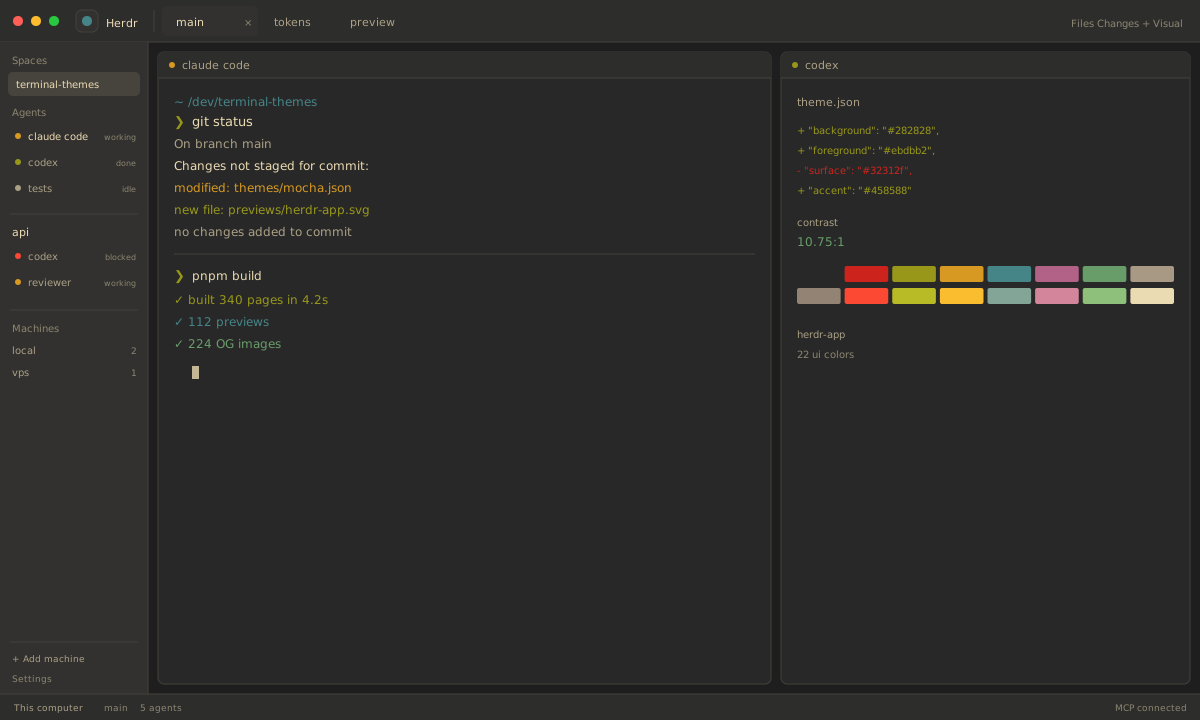
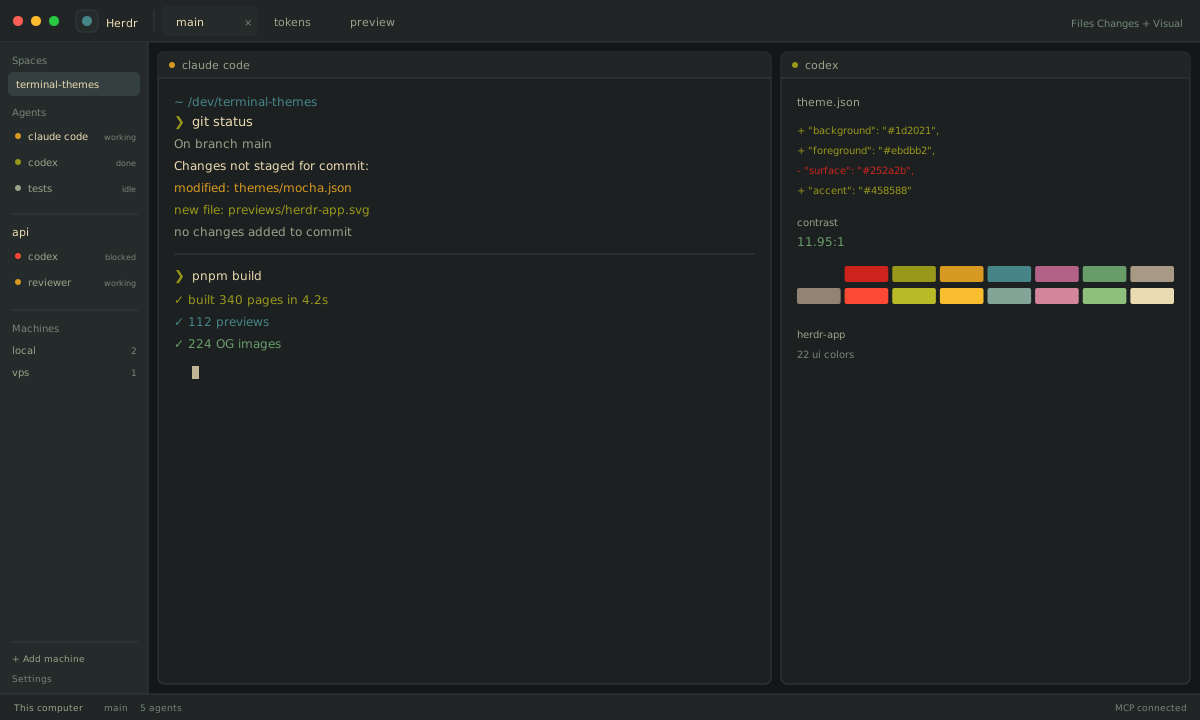
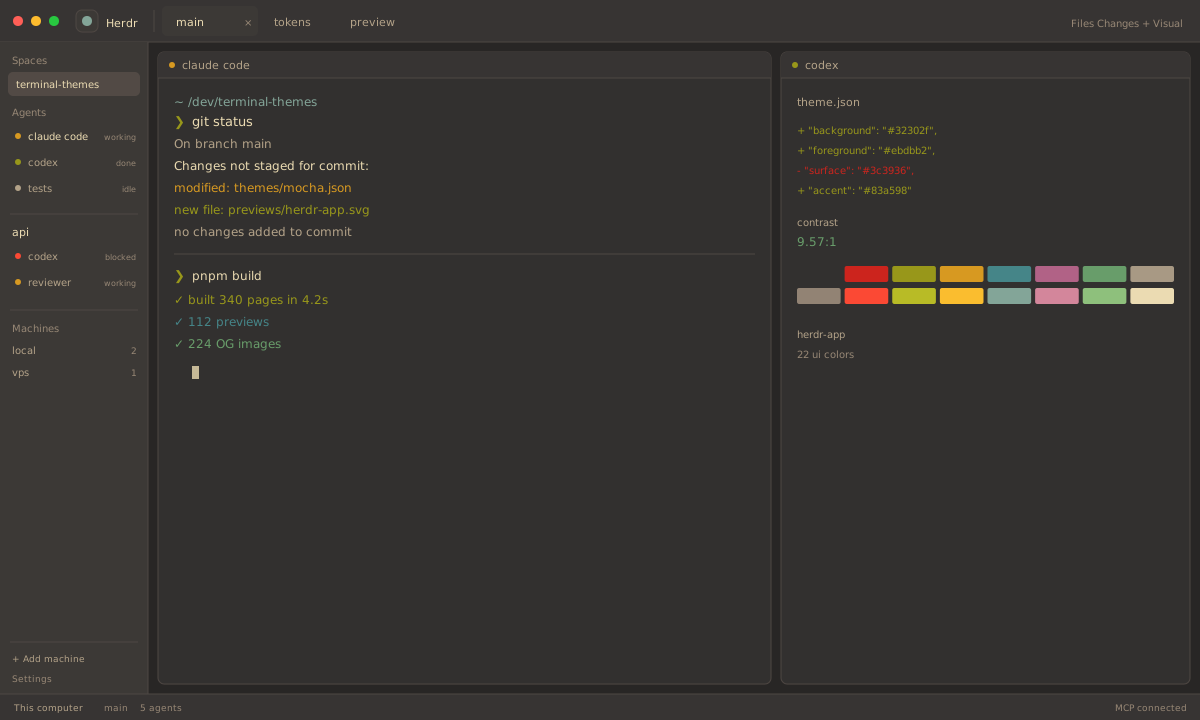
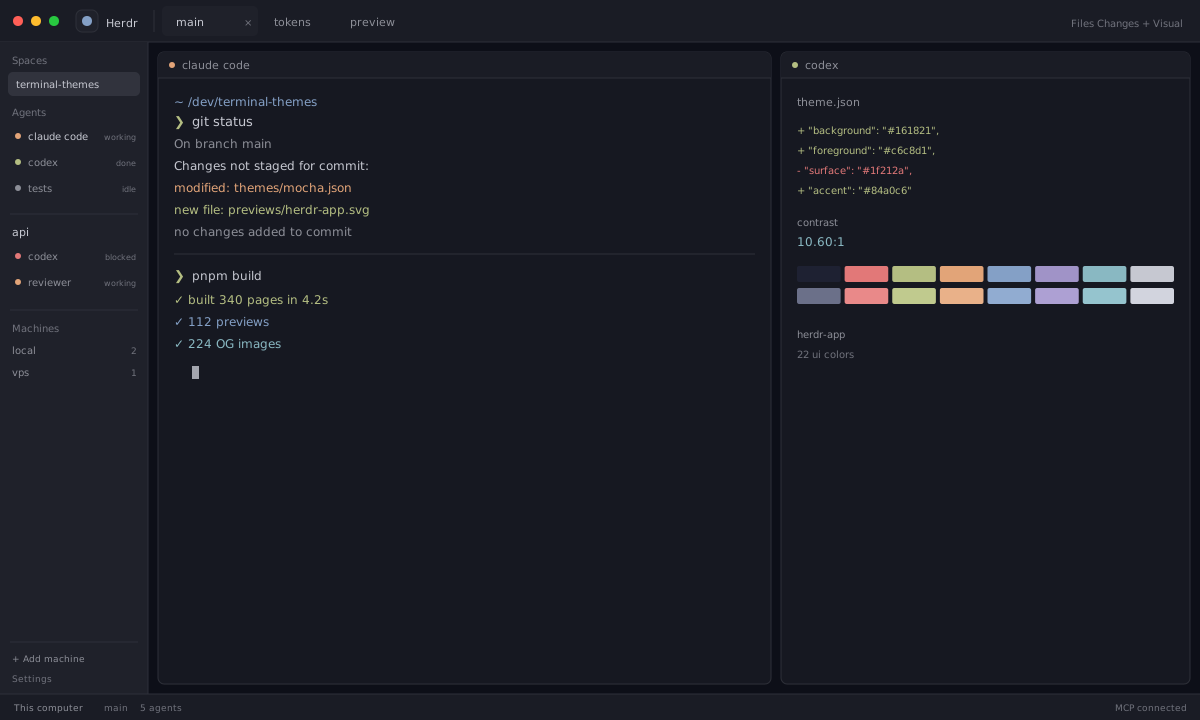
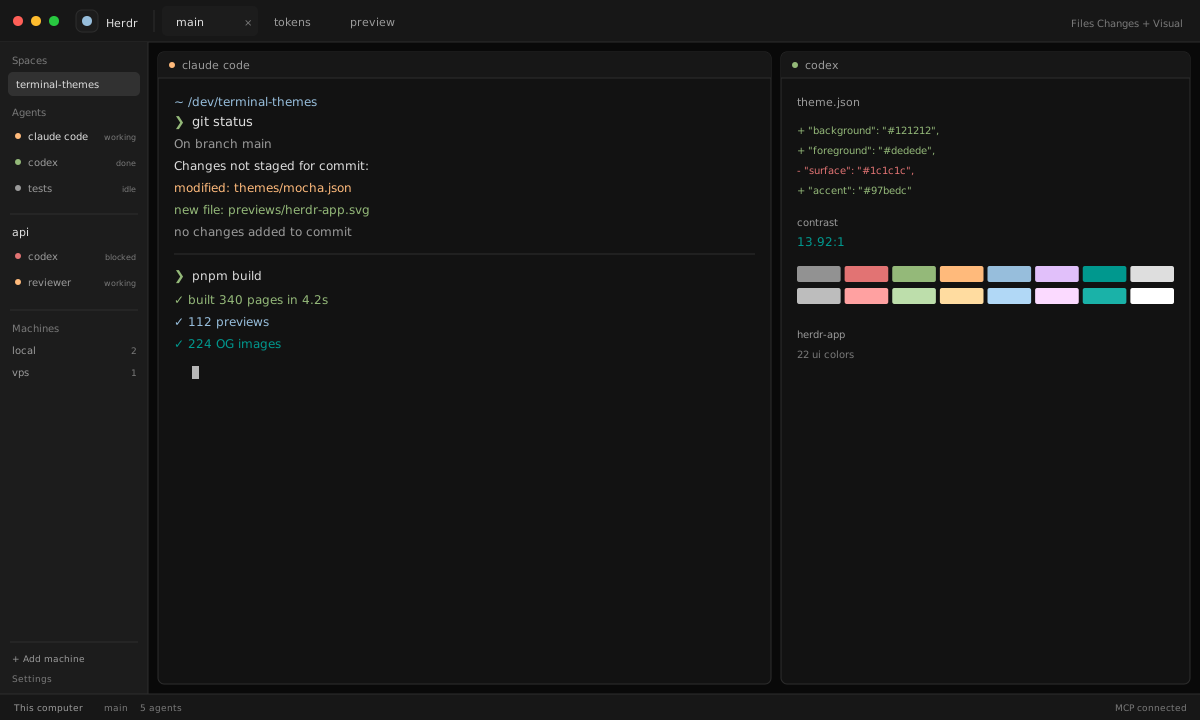
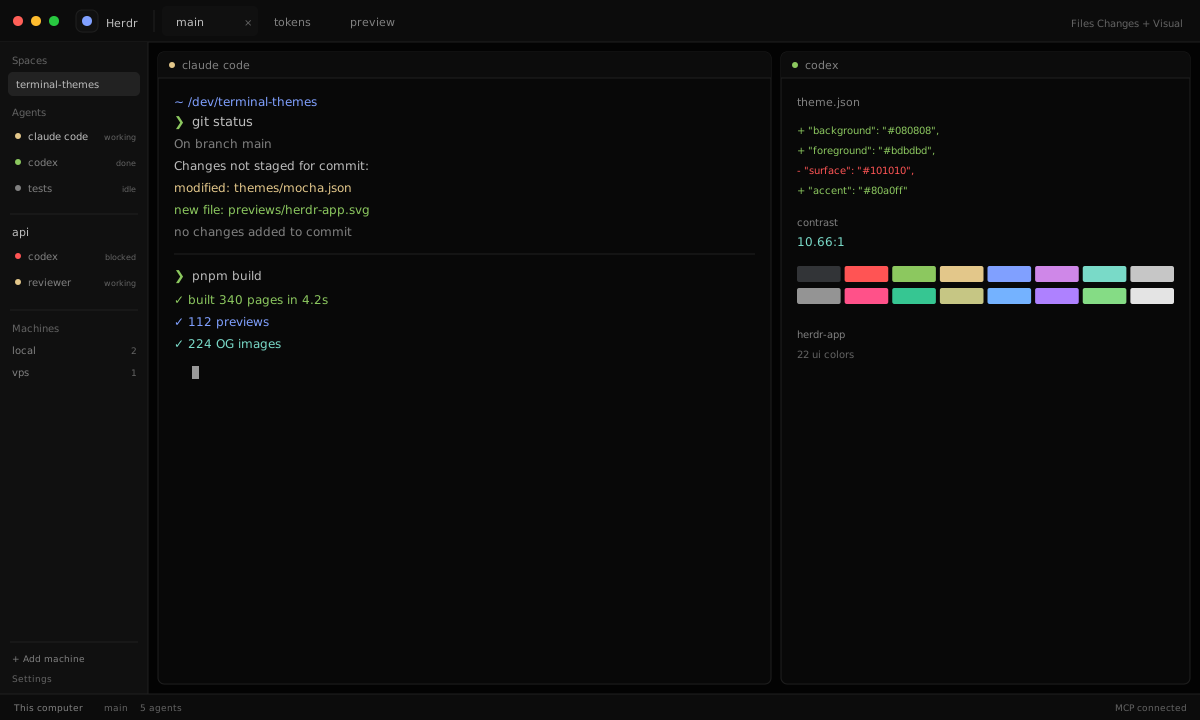
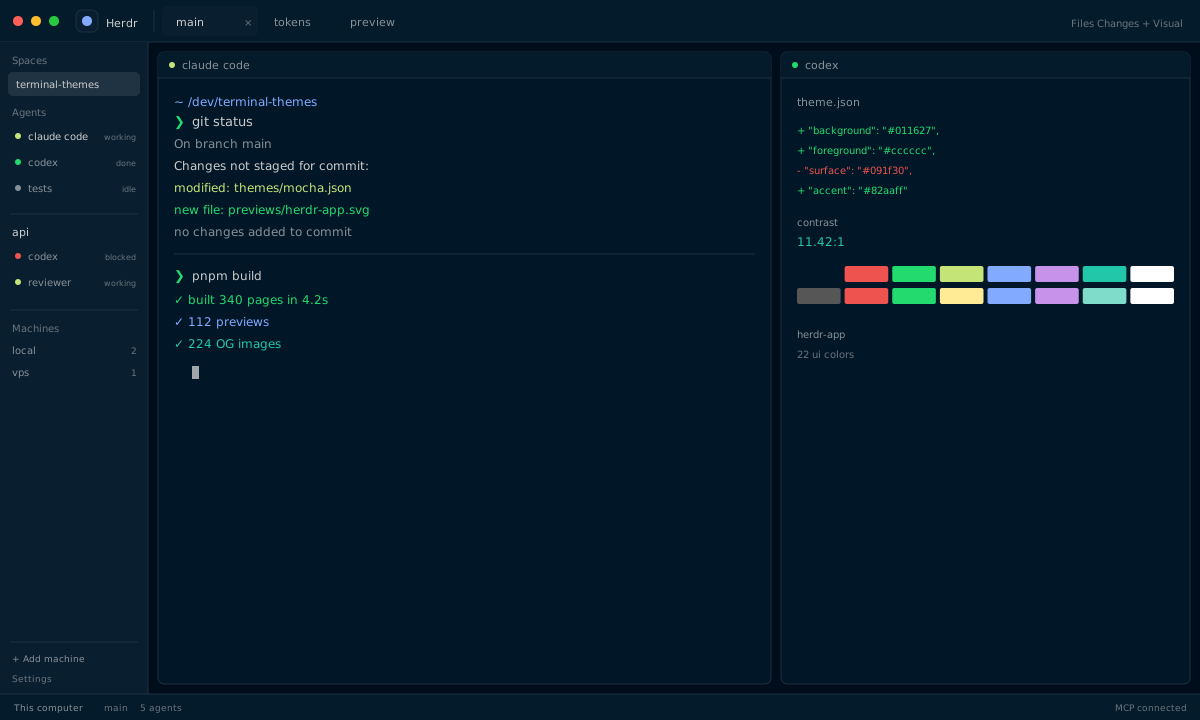
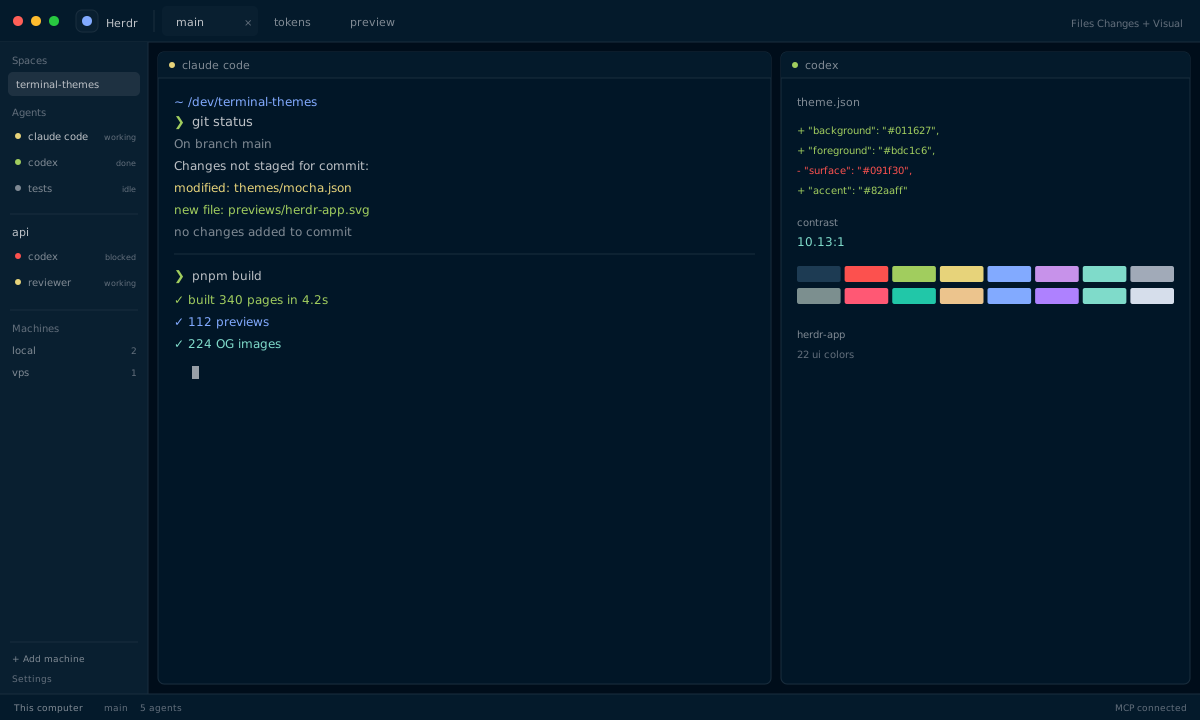
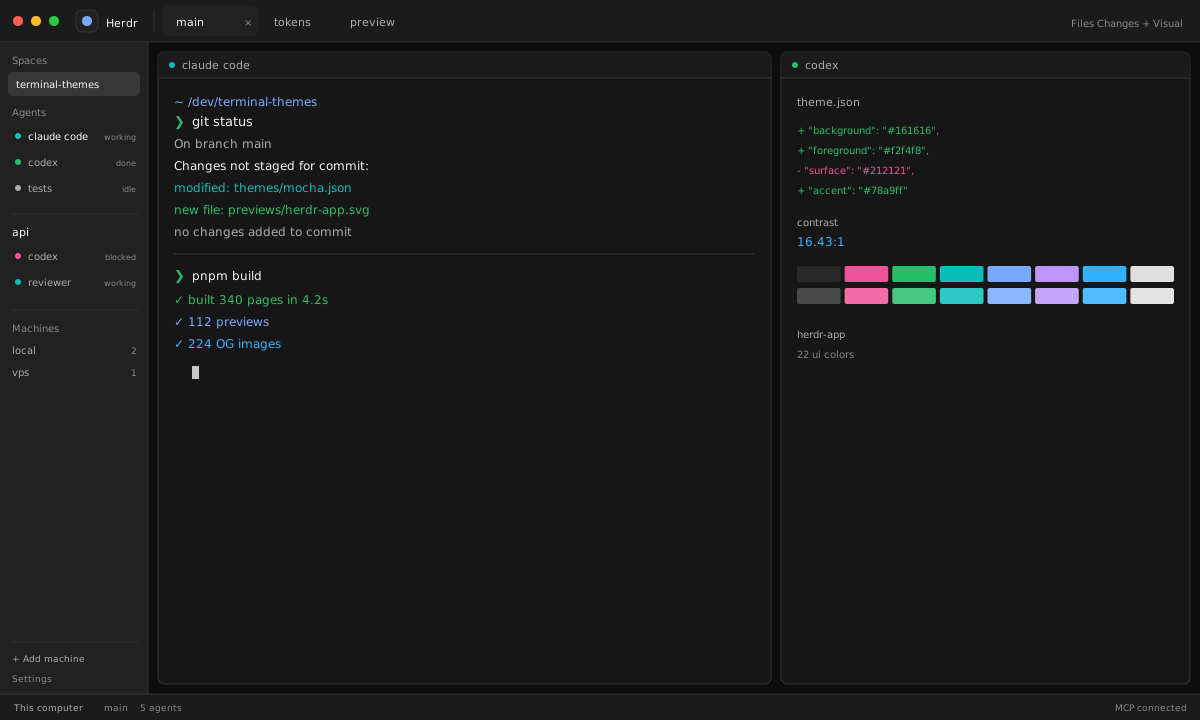
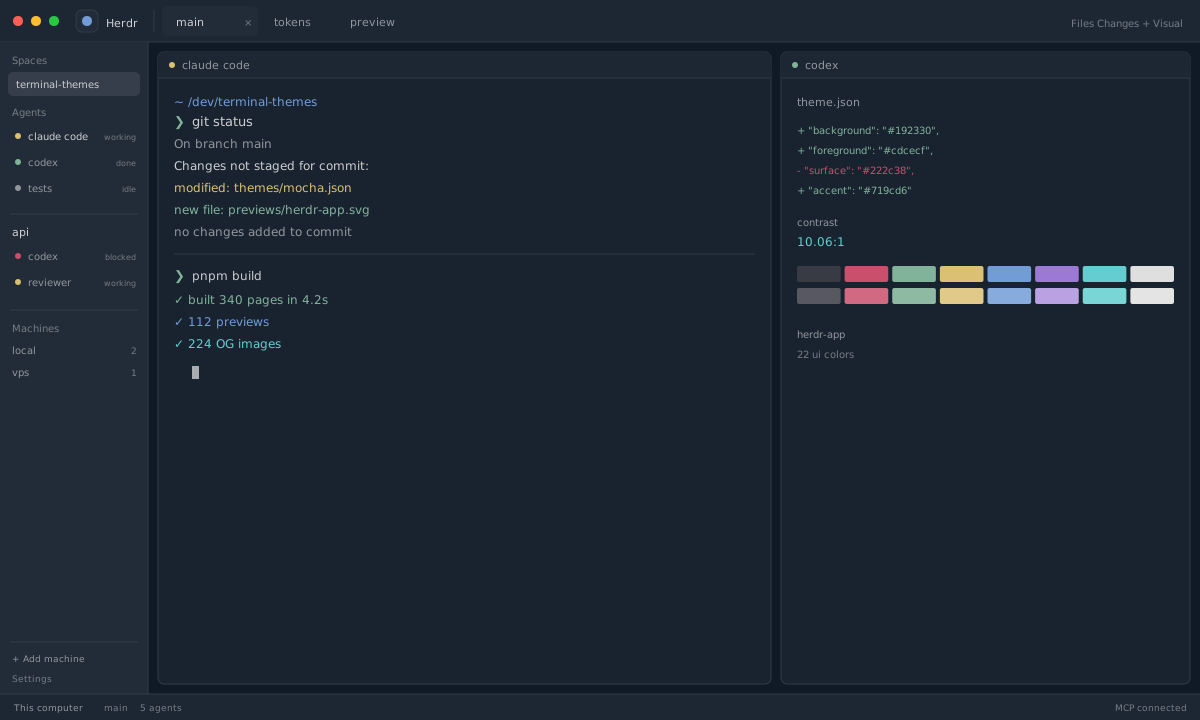
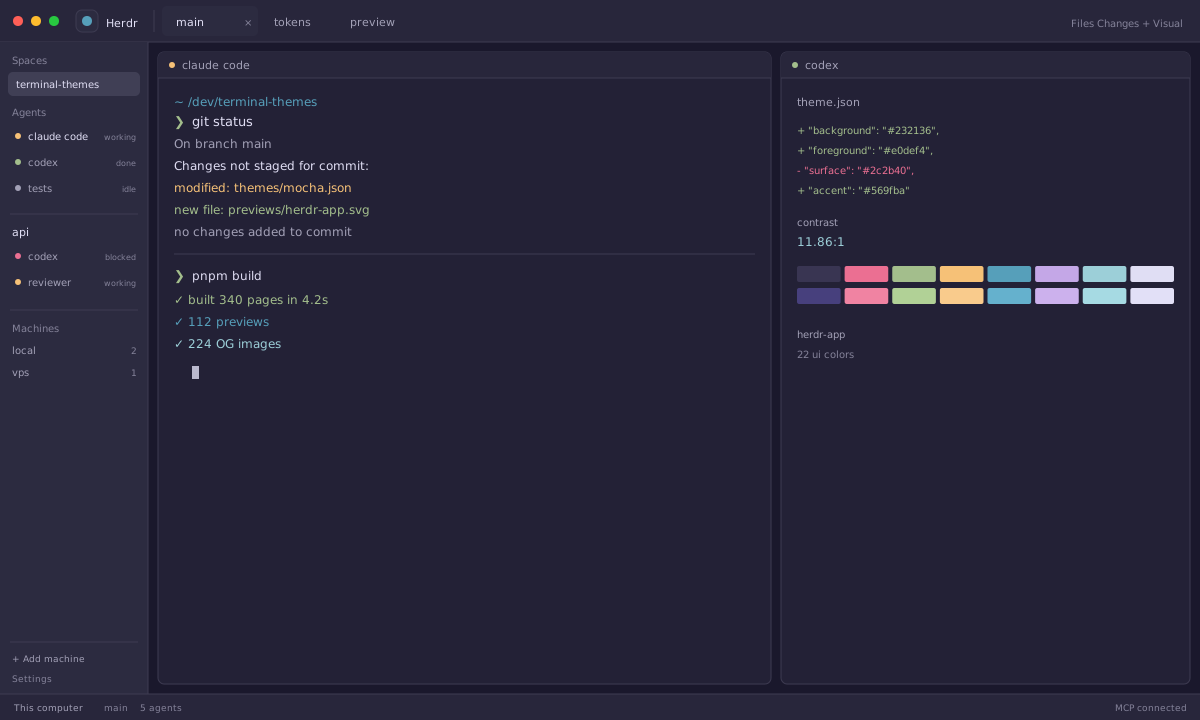
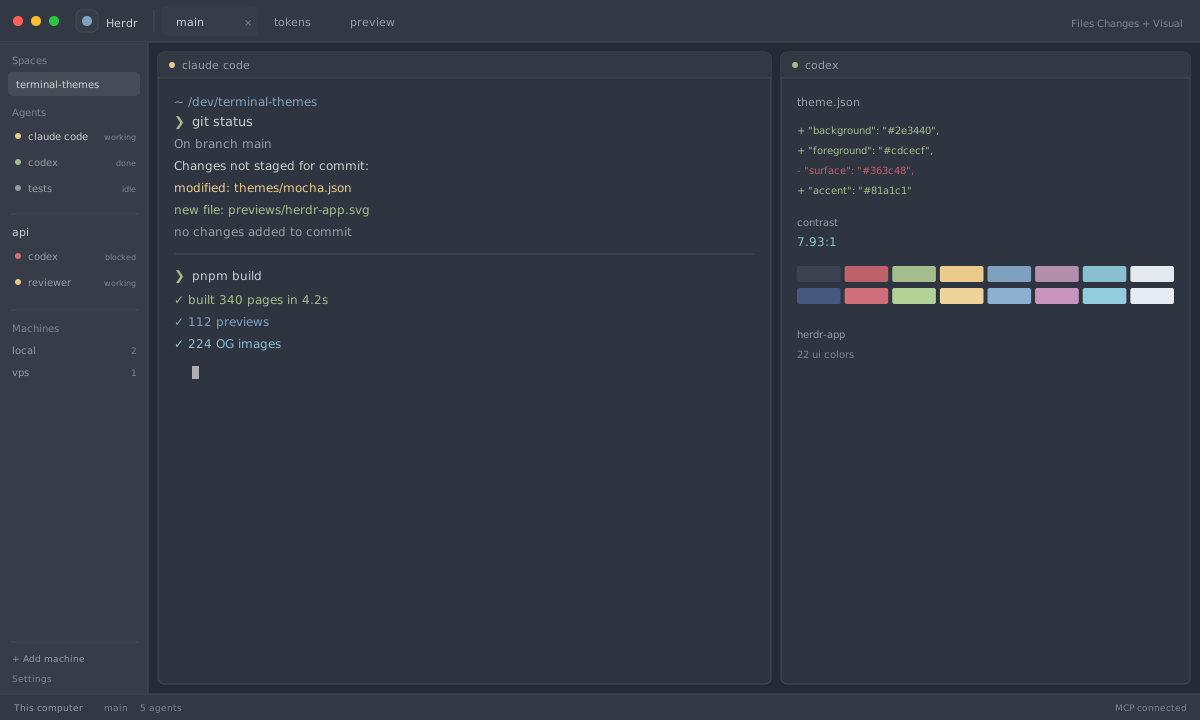
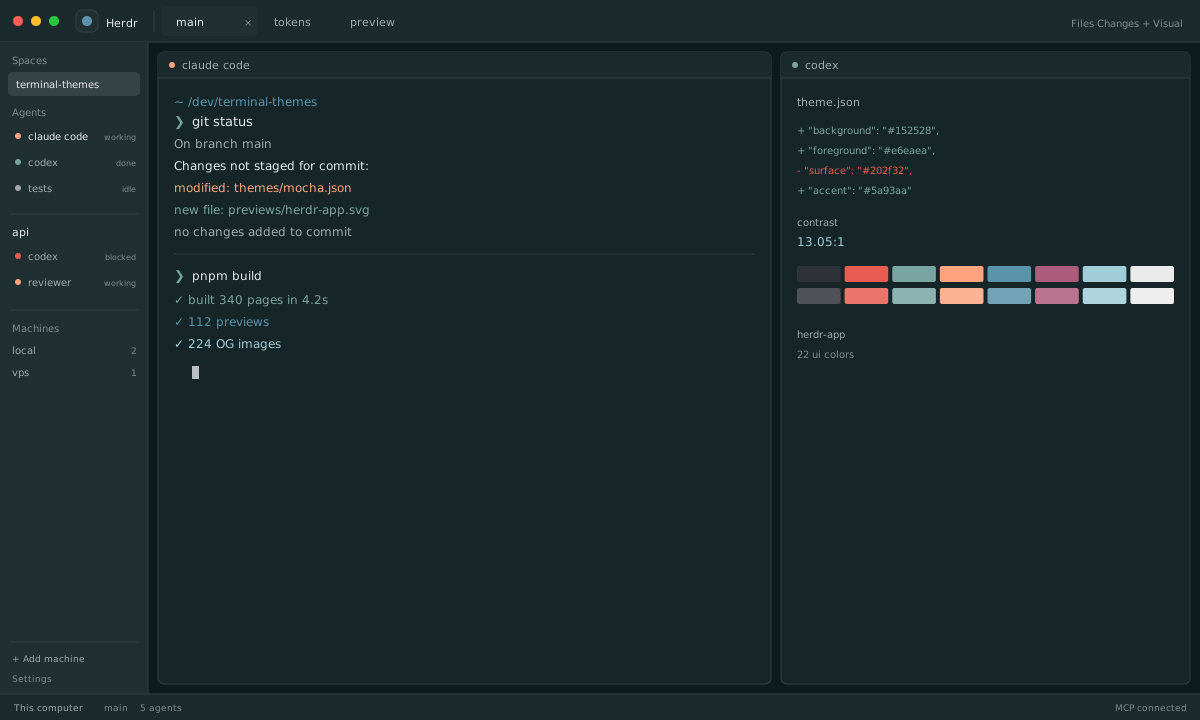
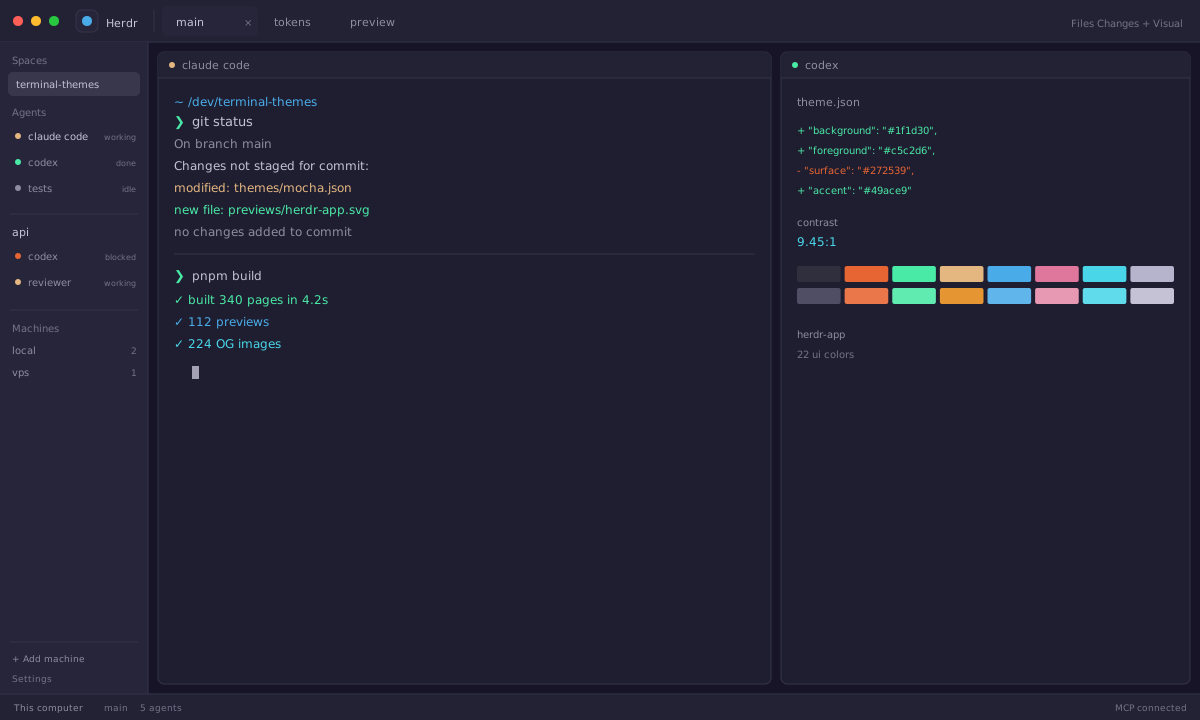
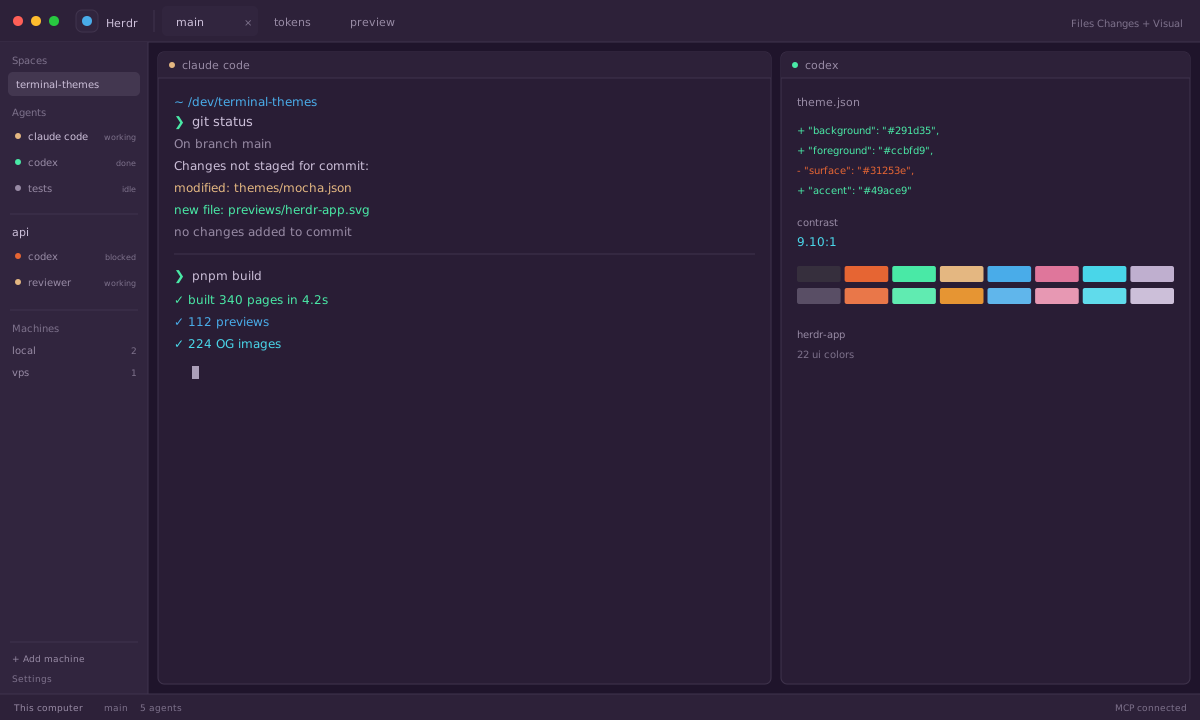
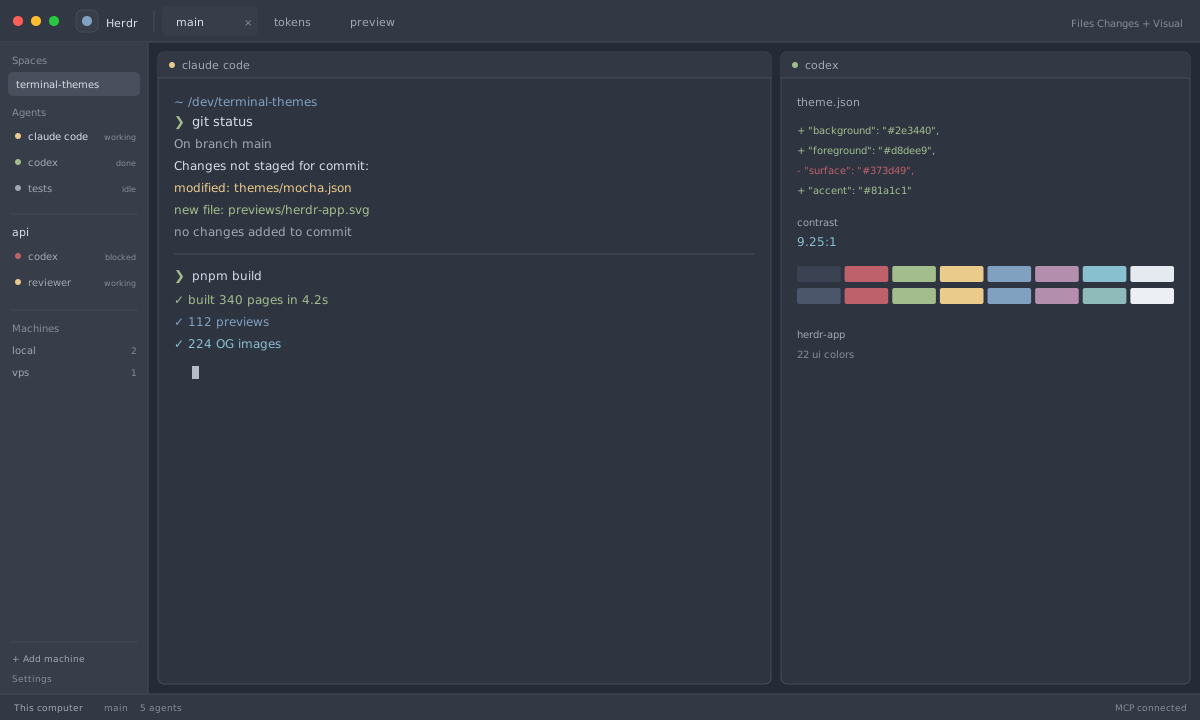
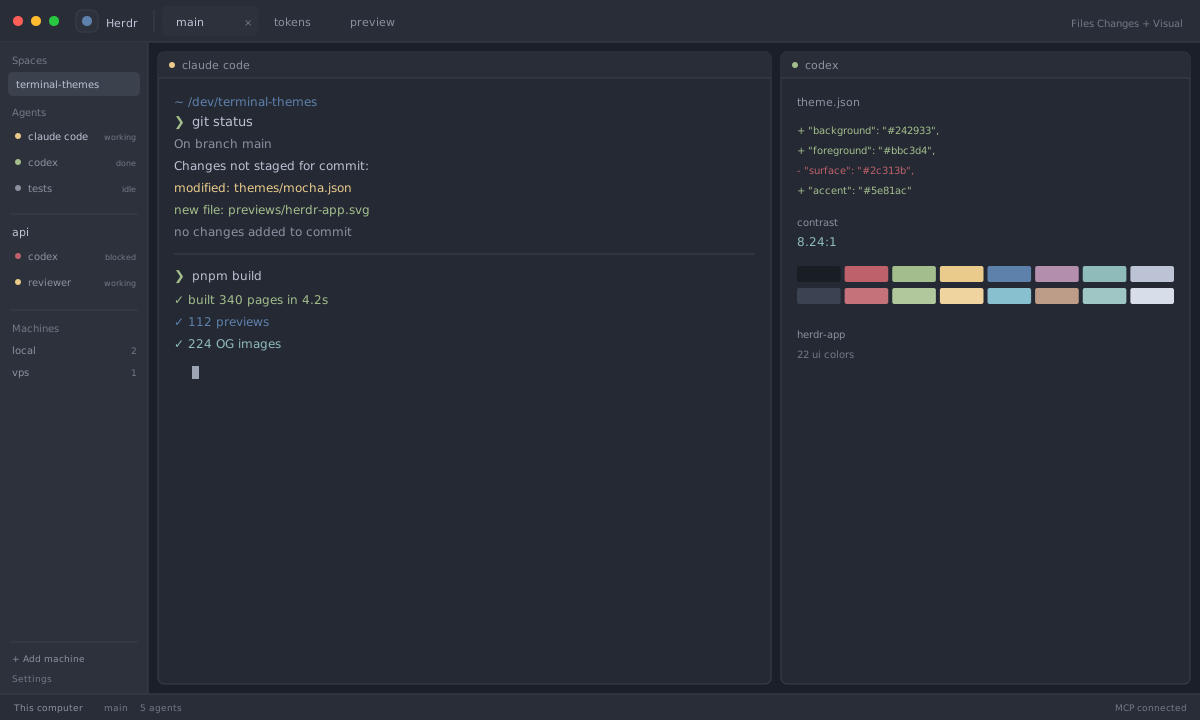
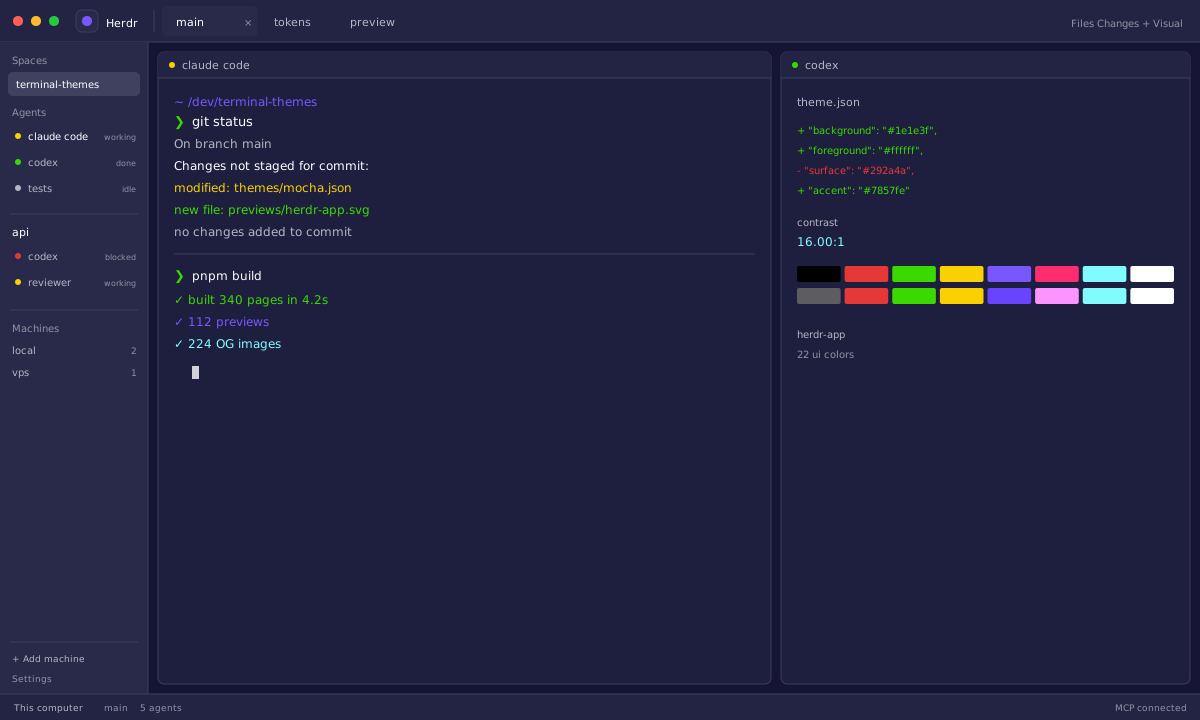
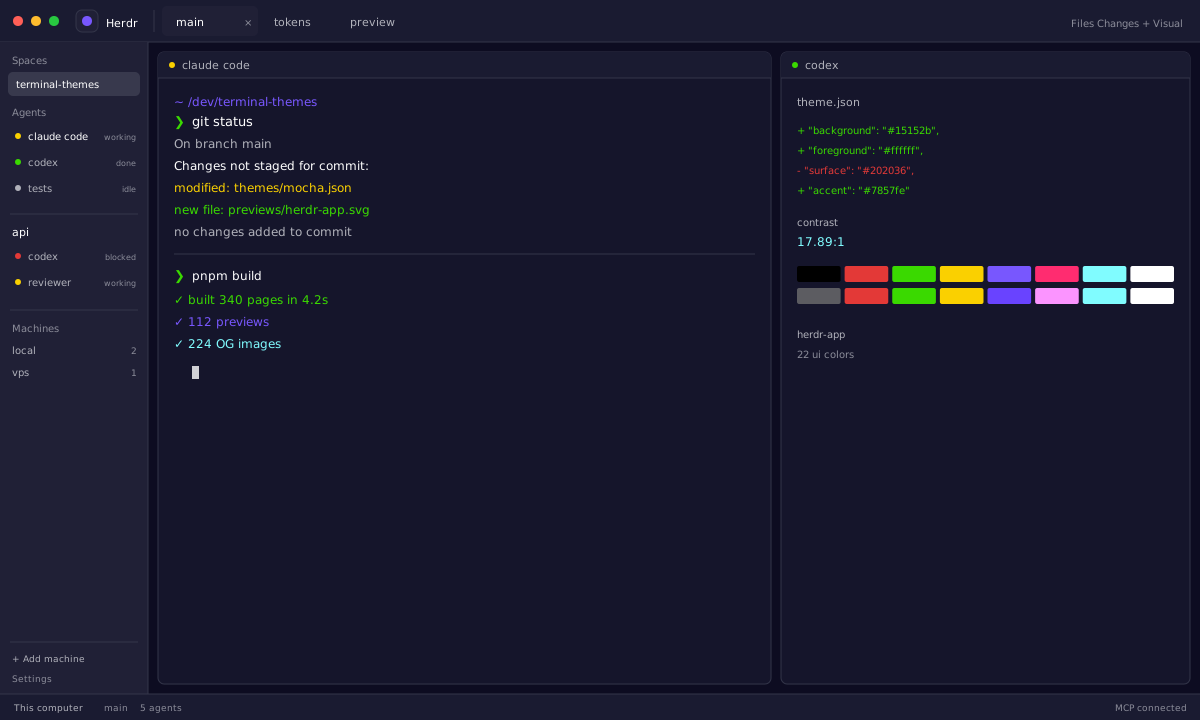
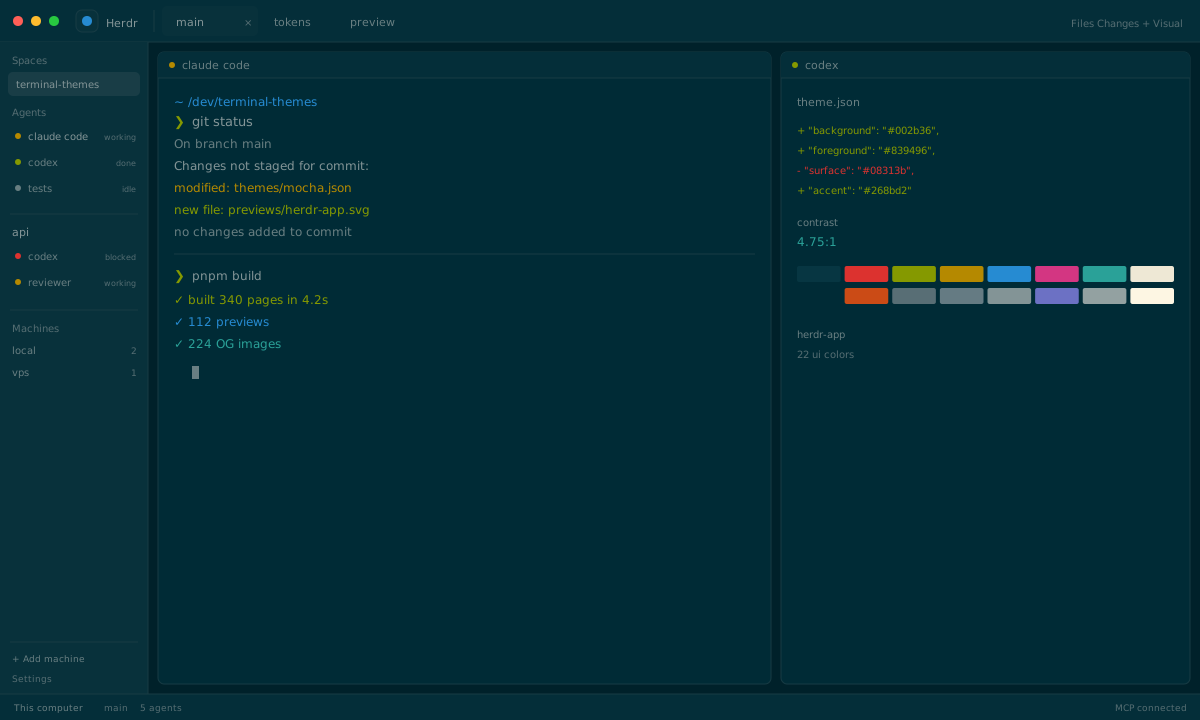
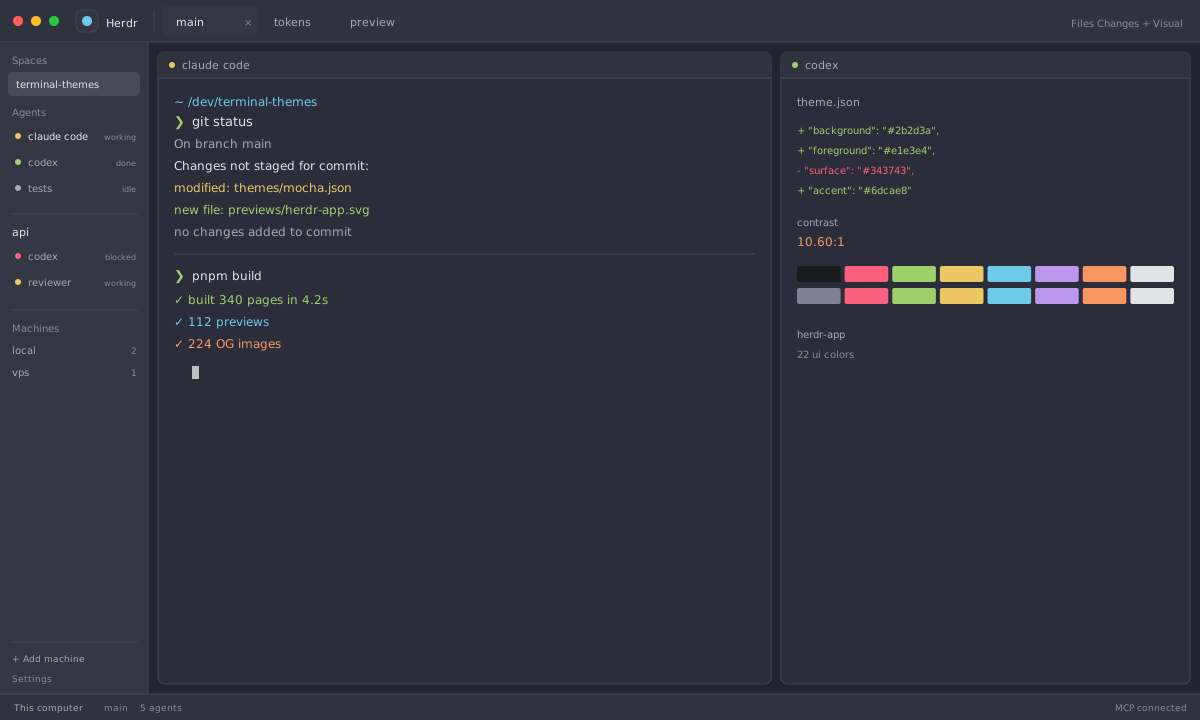
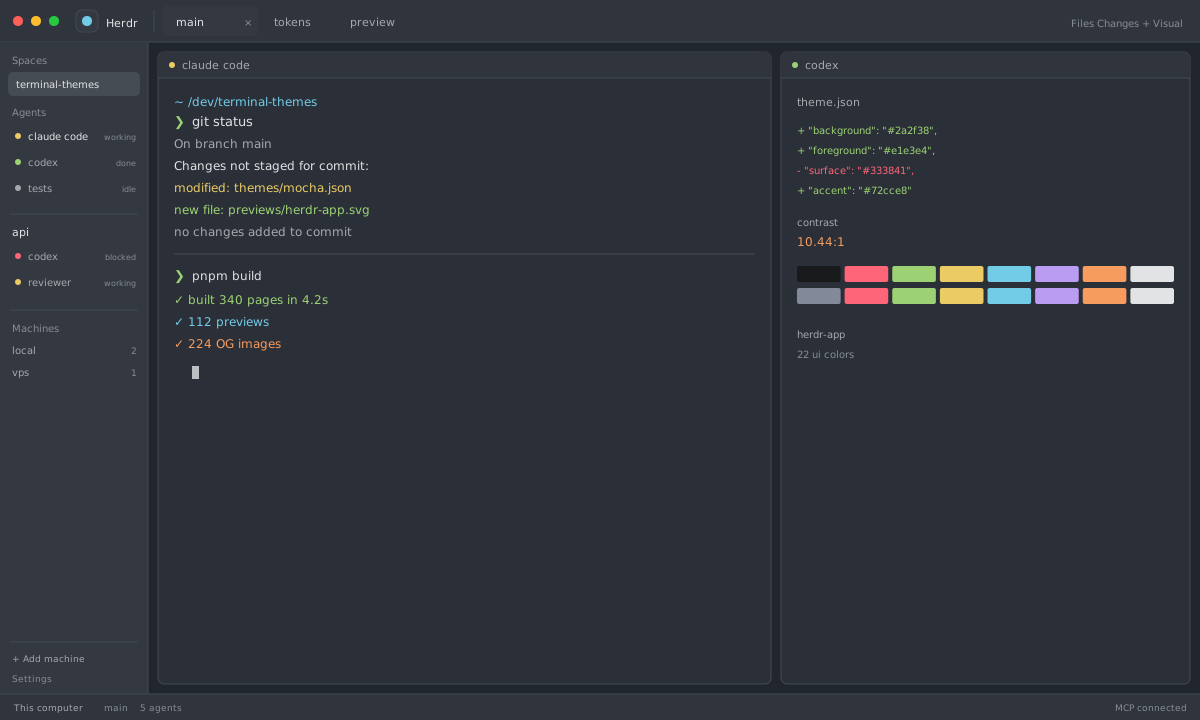
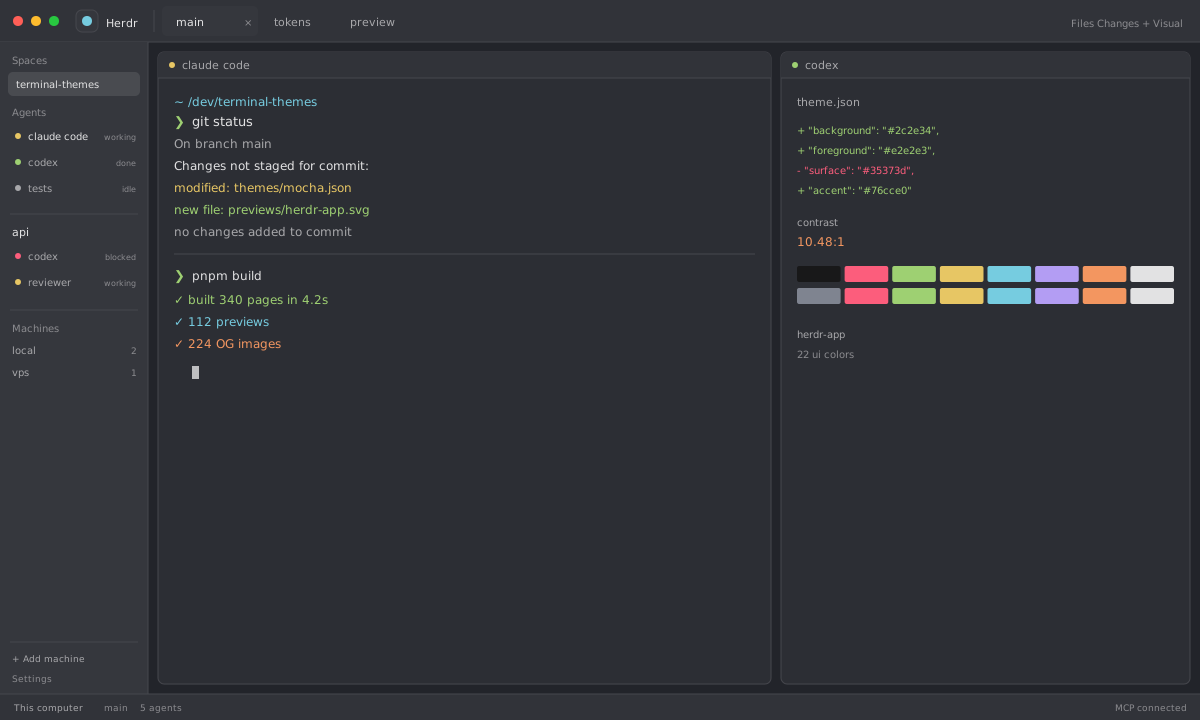
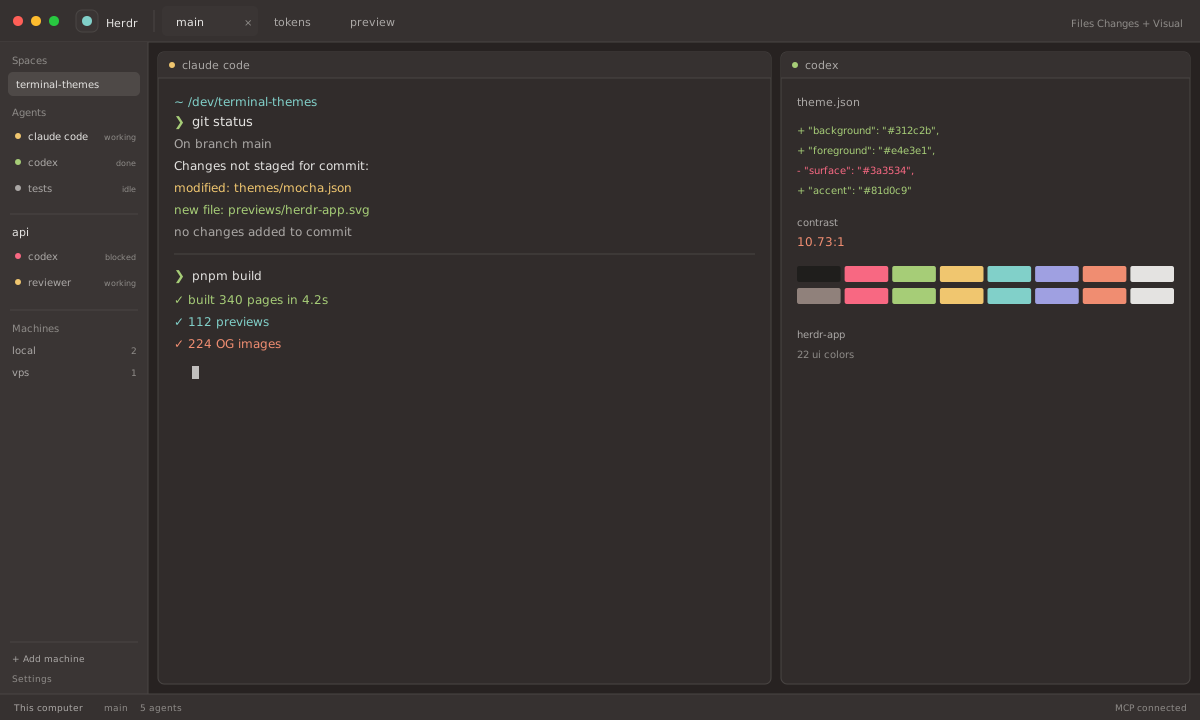
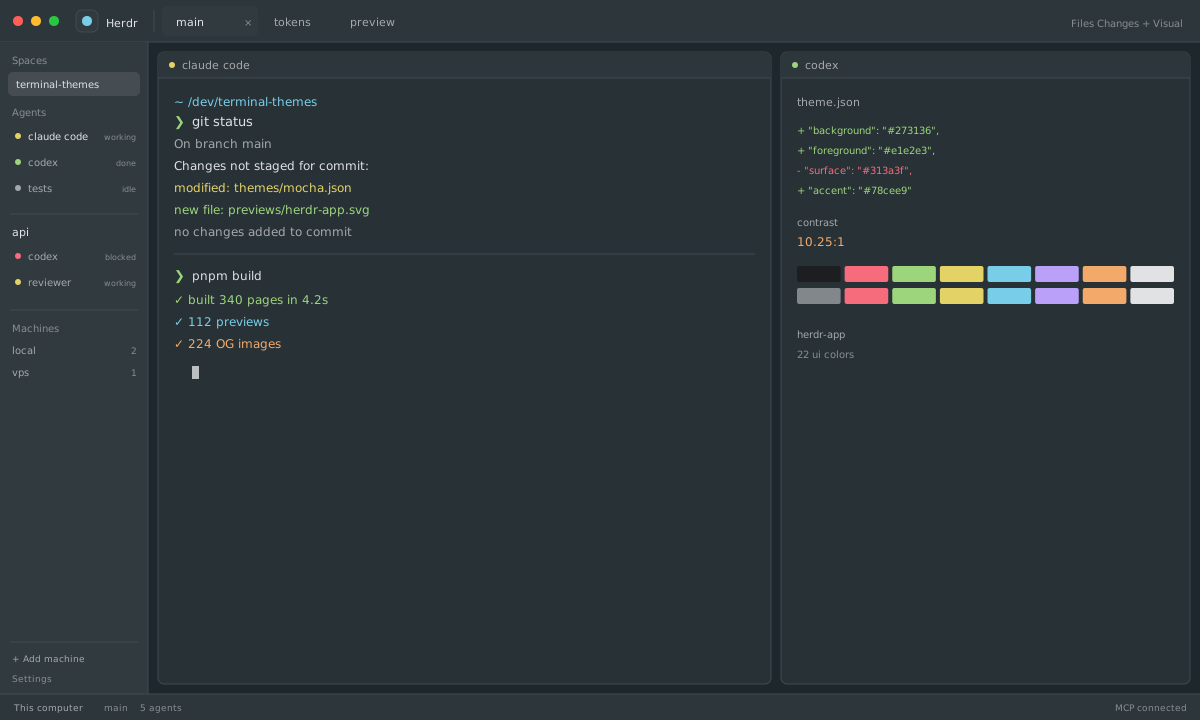
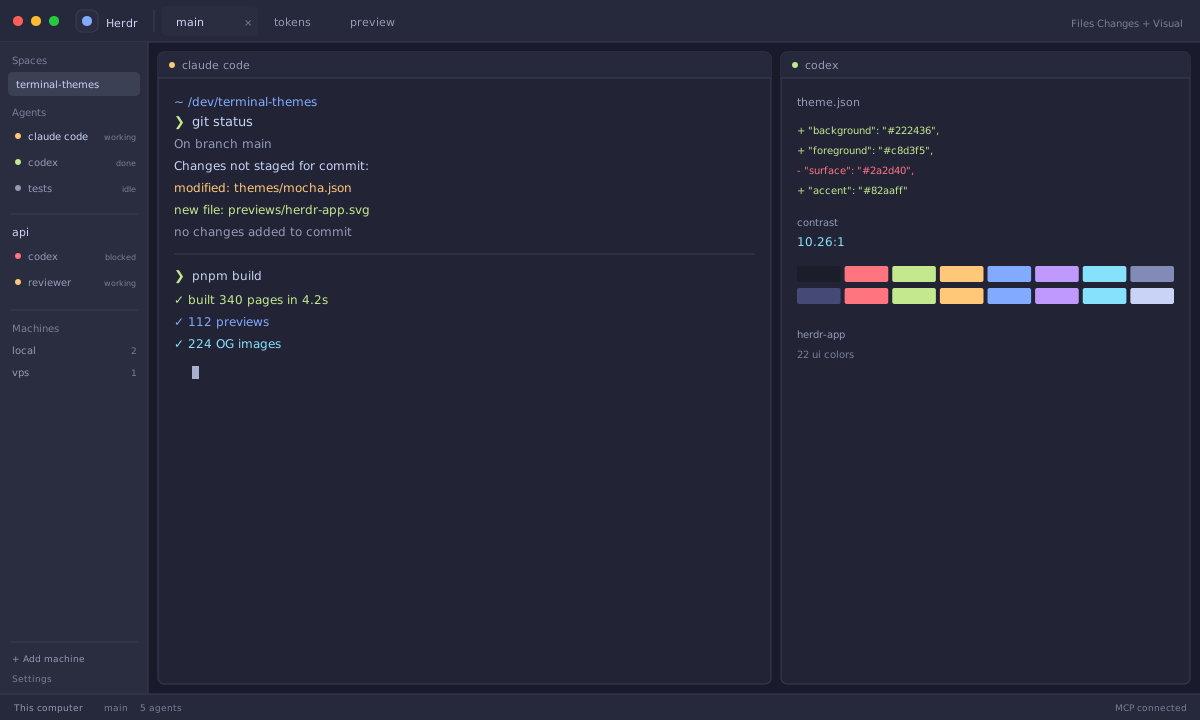
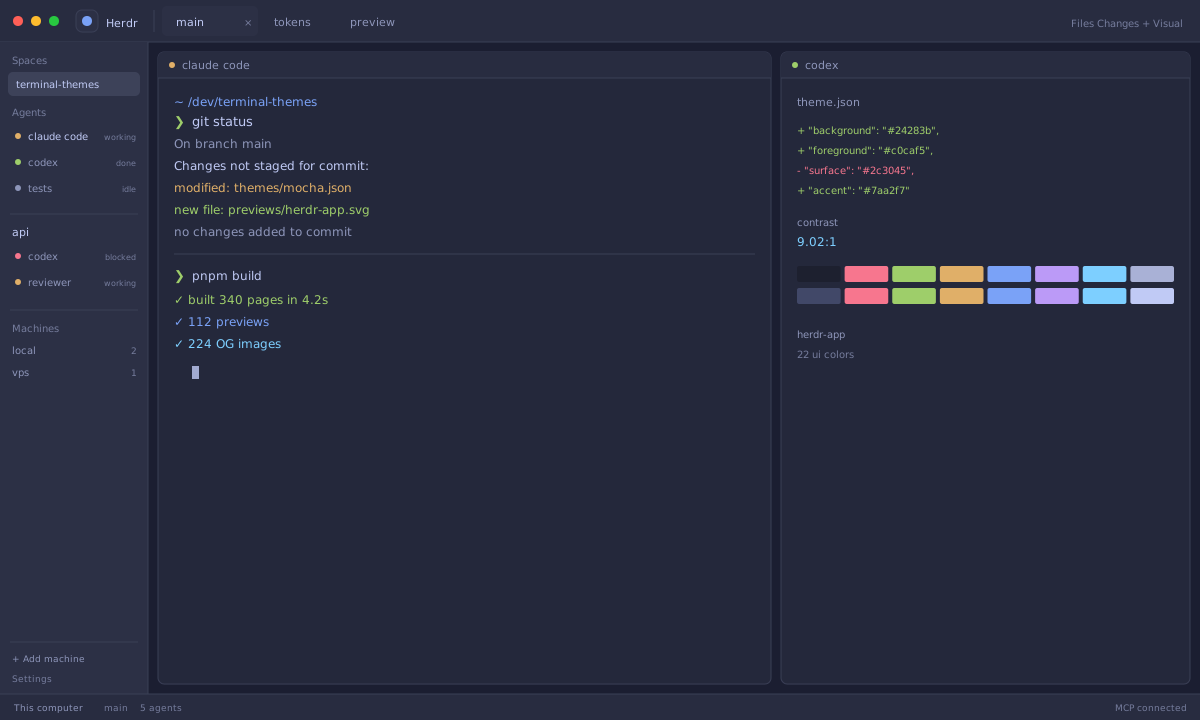
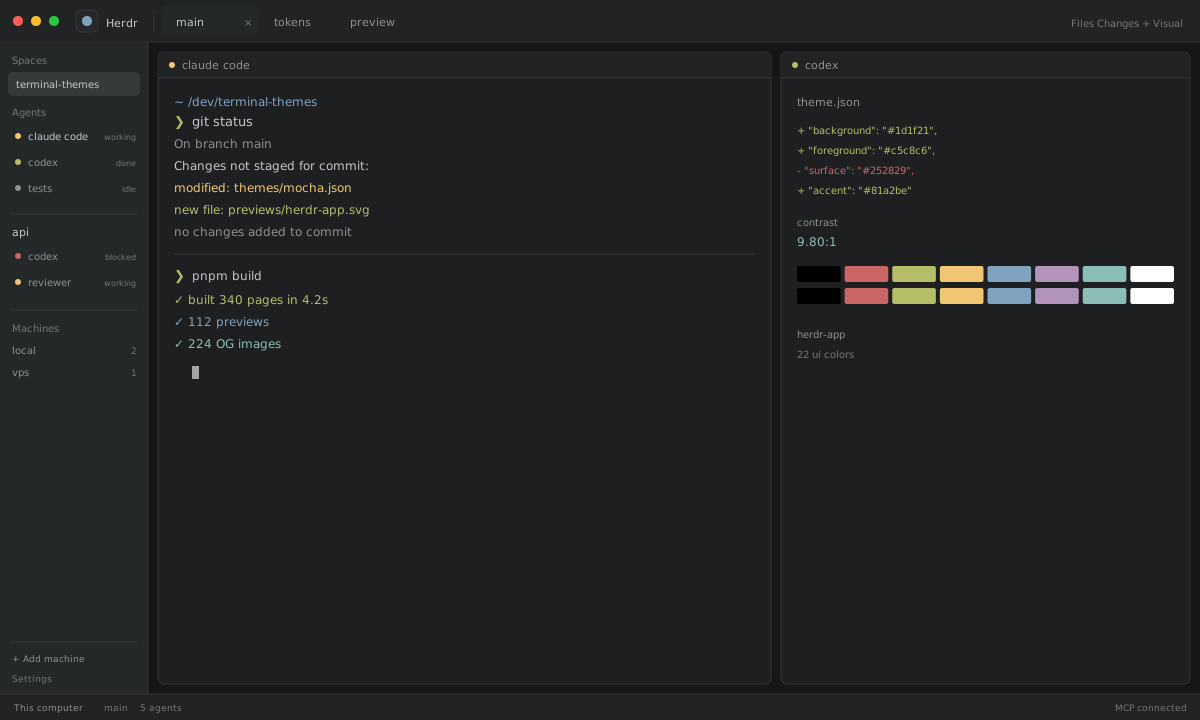
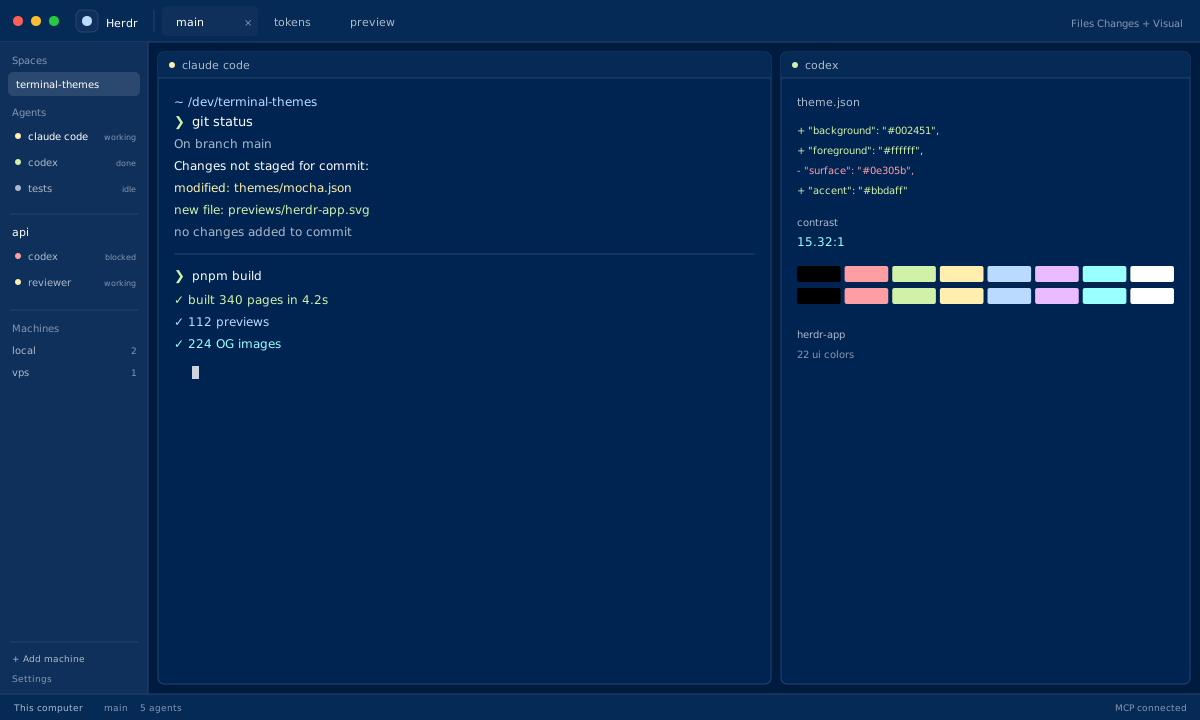
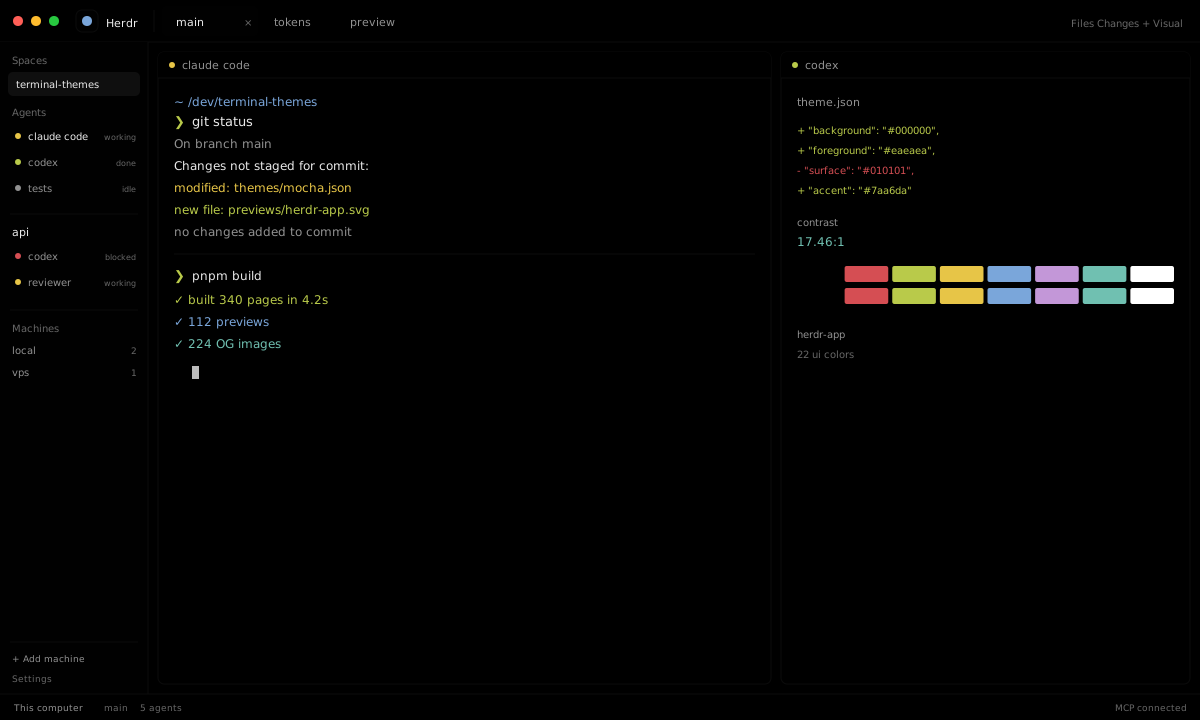
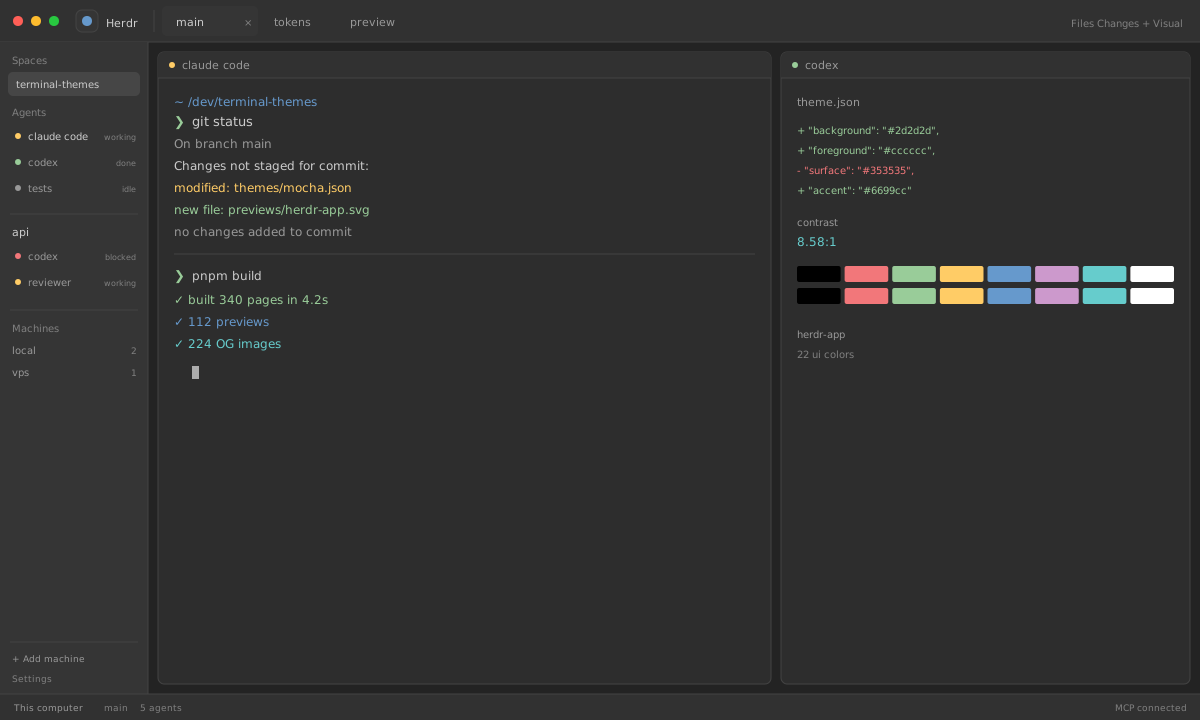
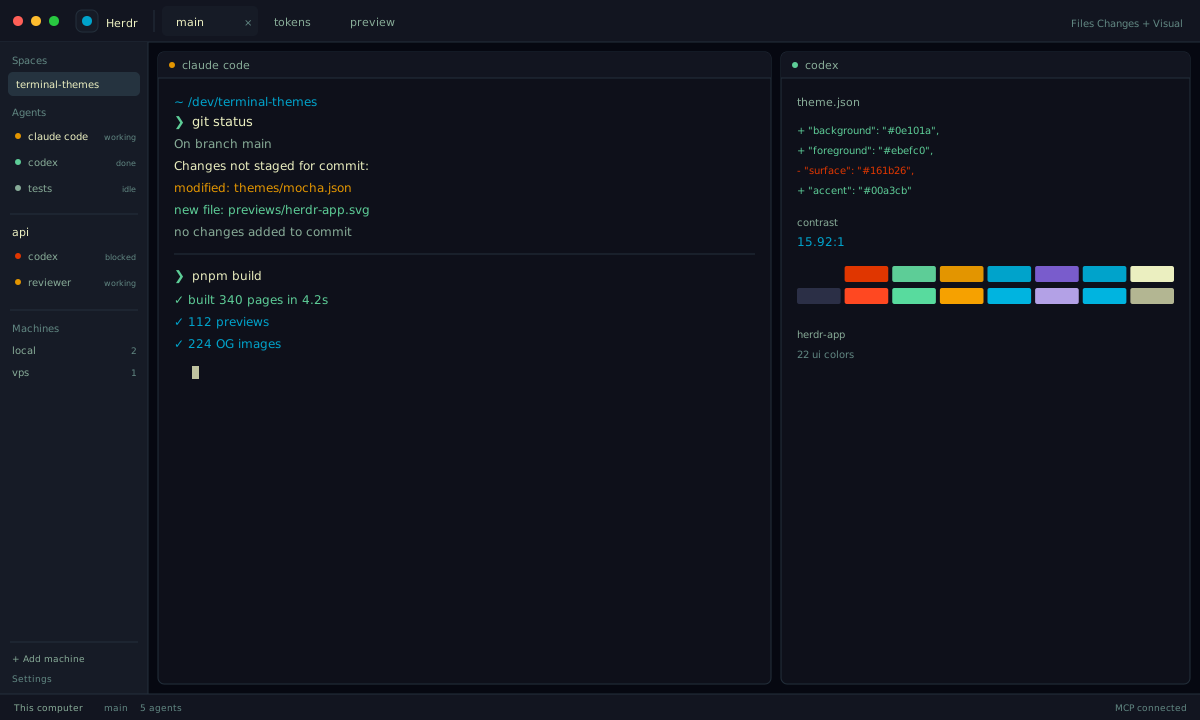
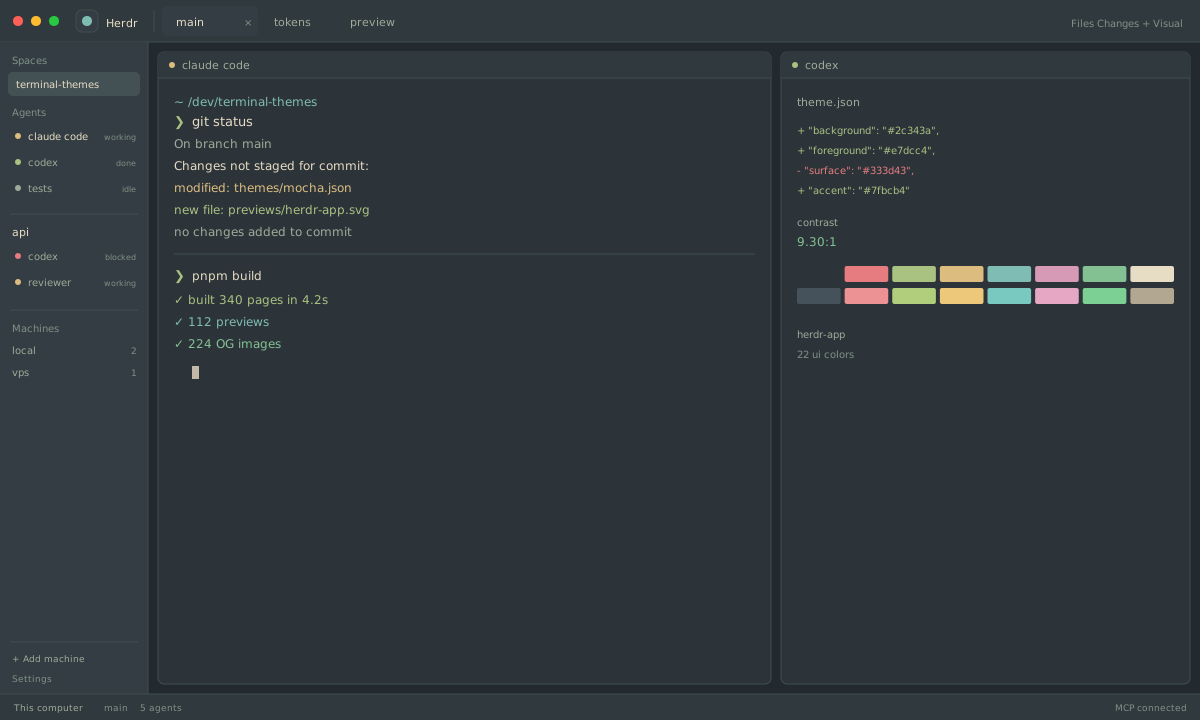
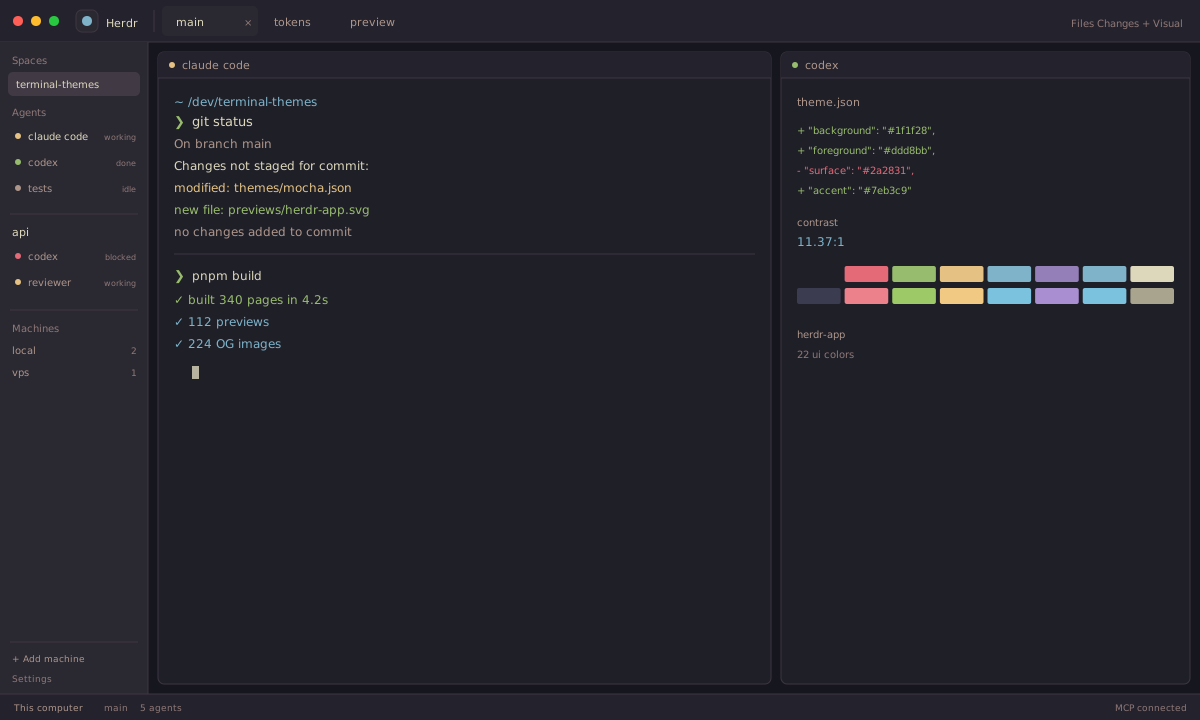
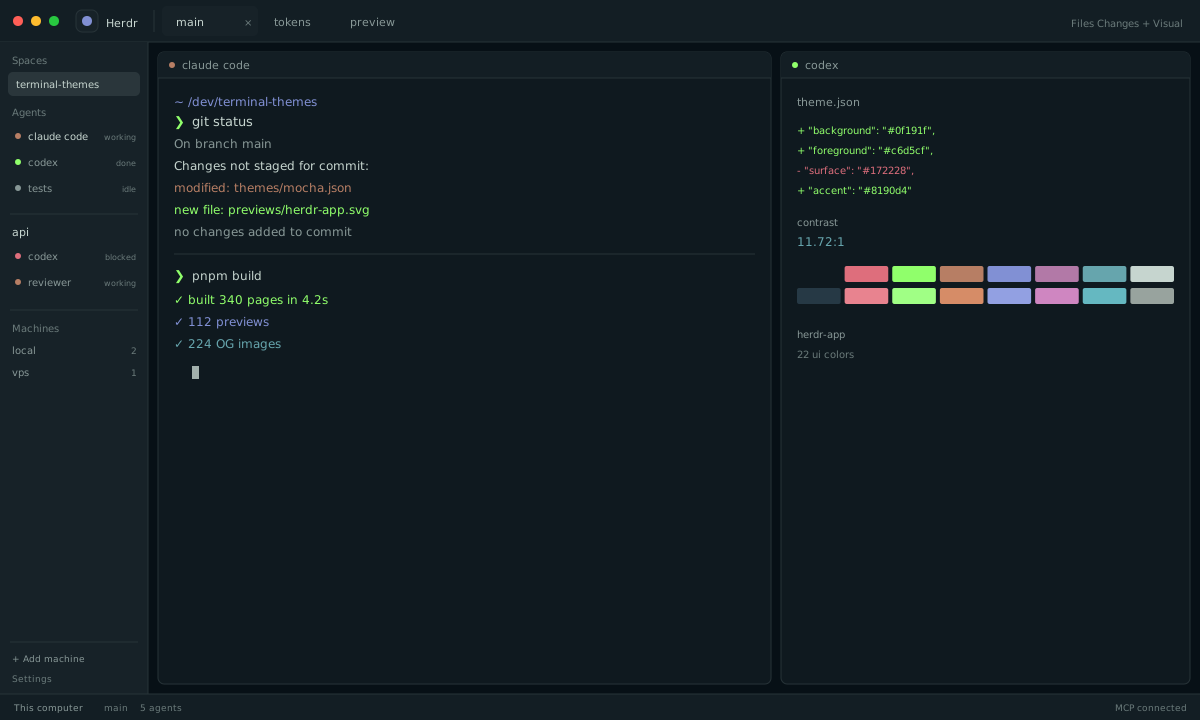
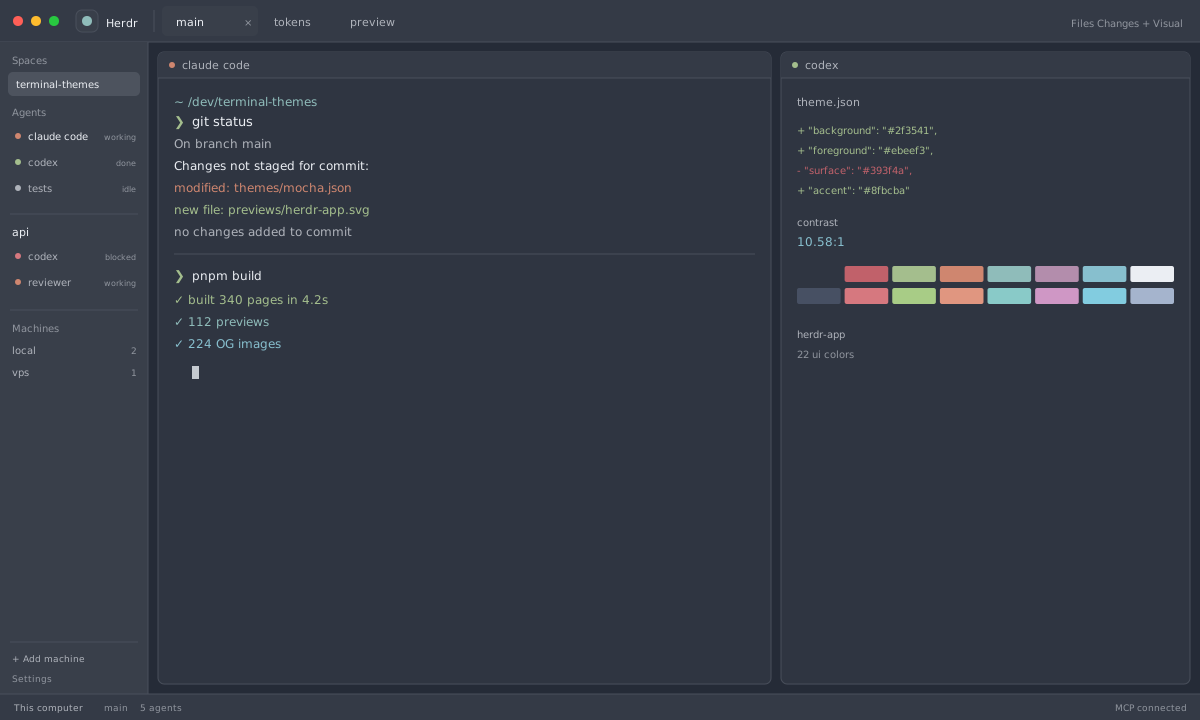
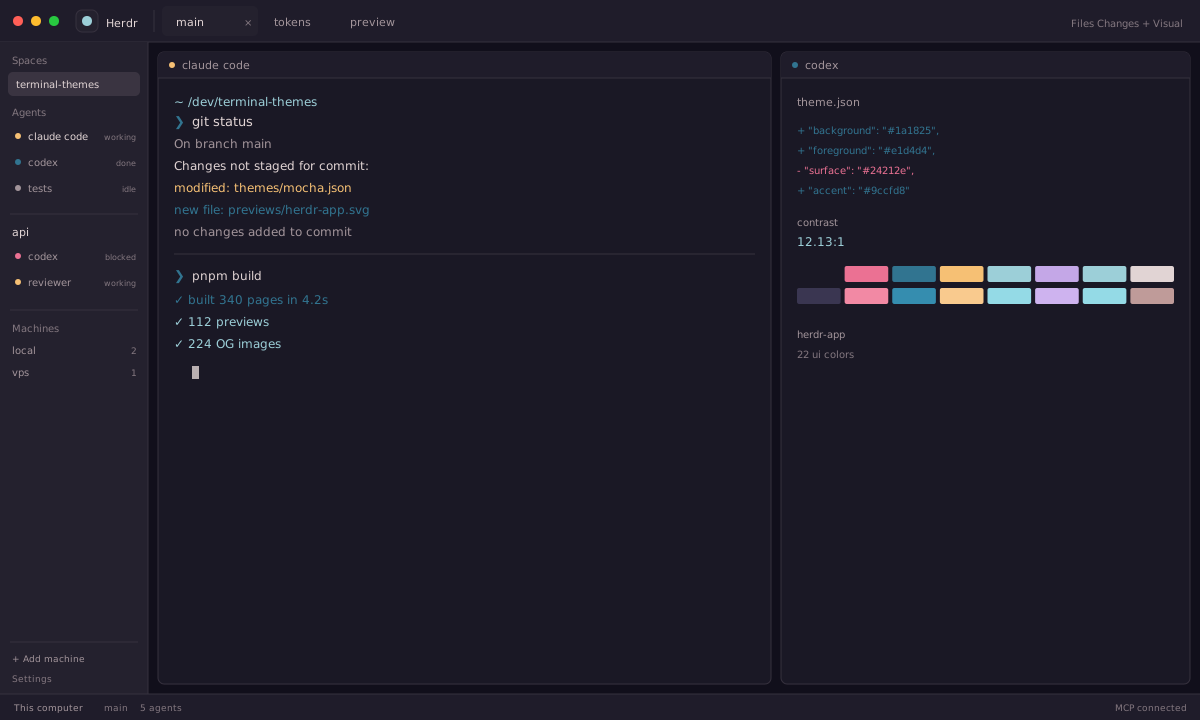
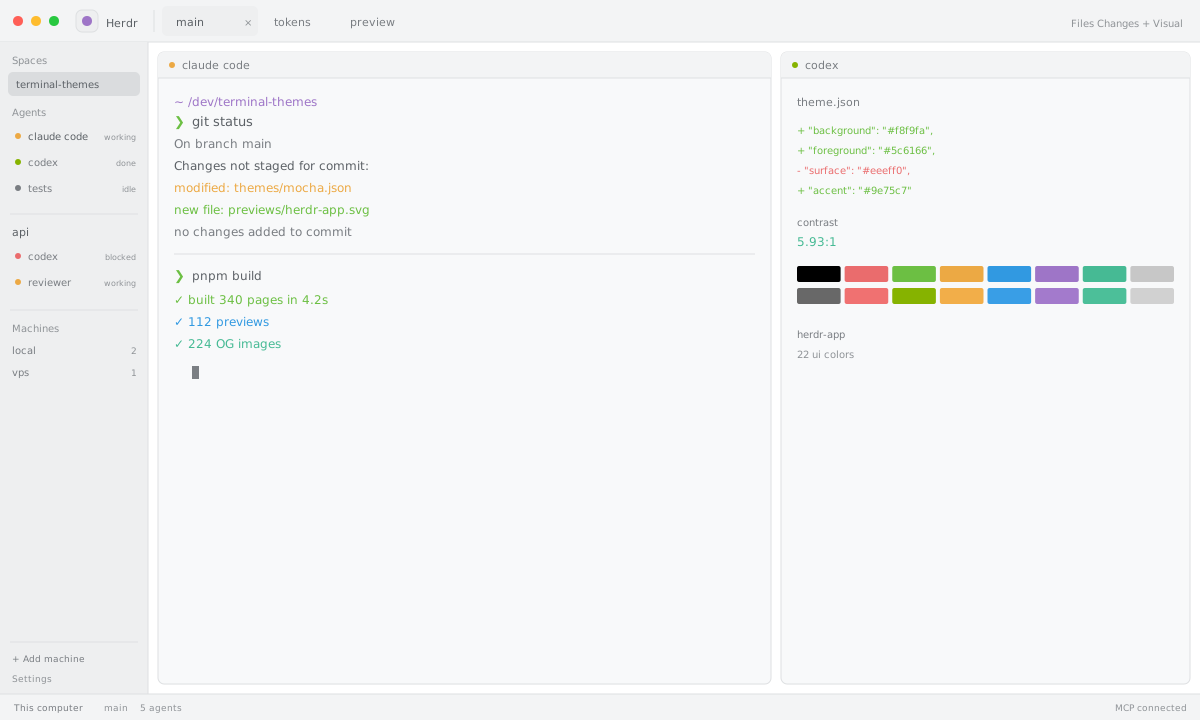
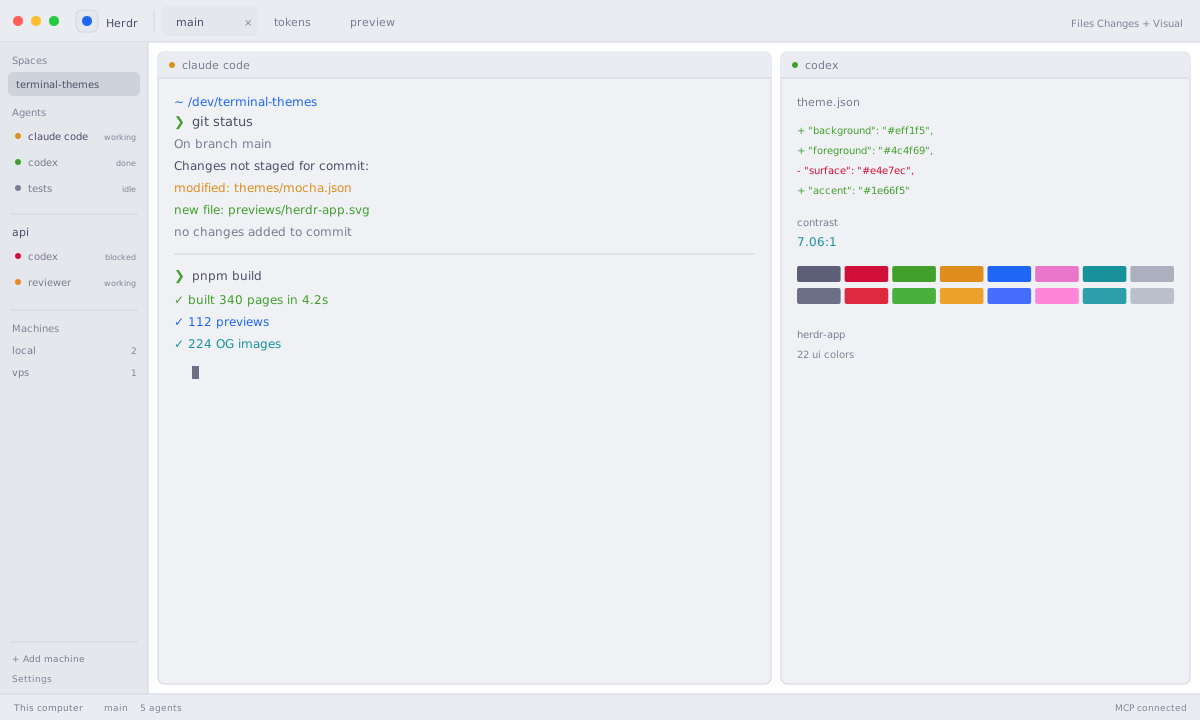
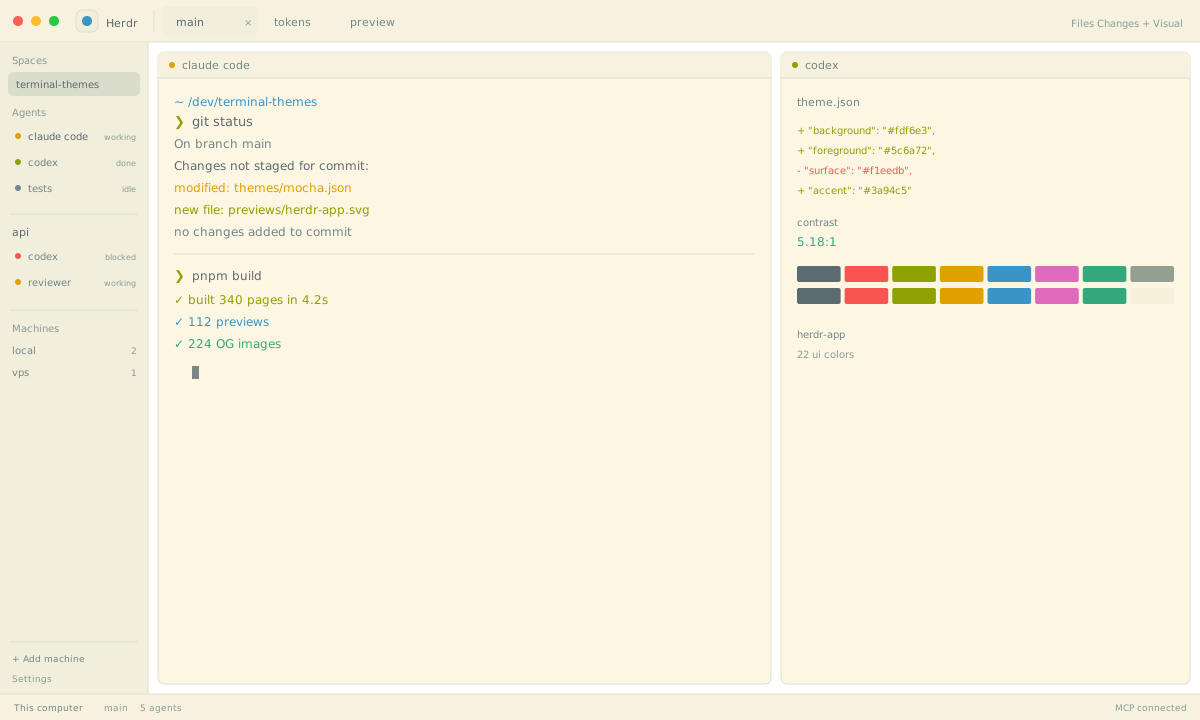
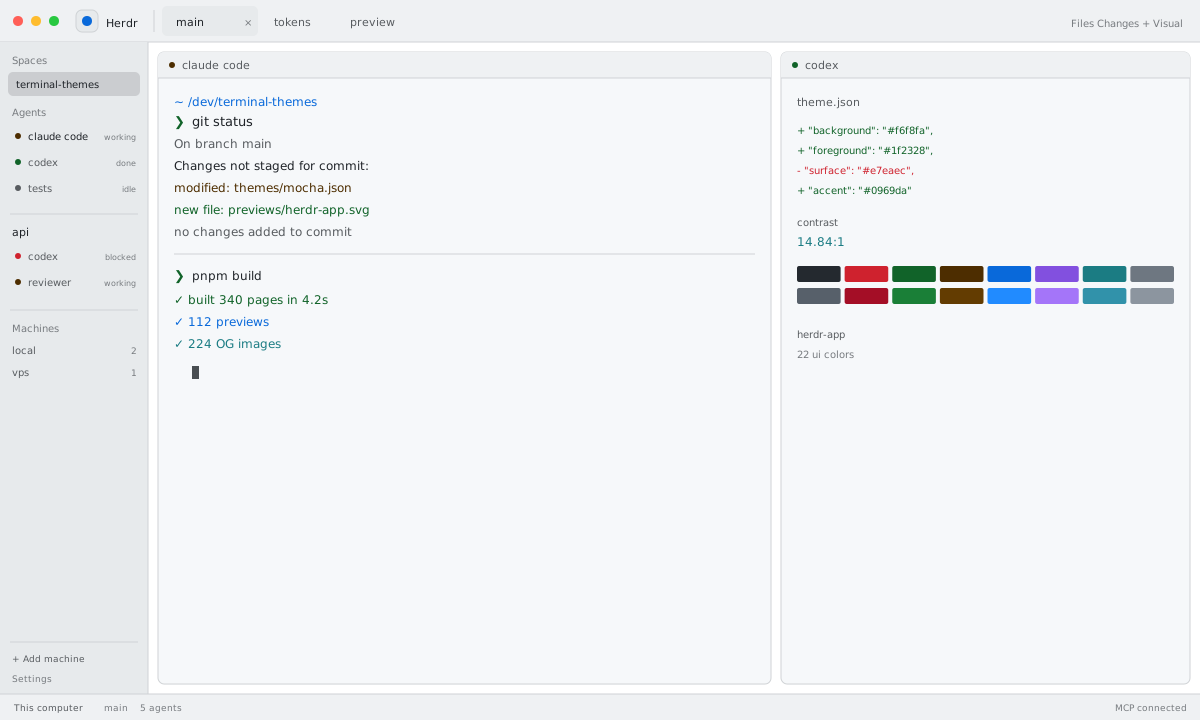
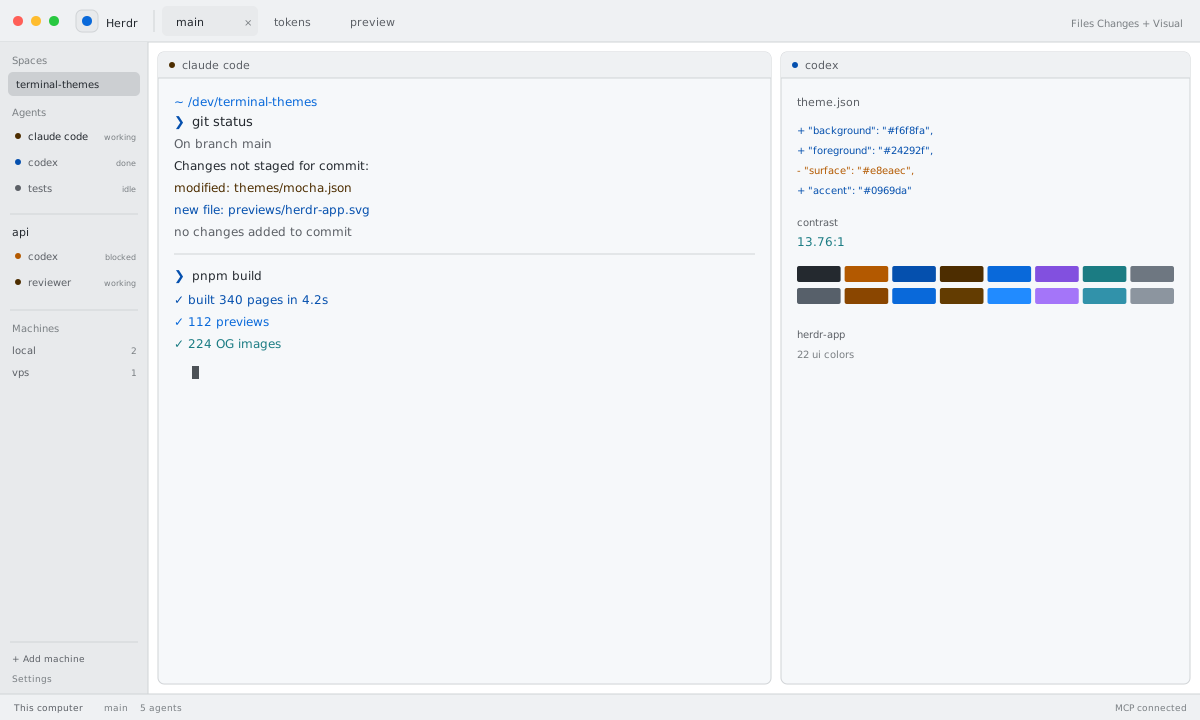
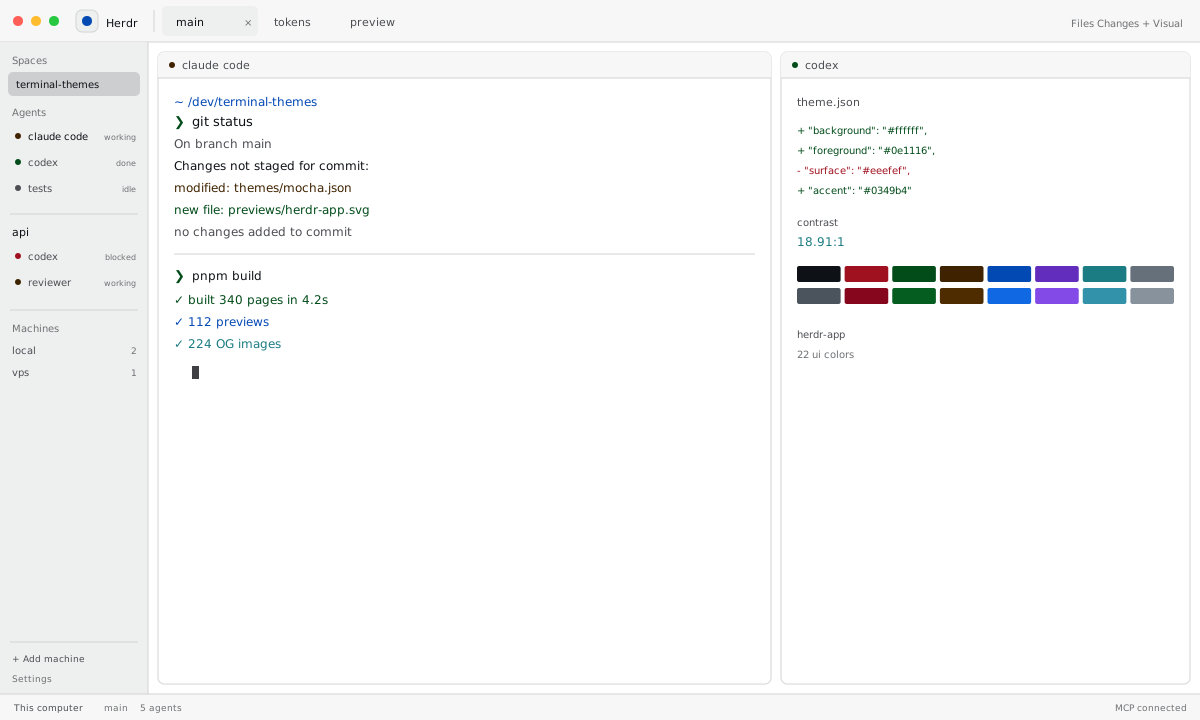
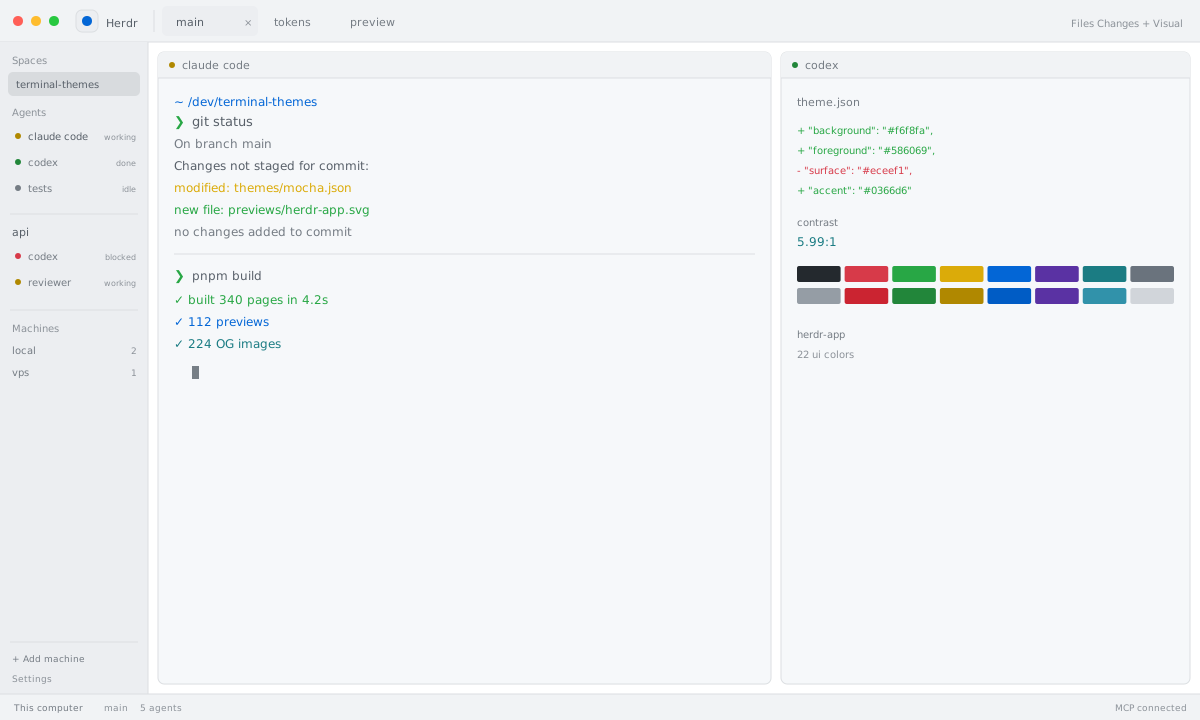
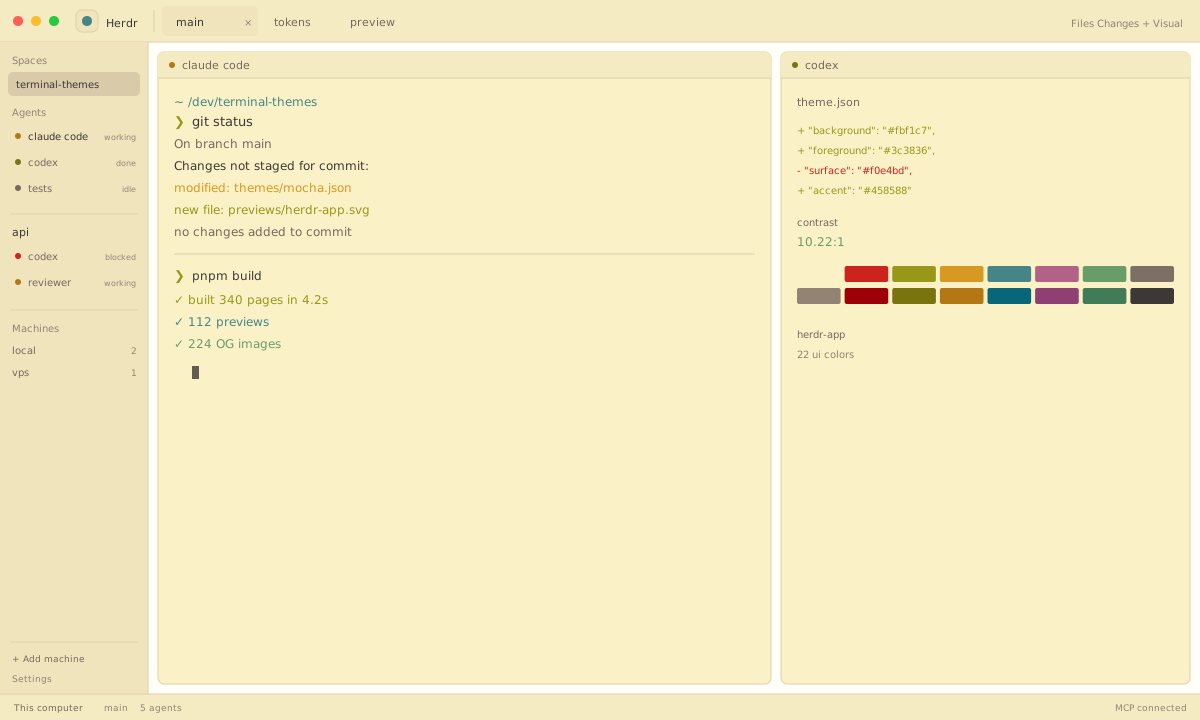
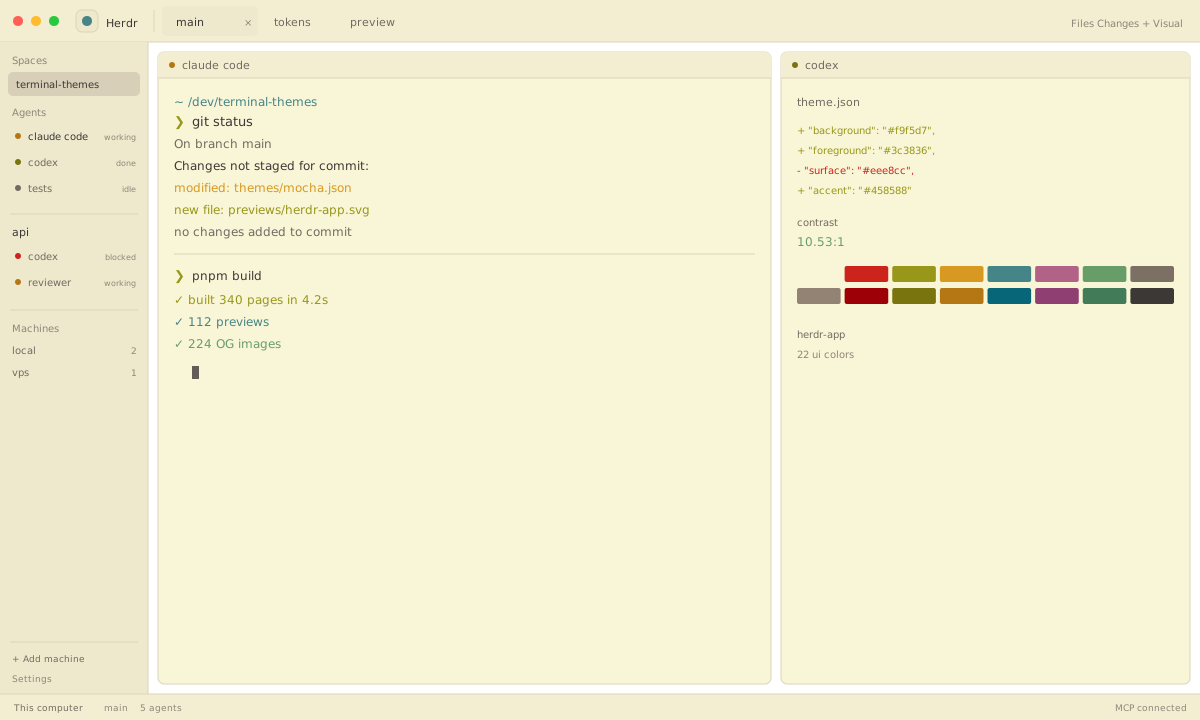
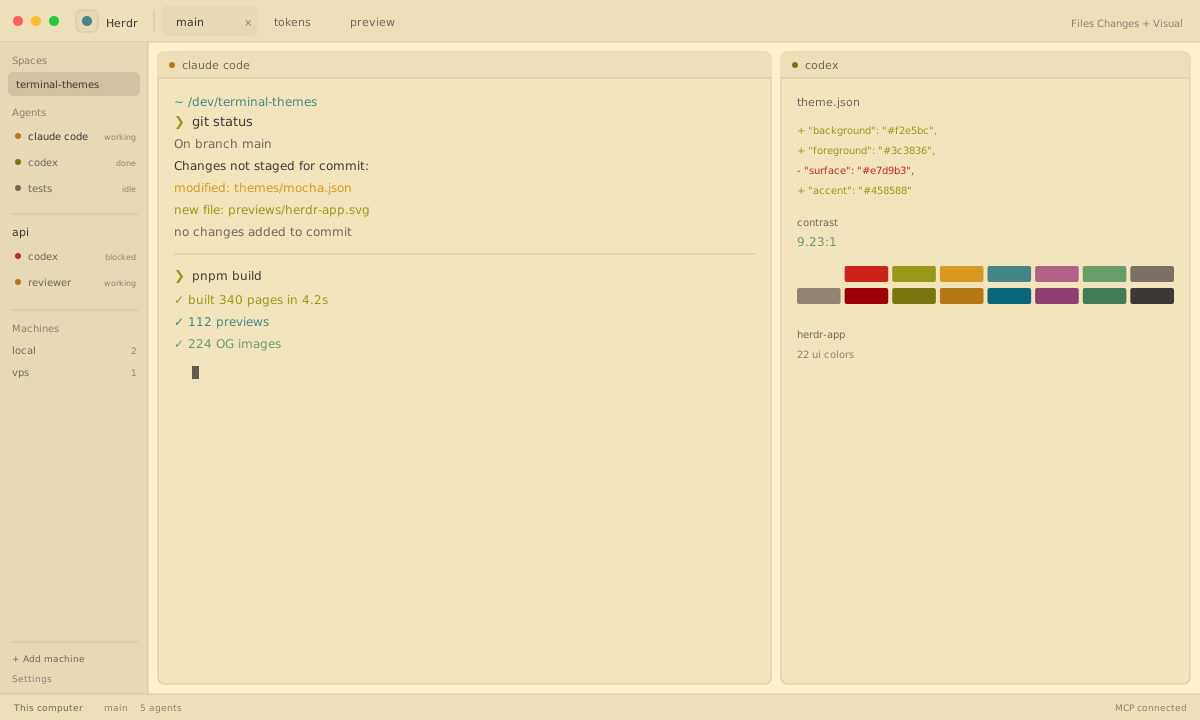
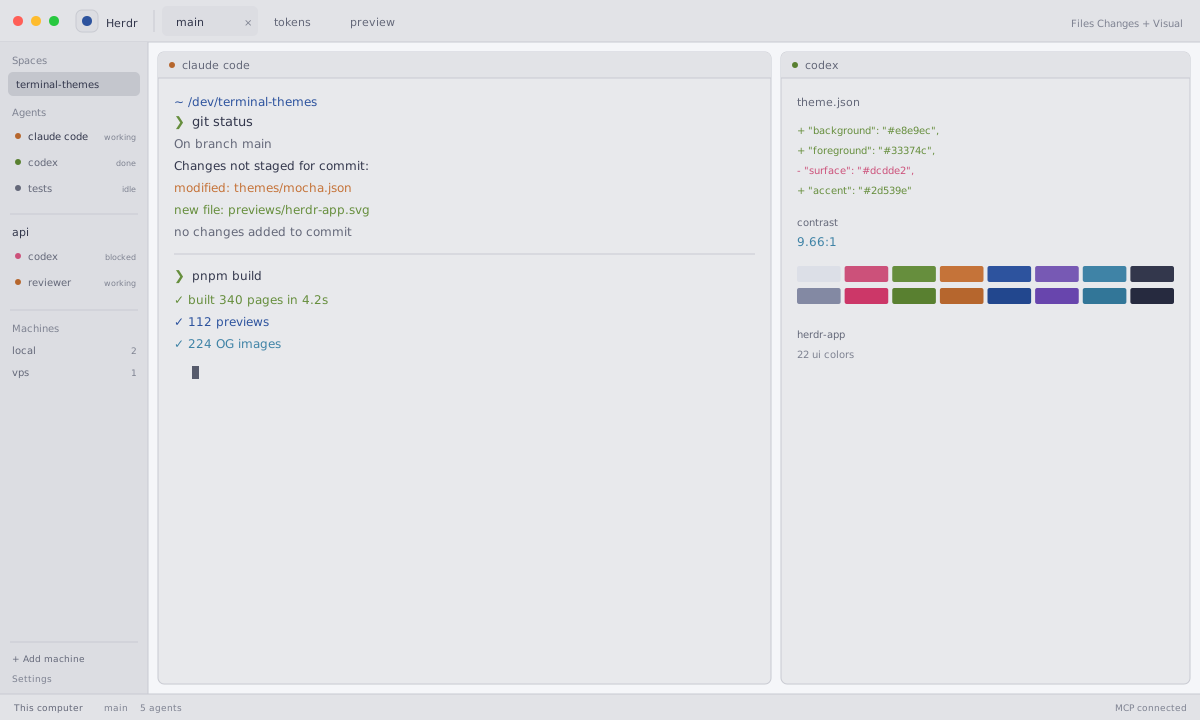
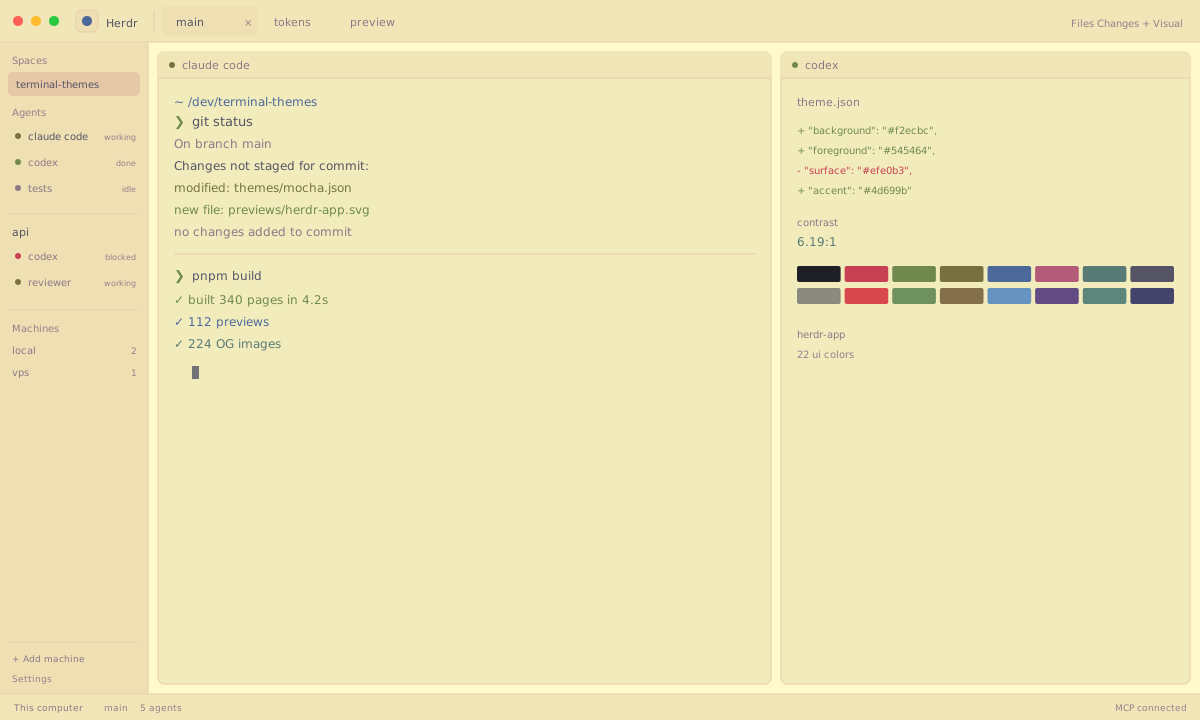
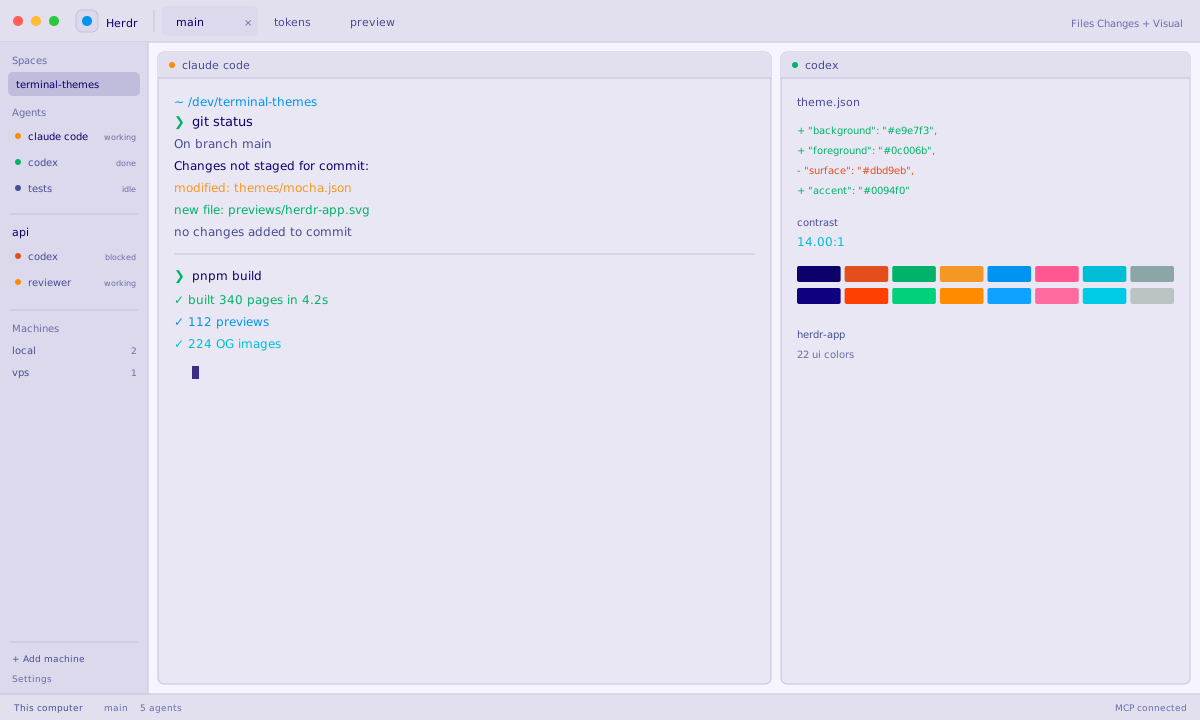
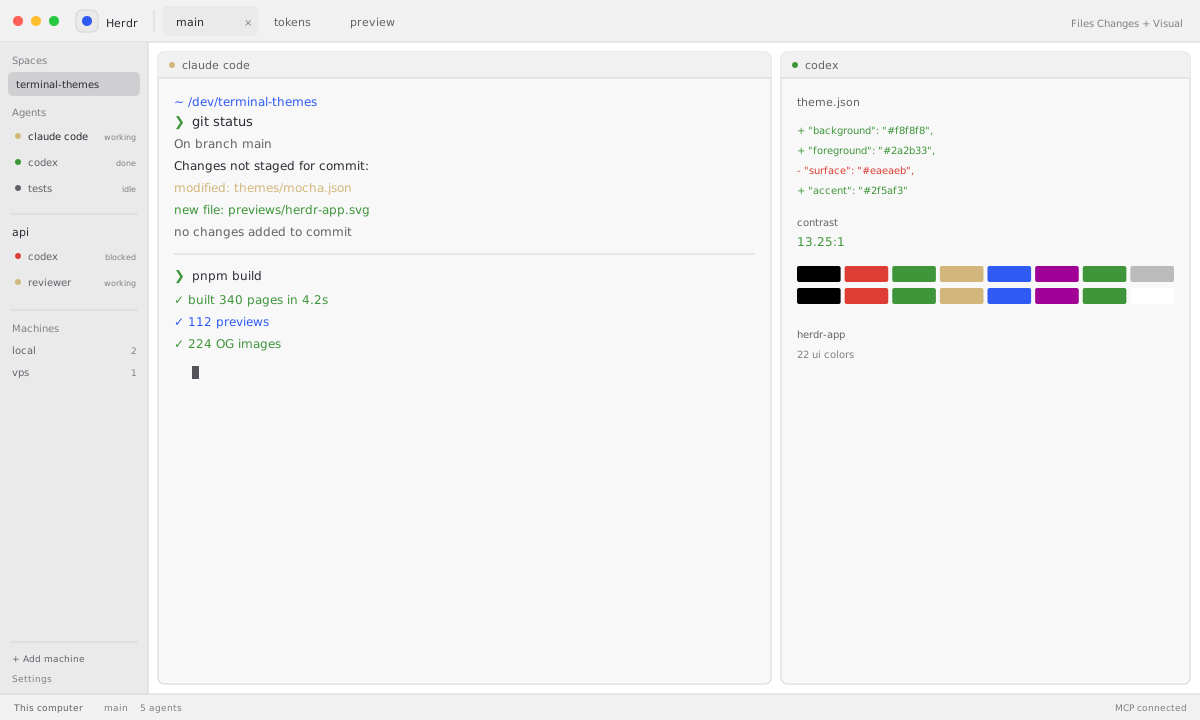
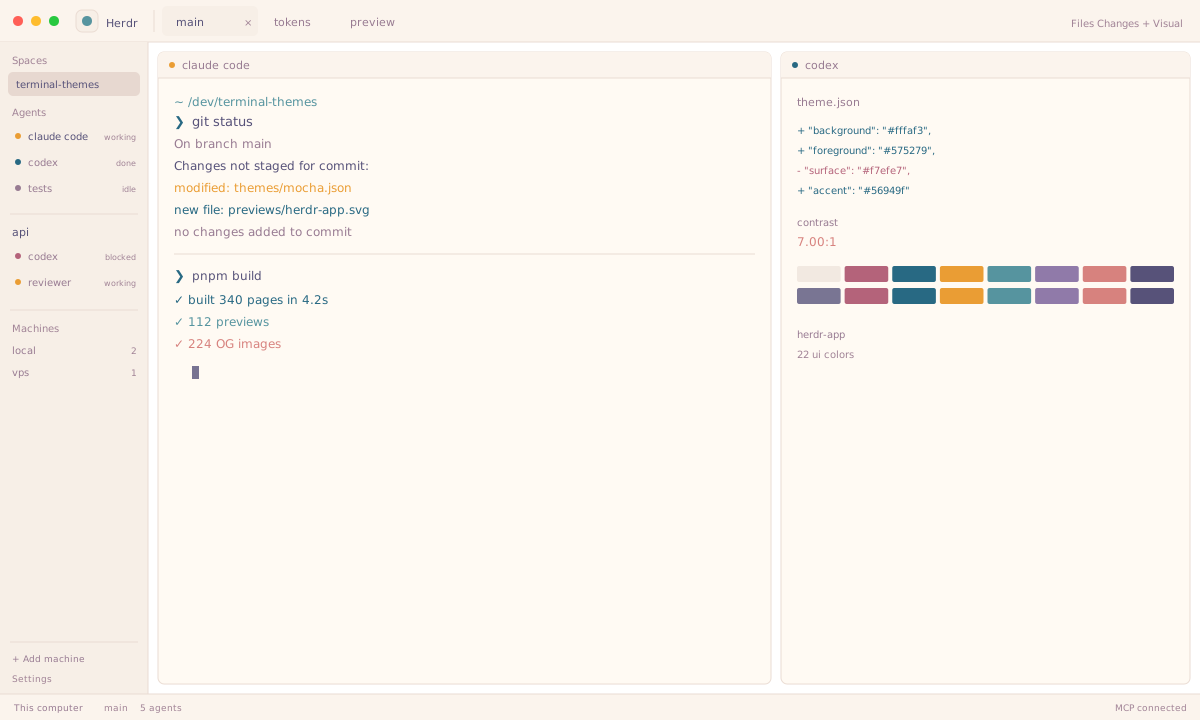
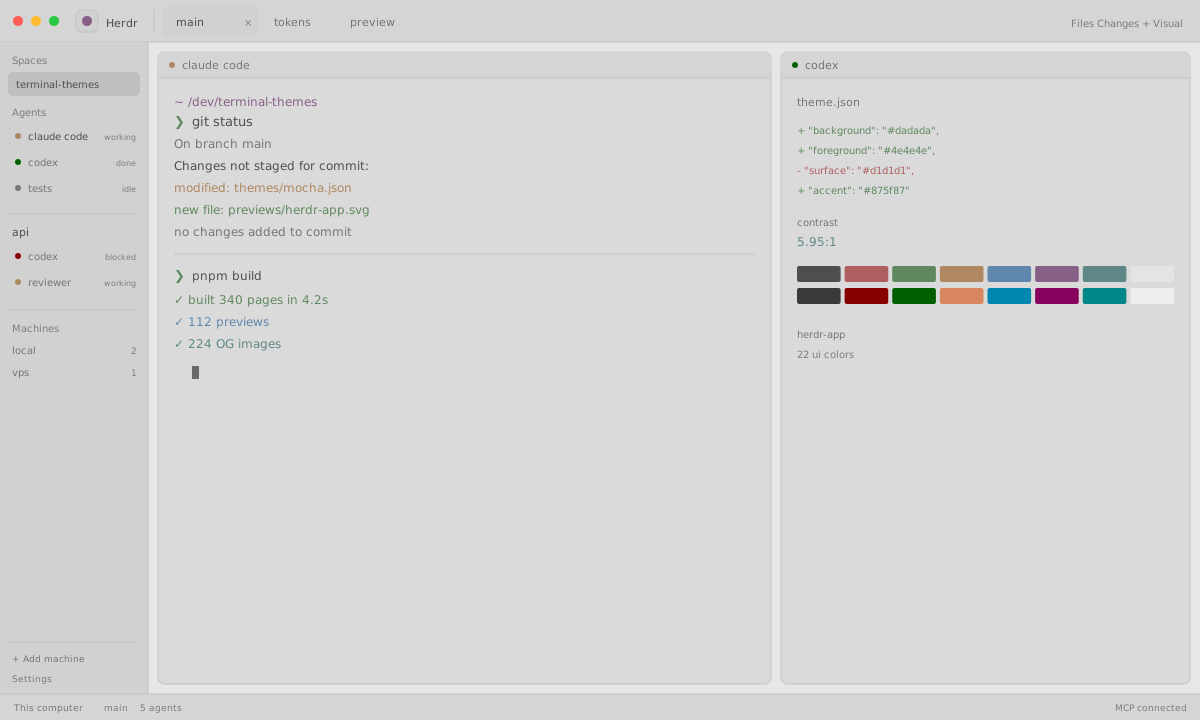
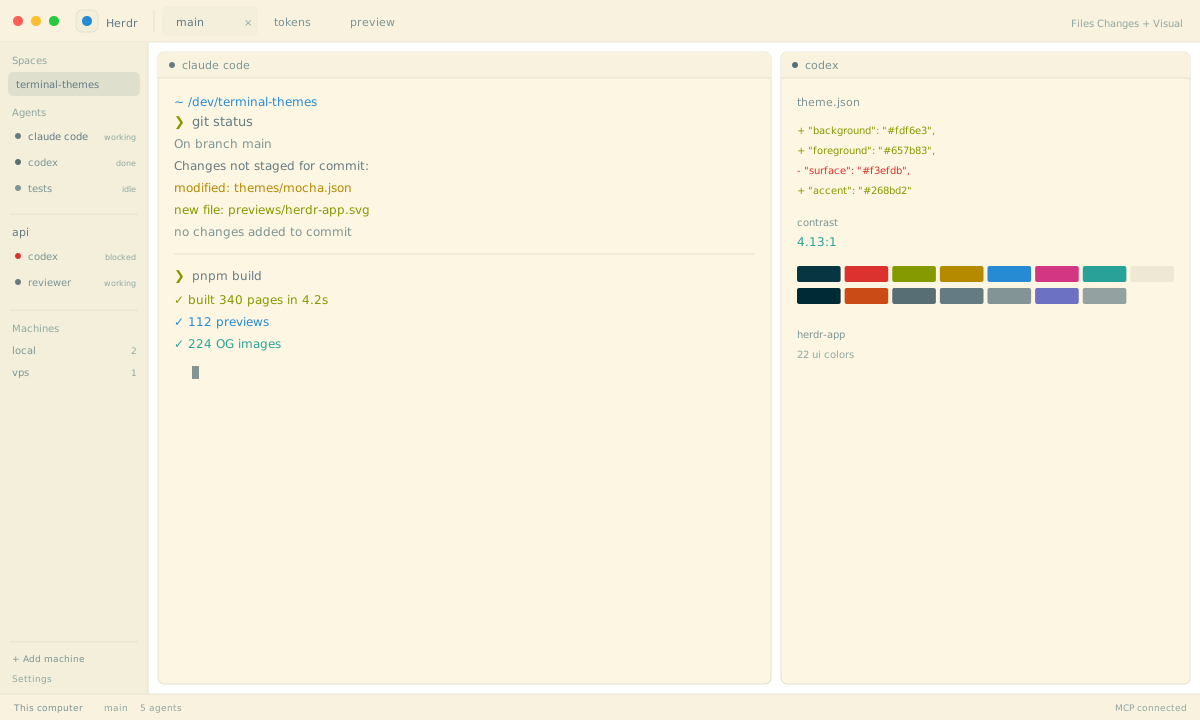
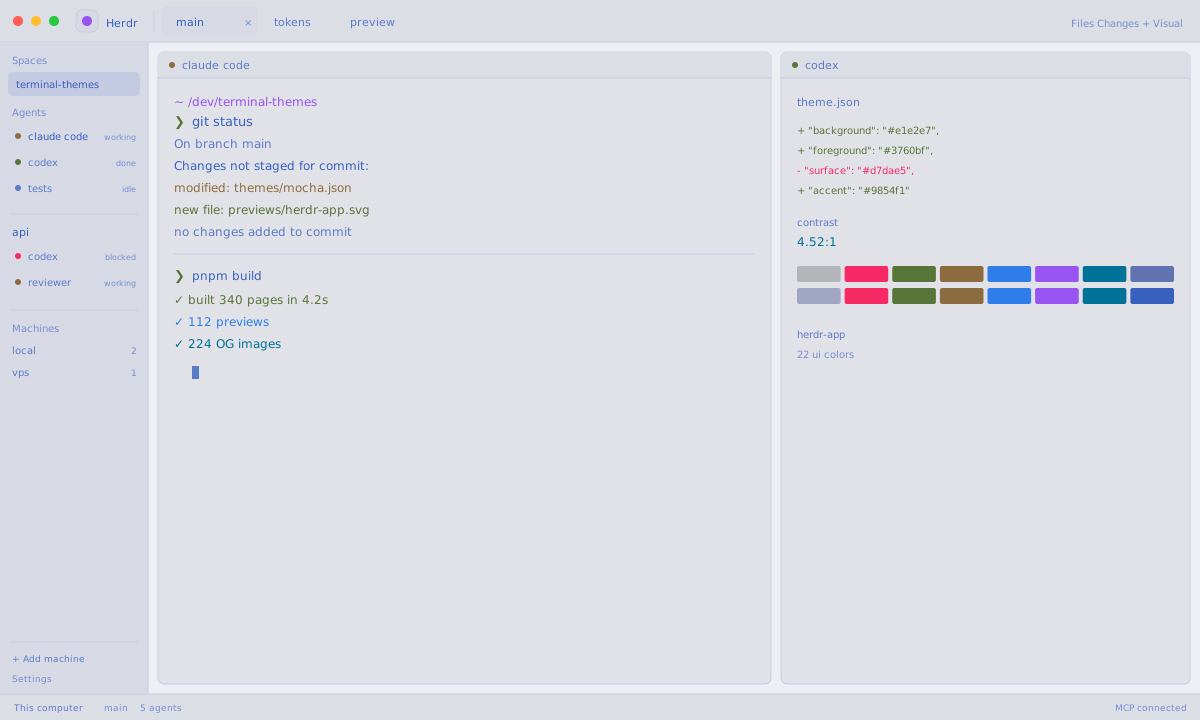
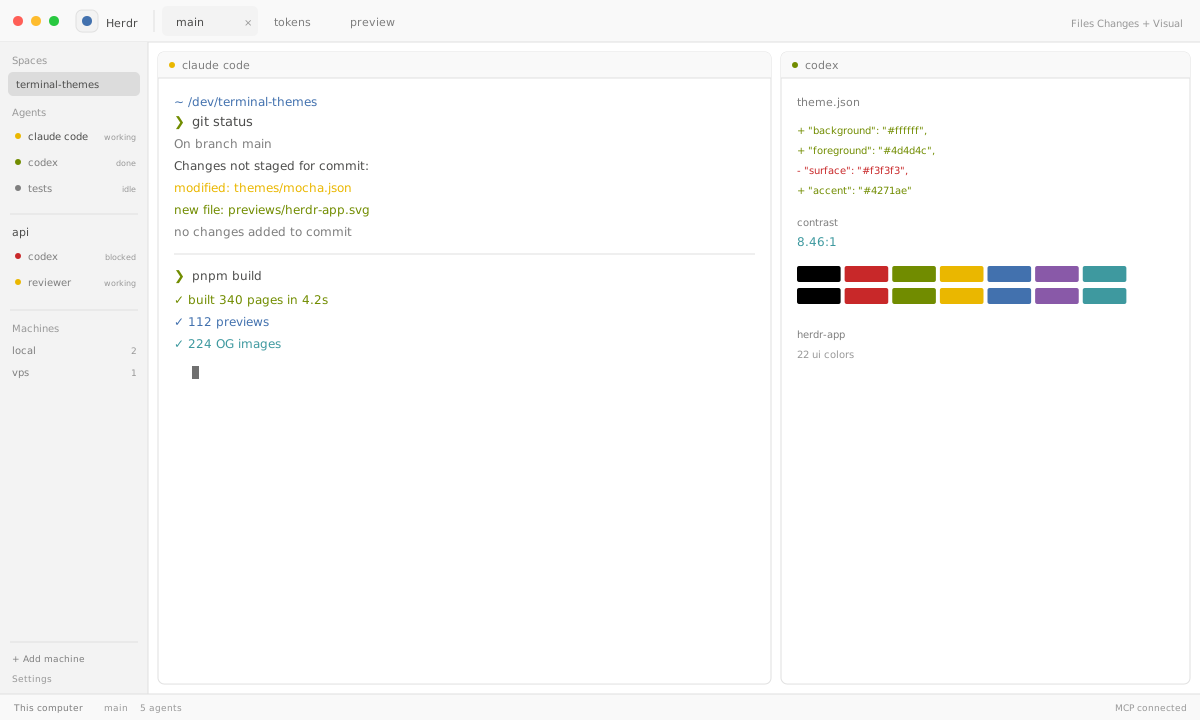
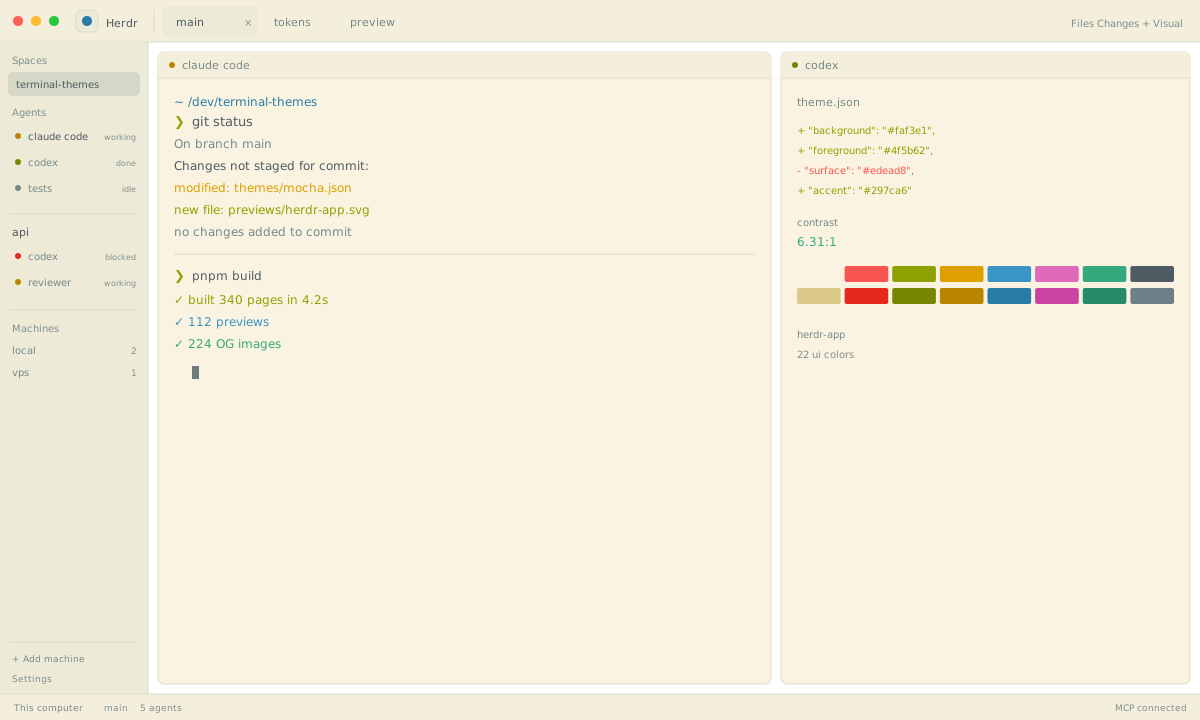
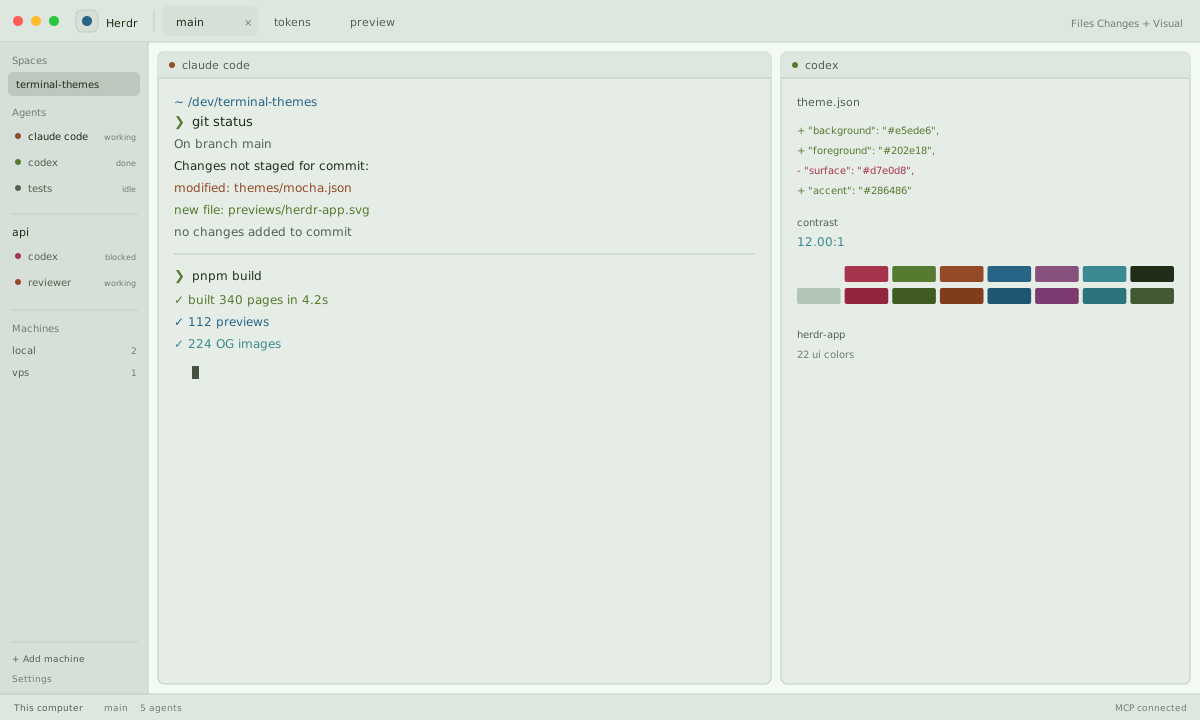
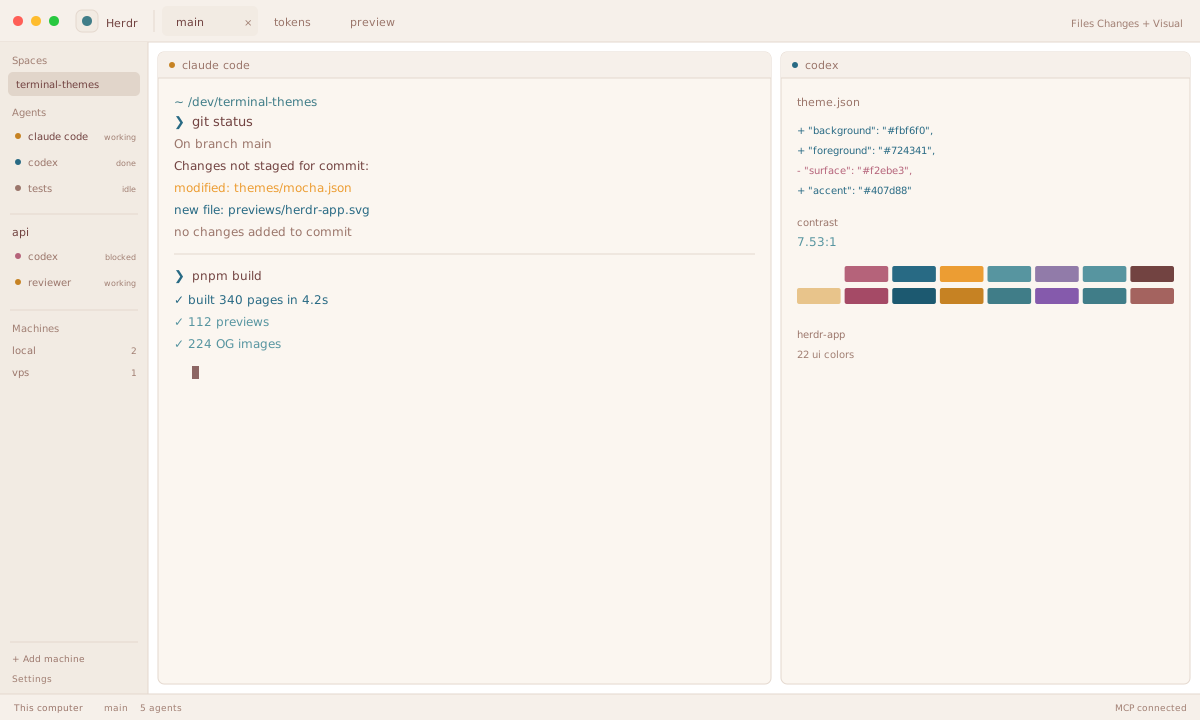
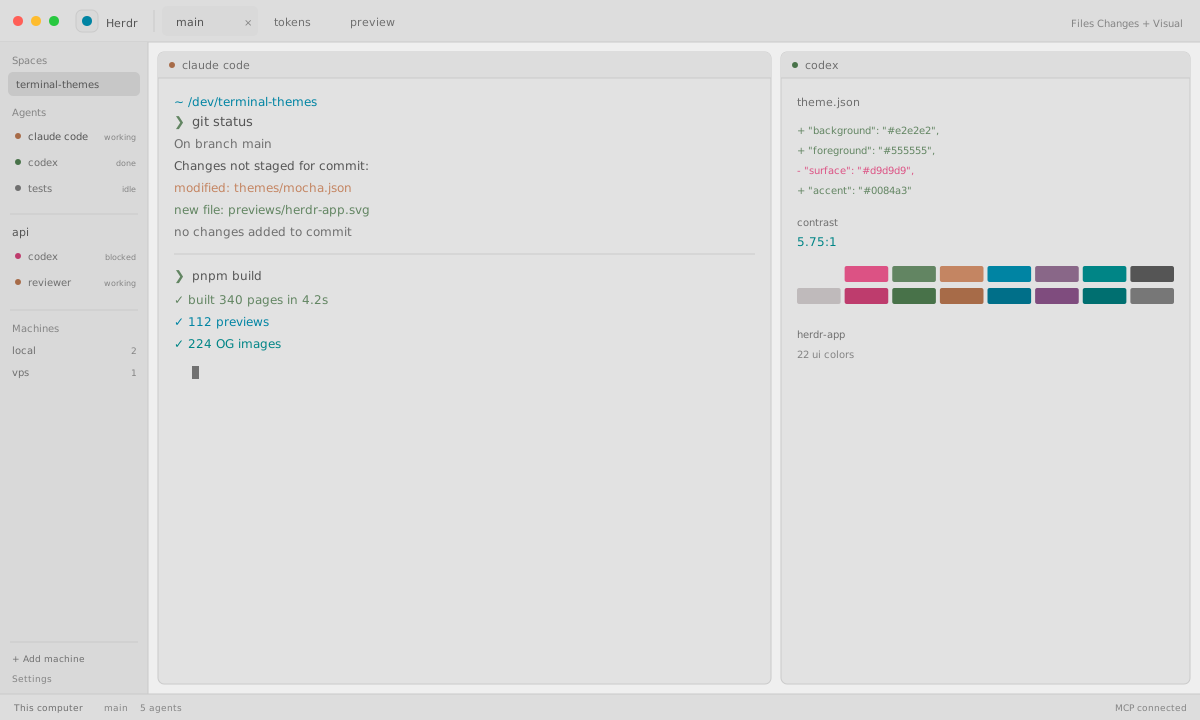
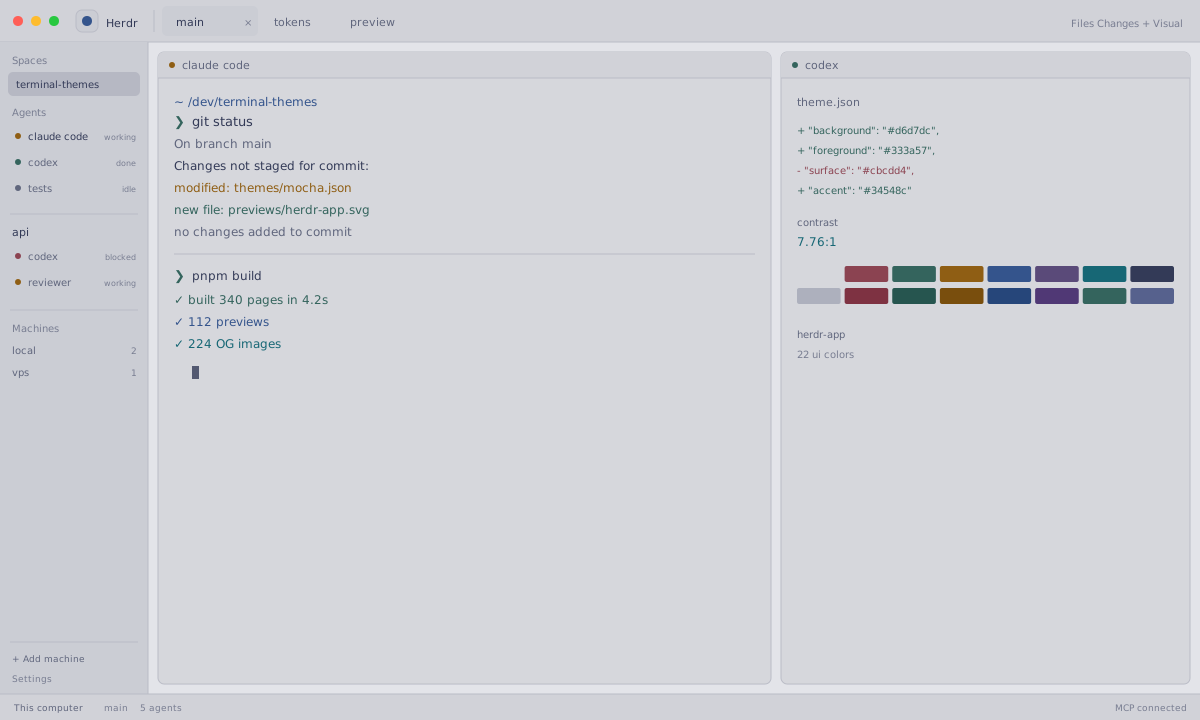
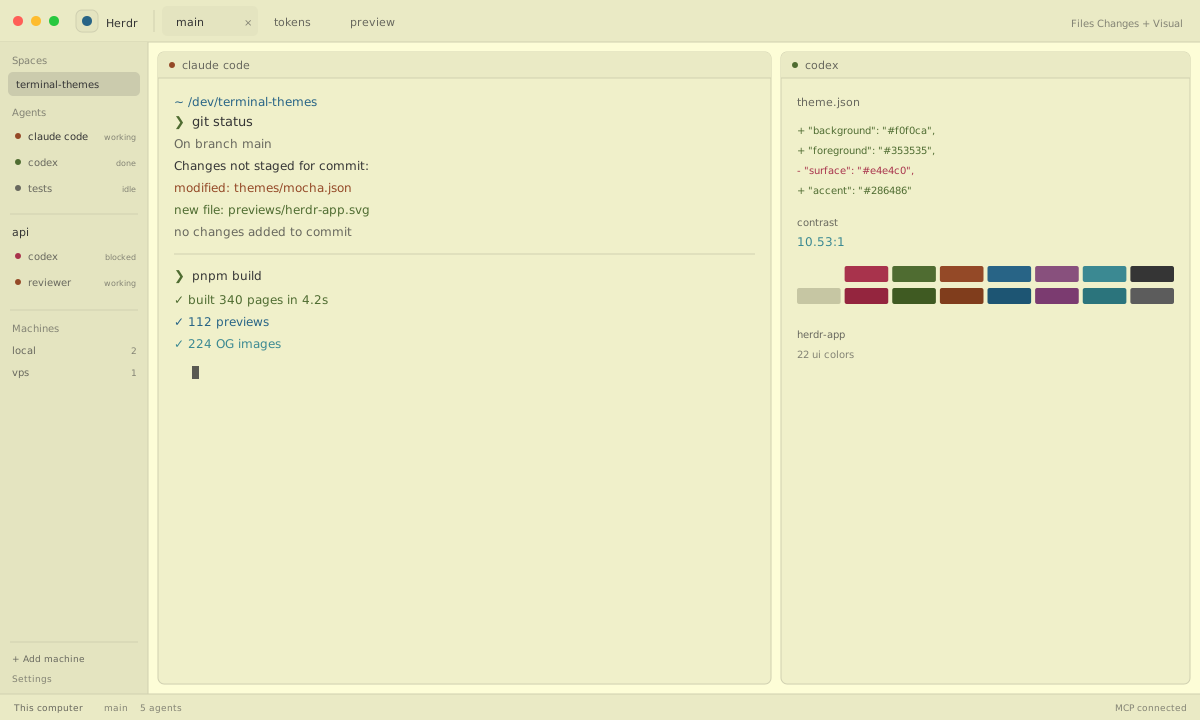
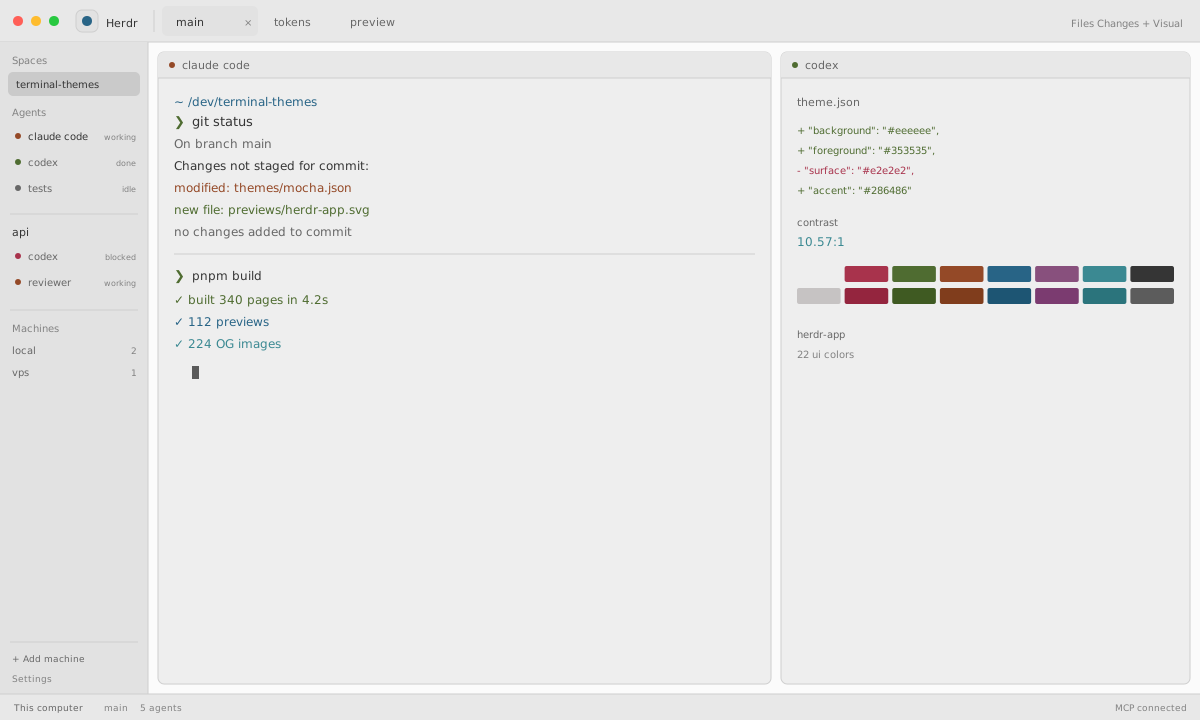
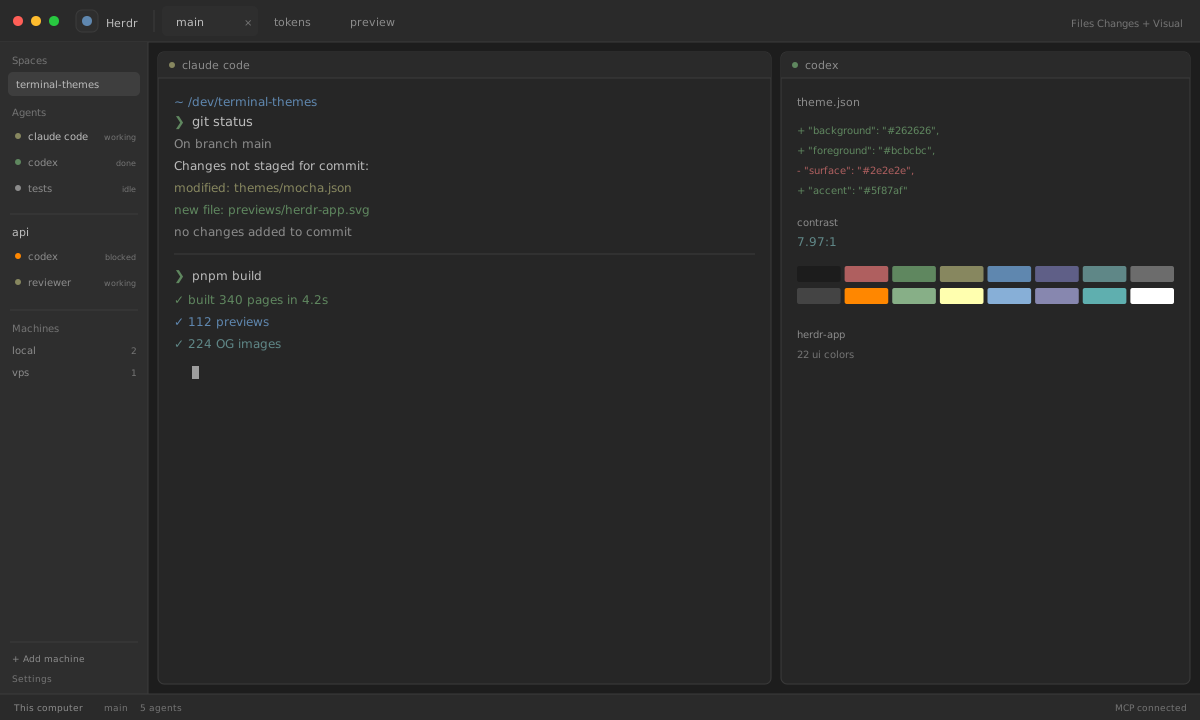
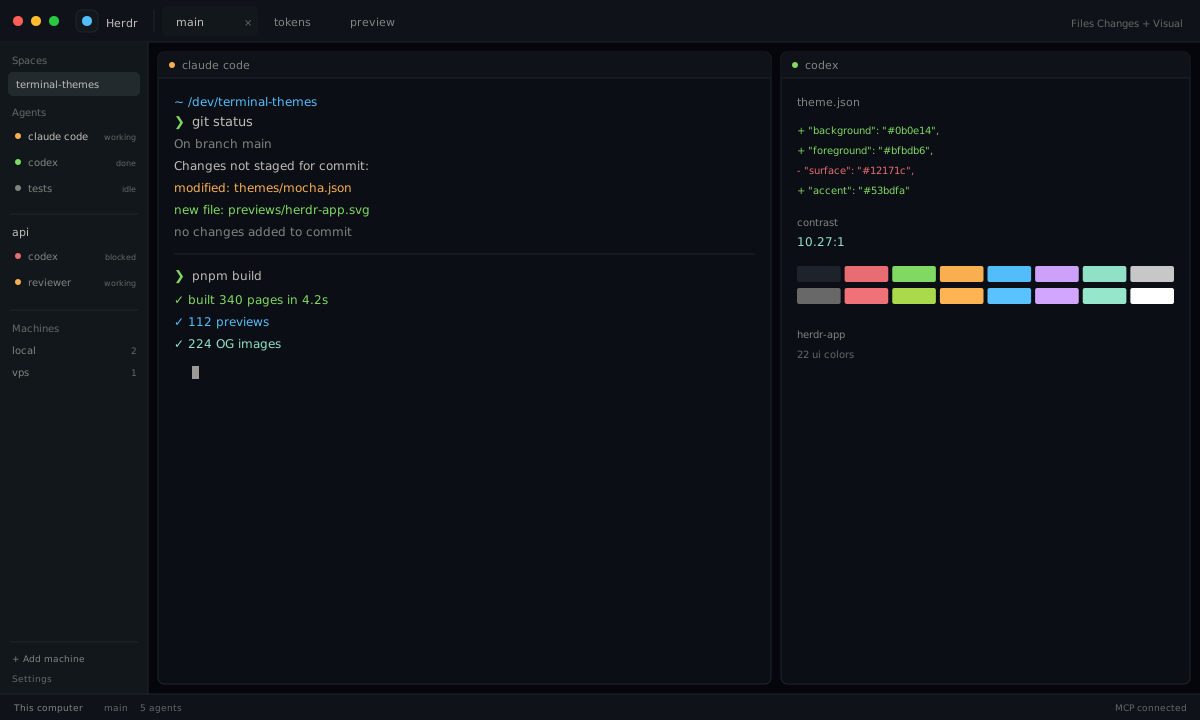
Herdr is a native desktop app for coding agents. Put a JSON theme in ~/.config/herdr-app/themes and pick it in Settings; each file has 16 ANSI + 22 UI colors.

What is a Herdr App theme?

To install a theme in Herdr App, download the theme file and follow the steps below; this page includes 112 ready-to-use palettes.

Each palette sets the background, foreground, cursor, selection, and the 16 ANSI colors used by prompts, Git, and editors. One palette is exported to six terminals, so colors stay consistent when you switch apps.

How does Herdr App load themes?

Download the JSON file. Move it to ~/.config/herdr-app/themes/<name>.json. This site generates the native file from one palette instead of copying an upstream theme file or screenshot.
Install a theme

Install a theme

  1. Download the JSON file.
  2. Move it to ~/.config/herdr-app/themes/<name>.json.
  3. Open Herdr, then choose Settings → Theme and select the file name.
  4. Optional: set the theme in ~/.config/herdr-app/settings.json to make it the light or dark default.
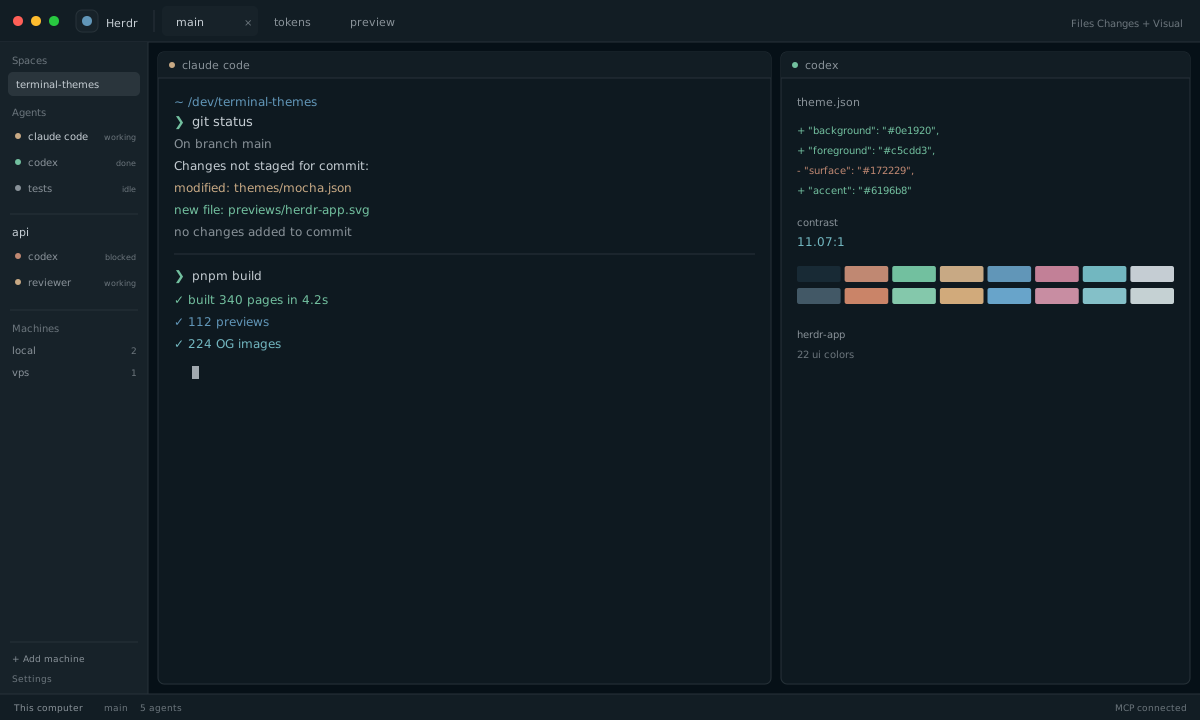
One-line installmkdir -p "$HOME/.config/herdr-app/themes" && curl -fsSL "https://terminalthemes.iwwi.app/ports/herdr-app/catppuccin-mocha.json" -o "$HOME/.config/herdr-app/themes/catppuccin-mocha.json" && { command -v herdr-app >/dev/null && herdr-app do app.theme --name 'catppuccin-mocha' || true; } # If activation did not run, choose catppuccin-mocha in Herdr -> Settings -> Theme.
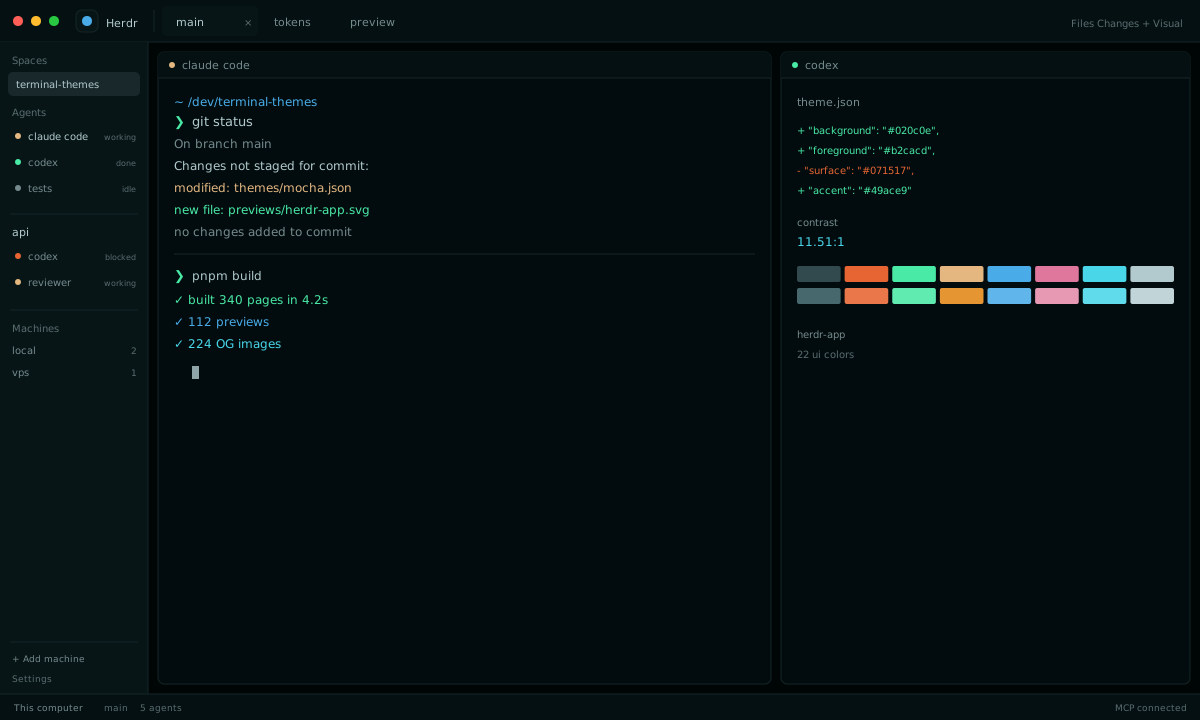
Example: this command installs Catppuccin Mocha. Every terminal theme page has its own command. All themes

Theme tokens

The 22 UI colors

A theme file writes the terminal palette first, then optionally overrides UI colors. Values below are derived from Catppuccin Mocha.

TokenColorHexControls
canvas#151524Window canvas behind the sidebar and panes.
chrome#222333Title bar, tab bar, and status bar.
surface#272738Sidebar and default panel surface.
popover#2b2c3dMenus, pickers, and floating panels.
raised#2e2f41Raised cards and grouped controls.
hover#333446Pointer hover background.
selected#393b4dSelected rows and active list items.
border#36374aPane borders, separators, and dividers.
input#3d3e51Text inputs and editable fields.
foreground#cdd6f4Primary text and icons.
muted#9499b3Secondary labels and metadata.
dim#787c94Disabled text and quiet hints.
accent#89b4faFocus, links, active tab, and highlights.
accent_foreground#000000Text on the accent color.
solid#719bdfSolid accent buttons.
solid_foreground#000000Text on solid accent buttons.
selection#585b70Text selection background.
working#f9e2afAgent working status.
blocked#f38ba8Agent blocked or waiting for input.
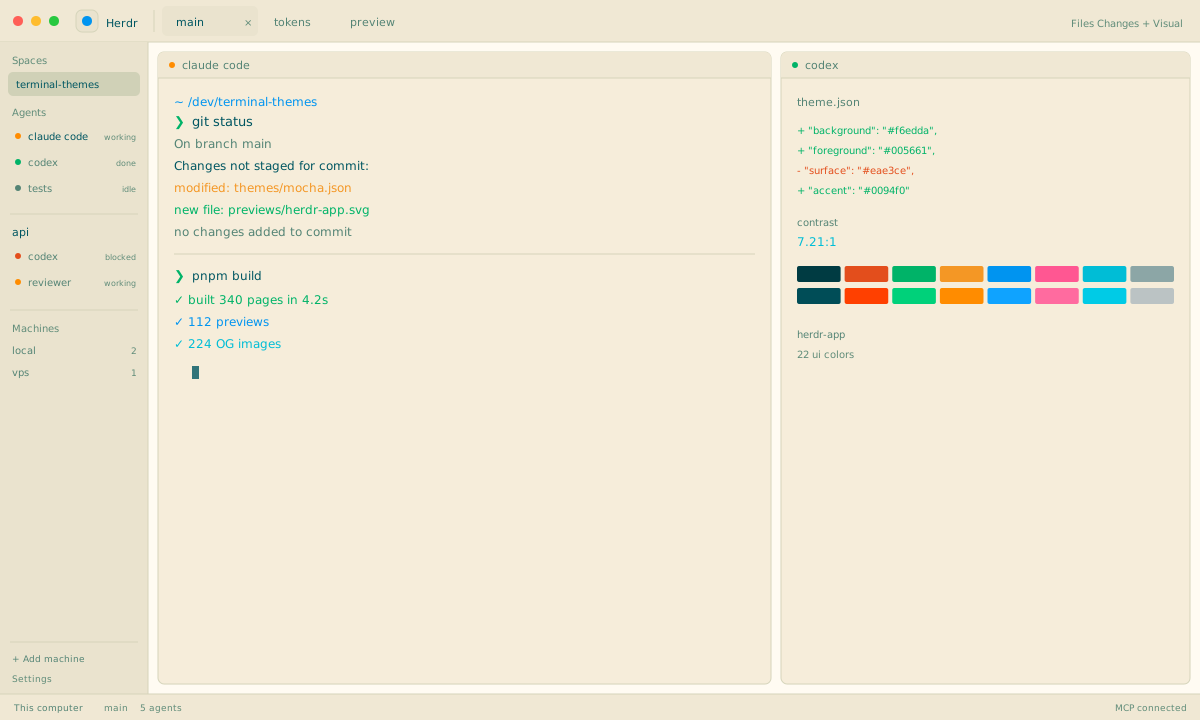
done#a6e3a1Agent finished successfully.
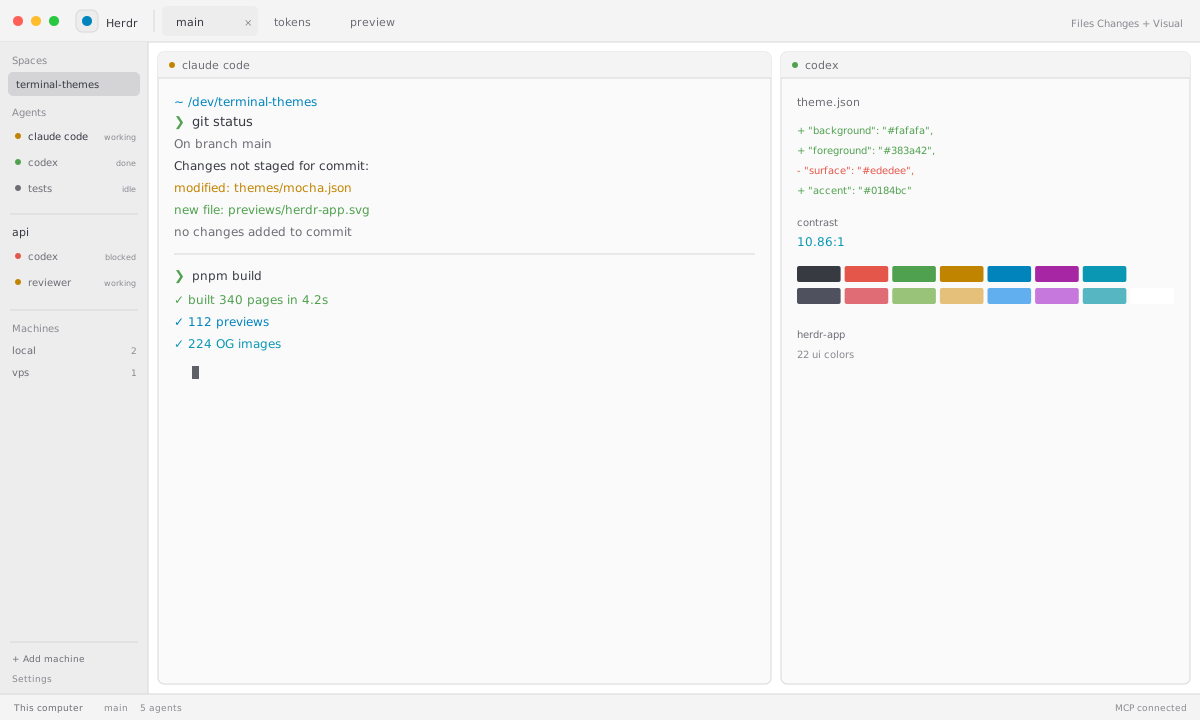
idle#9499b3Agent idle.
unknown#787c94Agent state could not be classified.

FAQ

Frequently asked questions

Where do Herdr App themes go?

Download the JSON file. Move it to ~/.config/herdr-app/themes/<name>.json.

Do I need to restart Herdr App after changing a theme?

Optional: set the theme in ~/.config/herdr-app/settings.json to make it the light or dark default. If the colors do not change, reopen the app or start a new terminal window.

Can I use the same Herdr App theme in another terminal?

Yes. Each palette is stored once and exported natively for Herdr App, Ghostty, Alacritty, Kitty, iTerm2, and Windows Terminal. The 16 ANSI colors stay the same; only the file format changes.

Are these Herdr App themes free to use?

Yes. Site code is MIT-licensed. Each palette keeps its upstream license; the theme page lists the author, source, and license before you download it.

All themes

All themes

Every theme below includes the full 16-color ANSI palette and a native configuration for this app.

Dark · 80

Light · 32