预览
调色板
ANSI
black
red
green
yellow
blue
magenta
cyan
white
b.Black
b.Red
b.Green
b.Yellow
b.Blue
b.Magenta
b.Cyan
b.White
基础颜色
背景
前景
光标
选区
对比度
WCAG · vs #292a2b| Color | Hex | Ratio | Level |
|---|---|---|---|
| 前景 | #cccccc | 8.95:1 | AAA |
| 光标 | #cccccc | 8.95:1 | AAA |
| 选区 | #757575 | 3.12:1 | AA large |
| black | #000000 | 1.46:1 | — |
| red | #ff2c6d | 3.99:1 | AA large |
| green | #19f9d8 | 10.67:1 | AAA |
| yellow | #ffb86c | 8.44:1 | AAA |
| blue | #45a9f9 | 5.68:1 | AA |
| magenta | #ff75b5 | 5.80:1 | AA |
| cyan | #b084eb | 5.03:1 | AA |
| white | #cdcdcd | 9.05:1 | AAA |
| brightBlack | #757575 | 3.12:1 | AA large |
| brightRed | #ff2c6d | 3.99:1 | AA large |
| brightGreen | #19f9d8 | 10.67:1 | AAA |
| brightYellow | #ffcc95 | 9.81:1 | AAA |
| brightBlue | #6fc1ff | 7.36:1 | AAA |
| brightMagenta | #ff9ac1 | 7.29:1 | AAA |
| brightCyan | #bcaafe | 7.07:1 | AAA |
| brightWhite | #e6e6e6 | 11.52:1 | AAA |
安装到 Ghostty
官方文档- 把文件保存到 ~/.config/ghostty/themes/<name>。
- 在 ~/.config/ghostty/config 中加入 theme = <name>。
- 重新加载 Ghostty 或打开新窗口。
一行安装panda-default.conf
mkdir -p "$HOME/.config/ghostty/themes" && curl -fsSL "https://terminalthemes.iwwi.app/ports/ghostty/panda-default.conf" -o "$HOME/.config/ghostty/themes/panda-default" && { grep -qxF 'theme = panda-default' "$HOME/.config/ghostty/config" 2>/dev/null || printf '\ntheme = %s\n' 'panda-default' >> "$HOME/.config/ghostty/config"; }
# Open a new Ghostty window.完整配置文件
background = #292a2b
foreground = #cccccc
cursor-color = #cccccc
cursor-text = #292a2b
selection-background = #757575
selection-foreground = #ffffff

palette = 0=#000000
palette = 1=#ff2c6d
palette = 2=#19f9d8
palette = 3=#ffb86c
palette = 4=#45a9f9
palette = 5=#ff75b5
palette = 6=#b084eb
palette = 7=#cdcdcd
palette = 8=#757575
palette = 9=#ff2c6d
palette = 10=#19f9d8
palette = 11=#ffcc95
palette = 12=#6fc1ff
palette = 13=#ff9ac1
palette = 14=#bcaafe
palette = 15=#e6e6e6
下载panda-default.conf
让 Agent 帮我安装
把这段提示词交给编码 Agent。它会读取 Ghostty 的安装页面、备份配置并只修改这个主题需要的文件。
帮我在这台机器上安装 Panda Default 的 Ghostty 主题。

先阅读安装页面:https://terminalthemes.iwwi.app/zh/ghostty/themes/panda/default/
原生配置文件:https://terminalthemes.iwwi.app/ports/ghostty/panda-default.conf

请按以下步骤操作:
1. 把文件保存到 ~/.config/ghostty/themes/<name>。
2. 在 ~/.config/ghostty/config 中加入 theme = <name>。
3. 重新加载 Ghostty 或打开新窗口。

一行安装命令:
mkdir -p "$HOME/.config/ghostty/themes" && curl -fsSL "https://terminalthemes.iwwi.app/ports/ghostty/panda-default.conf" -o "$HOME/.config/ghostty/themes/panda-default" && { grep -qxF 'theme = panda-default' "$HOME/.config/ghostty/config" 2>/dev/null || printf '\ntheme = %s\n' 'panda-default' >> "$HOME/.config/ghostty/config"; }
# Open a new Ghostty window.

请先检查并备份现有配置,只修改这个主题需要的设置,不要覆盖无关配置;如果要修改默认主题,先询问我。安装后验证文件存在并告诉我改了哪些文件。FAQ
常见问题
Panda Default 的 Ghostty 主题文件放在哪里?
把文件保存到 ~/.config/ghostty/themes/<name>。 在 ~/.config/ghostty/config 中加入 theme = <name>。
如何在 Ghostty 中安装 Panda Default?
下载本站生成的 Panda Default configuration file,按页面中的一行安装命令放入 Ghostty 的配置位置;完成后重新加载 Ghostty 或打开新窗口。
Panda Default 在 Ghostty 中会改变颜色吗?
不会。它使用背景 #292a2b、前景 #cccccc 和完整的 16 色 ANSI 调色板,正文对比度为 9.0:1;只改变 Ghostty 需要的文件格式。
Panda Default 还能用于其他终端吗?
可以。同一份调色板可以导出到 Herdr App、Ghostty、Alacritty、Kitty、iTerm2 和 Windows Terminal;每个版本只改变安装路径和文件格式。
相似主题
相似主题
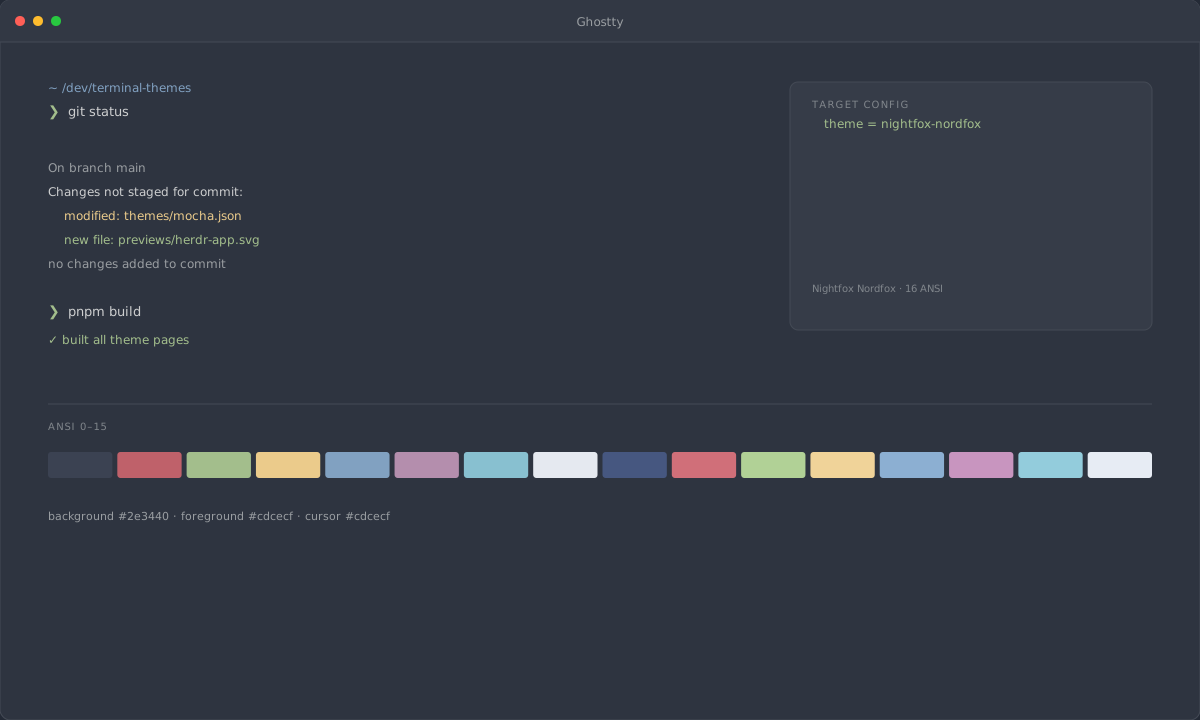
ΔE00 12.9
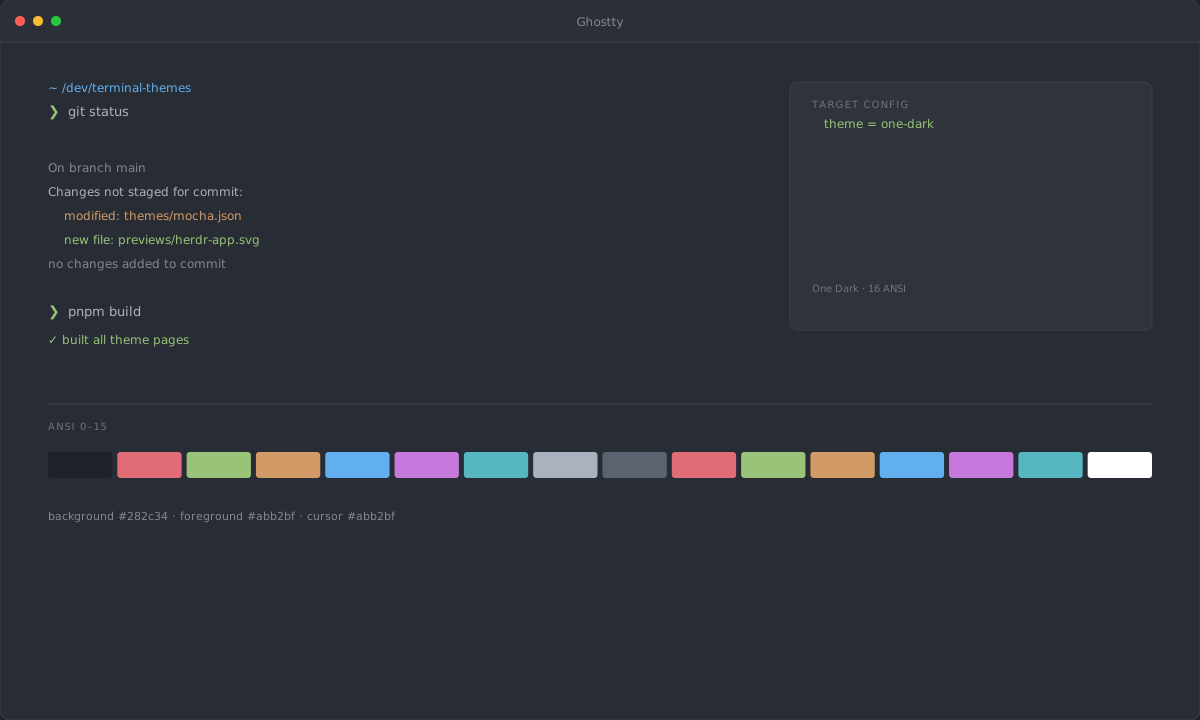
ΔE00 13.1
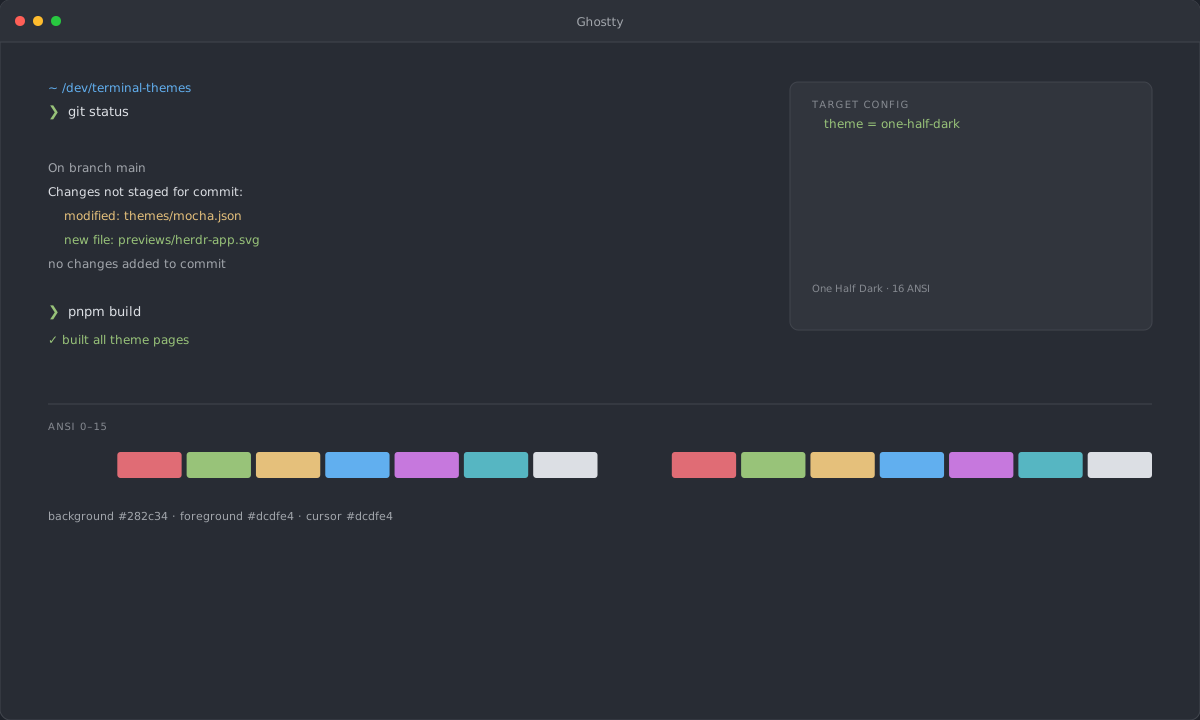
ΔE00 13.2
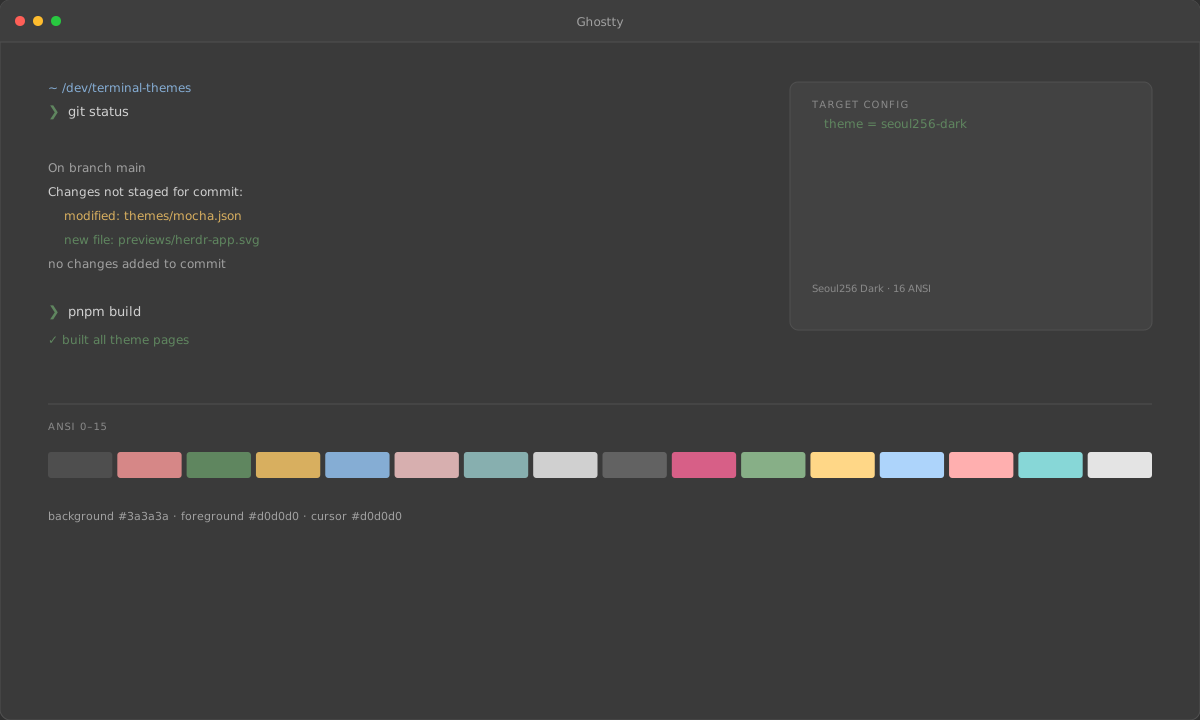
ΔE00 13.2